How to Automate TikTok Slideshows With AI (Full Guide)
I automate TikTok slideshows end to end with a reference image, AI scenes, auto music, and Blotato publishing. Same build in Make and n8n.
I figured out how to automate TikTok slideshows with AI scenes, a reference image that locks the subject across every slide, and TikTok’s trending music applied automatically at publish time. Same build runs in Make.com and n8n, and the post step hands off to Blotato so I never touch the TikTok app. If your pipeline runs through Claude instead, posting to TikTok from Claude is the same publish step over MCP.
The fast version: I drop in one UGC image (a dog, a product, a person), set a topic and a slide count, and the workflow generates the rest of the scenes, writes the caption and title, then posts to TikTok with auto music. I built this with Kevin Farrugia, an AI automation consultant from Malta who specializes in no-code stacks like this.
Most guides for this keyword either teach you native TikTok (no automation) or pitch a closed SaaS slideshow farm. This post gives you the actual blueprint, both platforms, and the parts that still trip people up.
How to Automate TikTok Slideshows (Video Guide)
If you’d rather watch the full walkthrough, this is the video version with Kevin. The written guide below covers the same build with extra detail on the reference-image trick, the music-sync limits, and the n8n vs Make tradeoff.
Why Most TikTok Slideshow Workflows Fall Apart
The pain isn’t making one slideshow. It’s making the tenth one. Native TikTok makes you upload photos, pick music, write a caption, and time the post. That’s fine for a hobby account. For a product, a pet brand, a UGC offer, or any account that needs daily slideshows, the manual loop kills you in about a week.
The other failure mode is consistency. If you generate scenes with a generic image model and a text prompt, your dog (or product, or face) looks slightly different in every slide. The viewer feels the inconsistency even if they can’t name it, and the slideshow stops converting. The whole reason this build works is the reference image: every slide is generated by an image-edit model that preserves the subject’s appearance from the source photo automatically.
My Tool Stack for Automating TikTok Slideshows
The full build uses four tools, and you only edit one node to swap from Make to n8n.
- Make.com or n8n for the workflow (Make, n8n)
- OpenAI for the scene prompts, caption, and on-image title (OpenAI Platform)
- Replicate running Google’s Nano Banana image-edit model, called once per slide
- Blotato to publish the slideshow to TikTok with auto music
Blotato is my company, so that hand-off is a recommendation of my own software. The TikTok slideshow publishing endpoint is the part of this whole build that breaks most often when people try to wire it up themselves, which is why every workflow here hands the publish step (and the auto-music toggle) to Blotato. If you want to test the full stack on your own TikTok account, start a free 7-day Blotato trial, connect TikTok, and run your first AI slideshow end to end. The trial covers the publishing endpoint, but the API access the Make and n8n flows need is a paid-plan feature: generating an API key in Settings ends the free trial and activates your paid Starter plan.
Make vs n8n vs SaaS Slideshow Tools
The SERP for this keyword is split between SaaS slideshow farms (SlideStorm, ClipCat, SlideFarm) and “use TikTok native” tutorials. Here’s how the AI-pipeline build compares to both.
| Approach | Reference image control | Music | Cost | Ceiling | You own the stack |
|---|---|---|---|---|---|
| AI pipeline (Make or n8n + Blotato) | Yes, locks the subject every slide | Auto-music at publish, or post as draft and pick a trending sound | ~$0.05-$0.20 per slideshow in API credits + Blotato + Make/n8n | Effectively unlimited, scales per account | Yes |
| SaaS slideshow farms | No, you pick from stock or upload | Built-in templates | $30-$200/mo fixed | Capped by SaaS quotas | No |
| Native TikTok app | You upload every photo manually | Manual pick | $0 | One at a time | N/A |
If you only need one or two slideshows a week, native TikTok is fine. If you want a SaaS dashboard with no setup, the slideshow farms work. If you want a stack you control, generate AI scenes against a real reference image, and run it across multiple accounts or brands, the pipeline below is what you want. (If you’ve already built the Instagram Stories automation or Instagram Carousels automation, this is the same pattern with the publishing node swapped to TikTok. To generate the videos themselves from inside Claude Code, see how I make AI videos with Claude Code for free.)
How to Automate TikTok Slideshows (Step-by-Step)
The build is five steps. Set the inputs, generate the scene prompts, render the images, swap to n8n if you want, then publish to TikTok with auto music.
Step 1: Set Up the Three Inputs
The first module in Make (the “Edit Here” node) and the matching node in n8n hold three variables: imageURL, topic, and numberOfSlides. That’s the entire interface for the workflow.
imageURL is a publicly viewable link to your reference image (a Google Drive image set to “anyone with the link” works). topic is what the slideshow is about, written like a sentence: “dog food UGC promoting a beef-flavored kibble” beats “dog food.” The more context you give the topic field, the better the prompts that come out of the next stage. numberOfSlides is the count of generated slides, not counting the reference image itself.
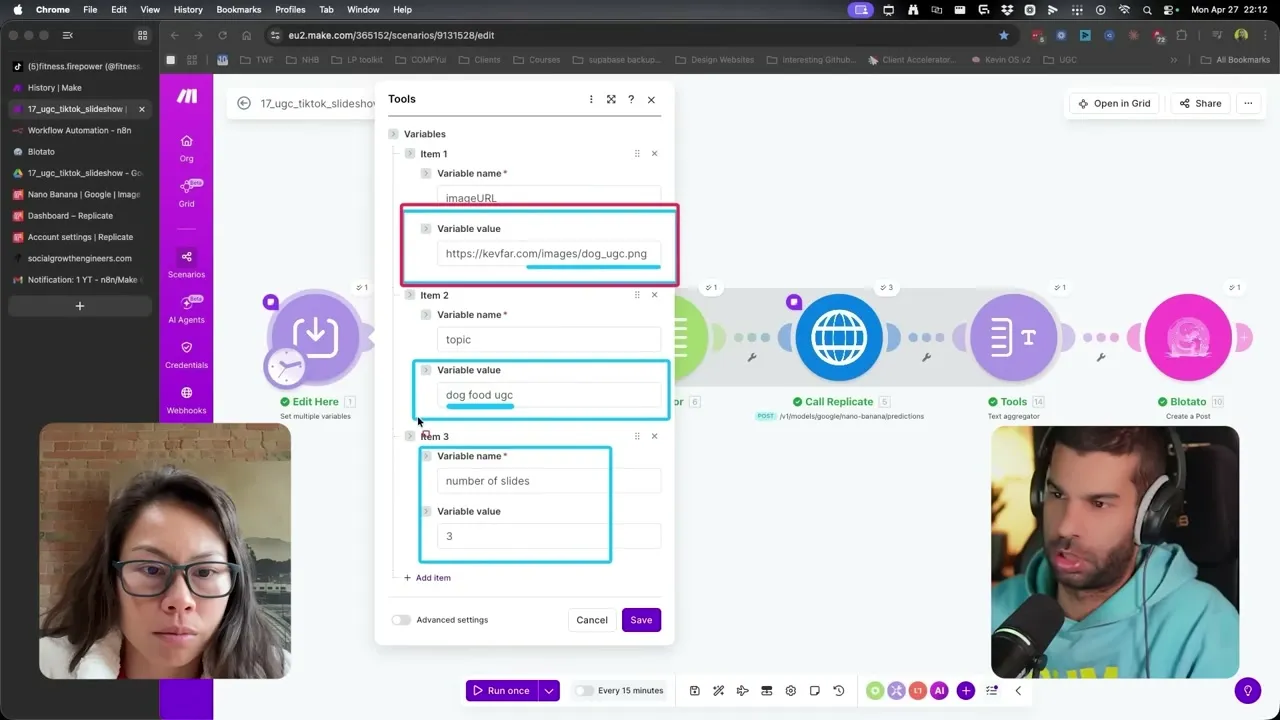
One thing worth knowing: the first image (your reference) gets prepended to the final slideshow automatically. So if you set numberOfSlides to 3, the published slideshow has 4 images: your reference plus 3 generated scenes.
Step 2: Generate the Scene Prompts With OpenAI
The second module is an OpenAI call with a system prompt I wrote that does three jobs at once: it generates a JSON array of scene prompts for each slide, writes the TikTok caption (1-2 sentences with a hook, 5 lowercase hashtags, under 200 characters), and writes the on-image title that overlays the first slide.
The system prompt also tells the model NOT to describe the subject. The image-edit model preserves the subject from the reference automatically, so adding “golden retriever” to every scene prompt actually hurts consistency. The system prompt is already wired in the template, so you don’t have to write it.
If you want to bend the workflow for your business, this prompt is the lever. Want a punchier caption style? Want hashtags swapped for emojis, or a by-niche set to feed the prompt? Want a different hook structure on slide 1? Edit this one prompt and the entire pipeline shifts.
Step 3: Generate the Scenes With Replicate + Nano Banana
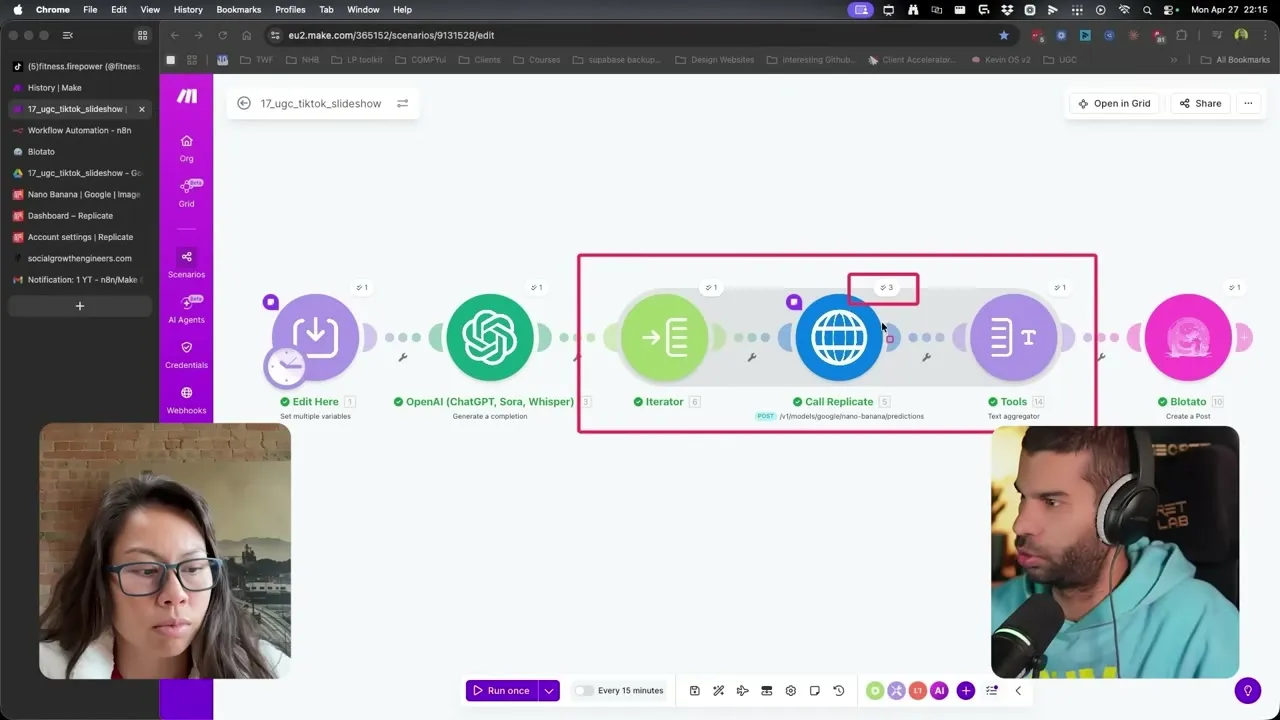
The third stage is an iterator that calls Replicate once per slide. I’m running Google’s Nano Banana through Replicate because it accepts a reference image AND a text prompt, then edits the subject into the new scene while keeping it visually consistent.
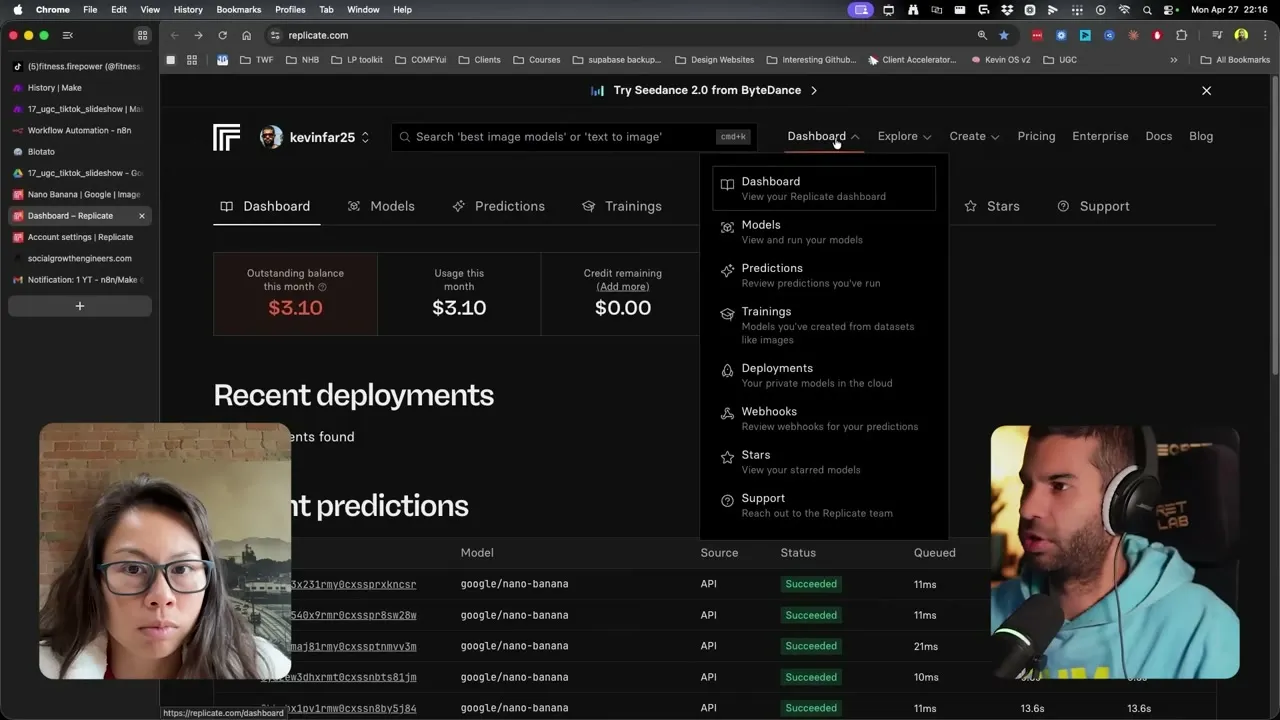
Replicate runs on pay-per-usage, which is the right pricing model for this kind of workflow. If you don’t post a slideshow this week, you pay $0. Each Nano Banana generation runs roughly 1-3 cents at the time of writing. You can see your per-image cost on the Replicate dashboard.
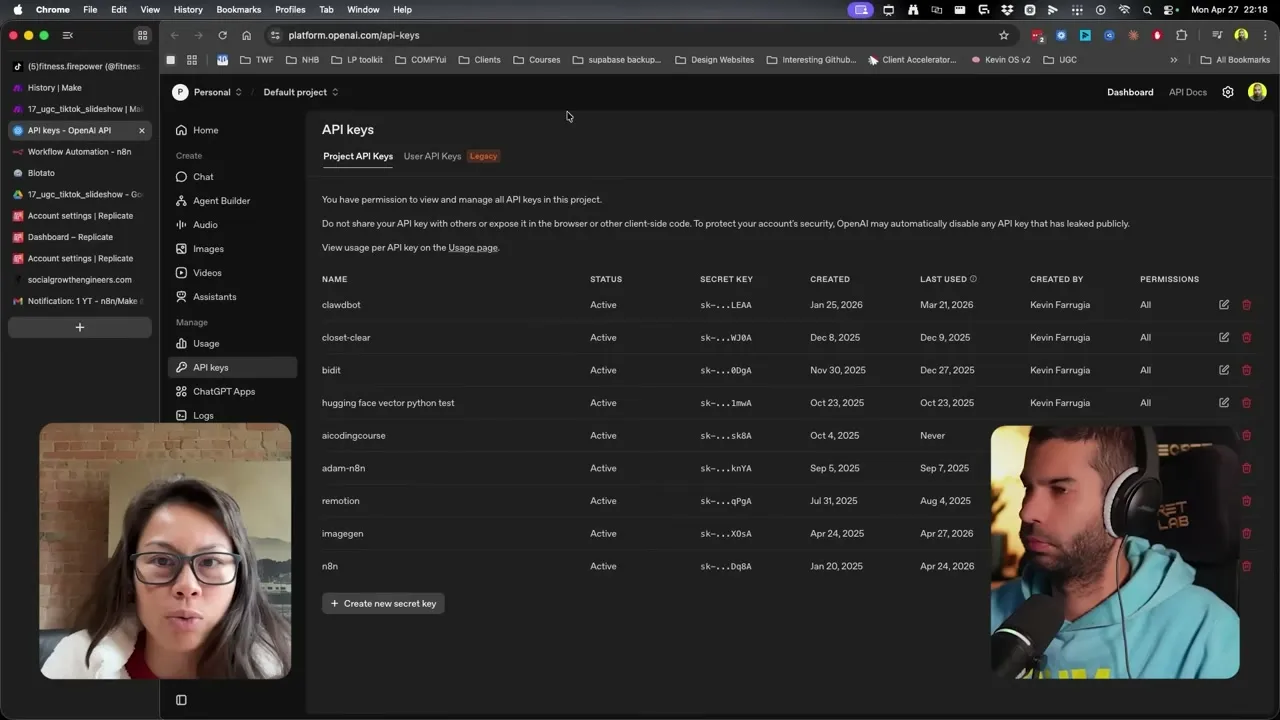
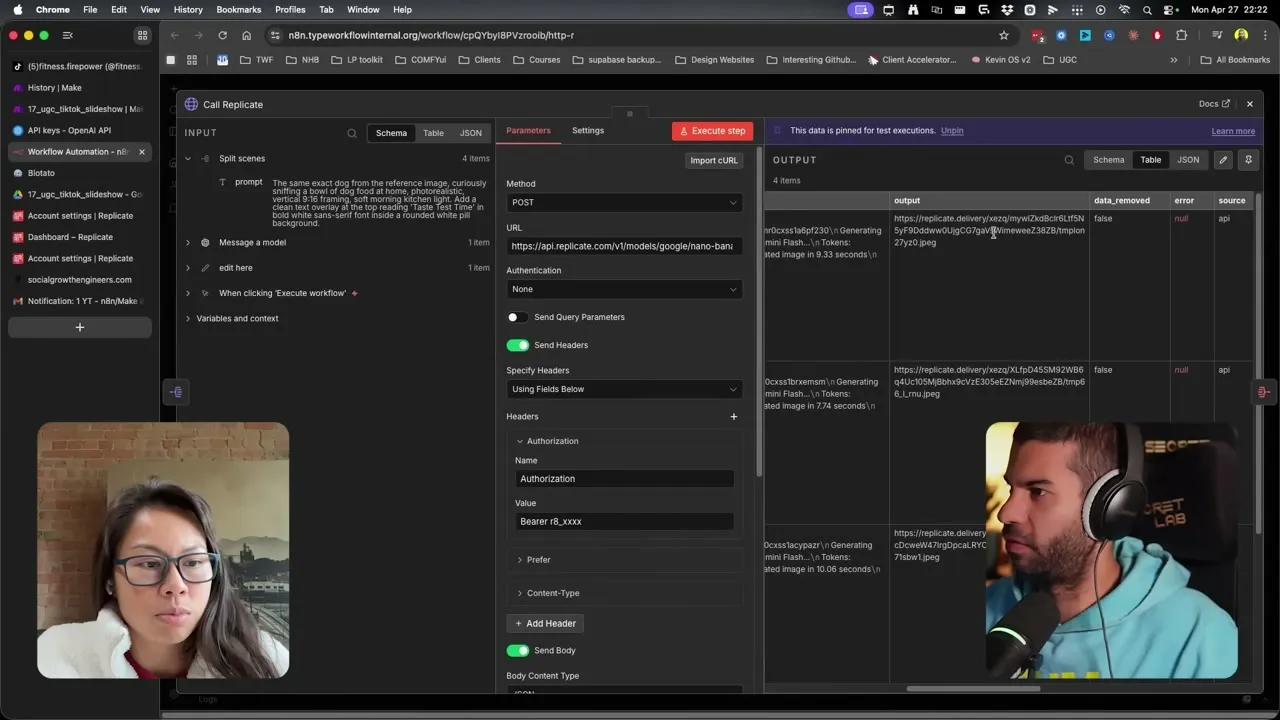
To plug in your own Replicate key, go to your name in the top-right of replicate.com, click API tokens, create a token, then paste it into the Replicate module in Make (or the HTTP node’s Authorization field in n8n). The format is Bearer then the token. Leave the space after Bearer, that’s the most common error people hit.
Step 4: Swap to n8n if You Prefer (Same Logic, One Node Difference)
If you want to run this in n8n instead of Make, the logic is identical. Same three input variables, same OpenAI system prompt, same Replicate call, same Blotato finish.
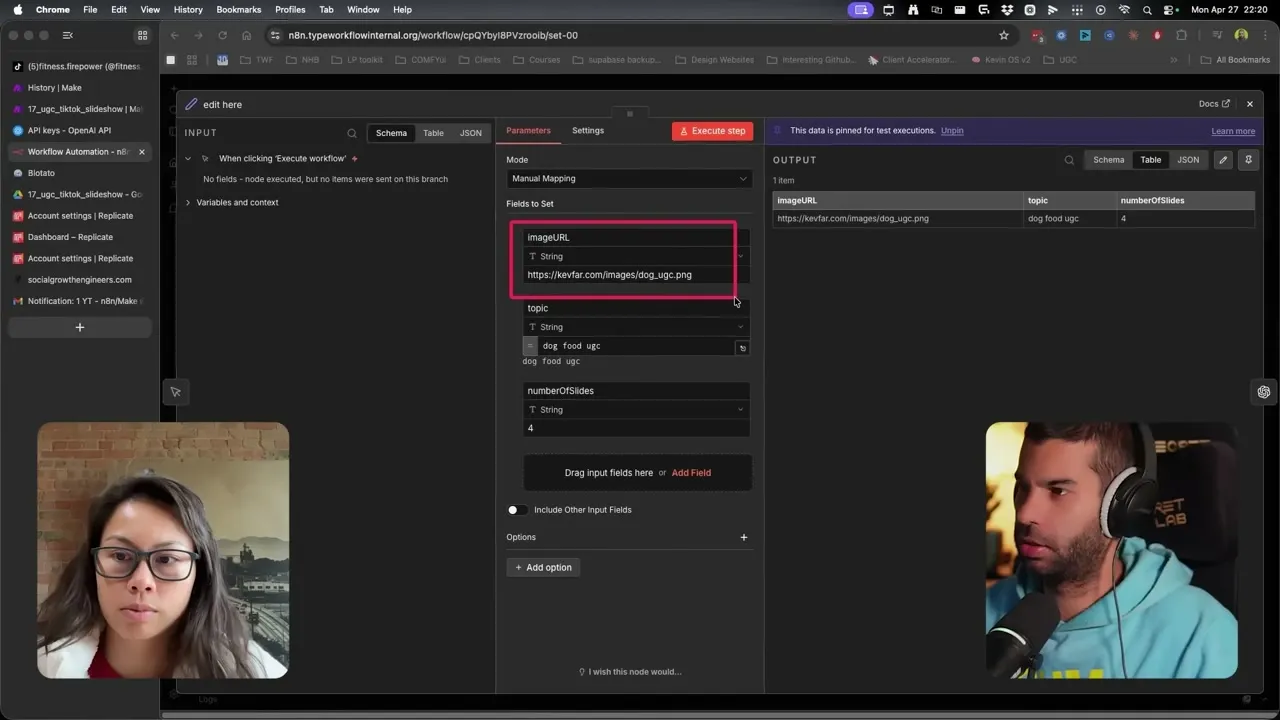
The only node you change is the Replicate call. In n8n it’s an HTTP Request node with the Authorization header set to your Replicate token. Same Bearer plus space plus token format. The same pin-and-test pattern works.
Pick the platform you already pay for. Make is faster to grok if you’re new to no-code. n8n is better if you want to self-host or chain this into larger workflows.
Step 5: Publish to TikTok via Blotato (With Auto Music)
The final node is Blotato’s Create a Post module. The media URLs from Replicate get passed in, the caption and slideshow title flow in from the OpenAI step, and one toggle does the work most builders miss: Add Music to Slideshow.
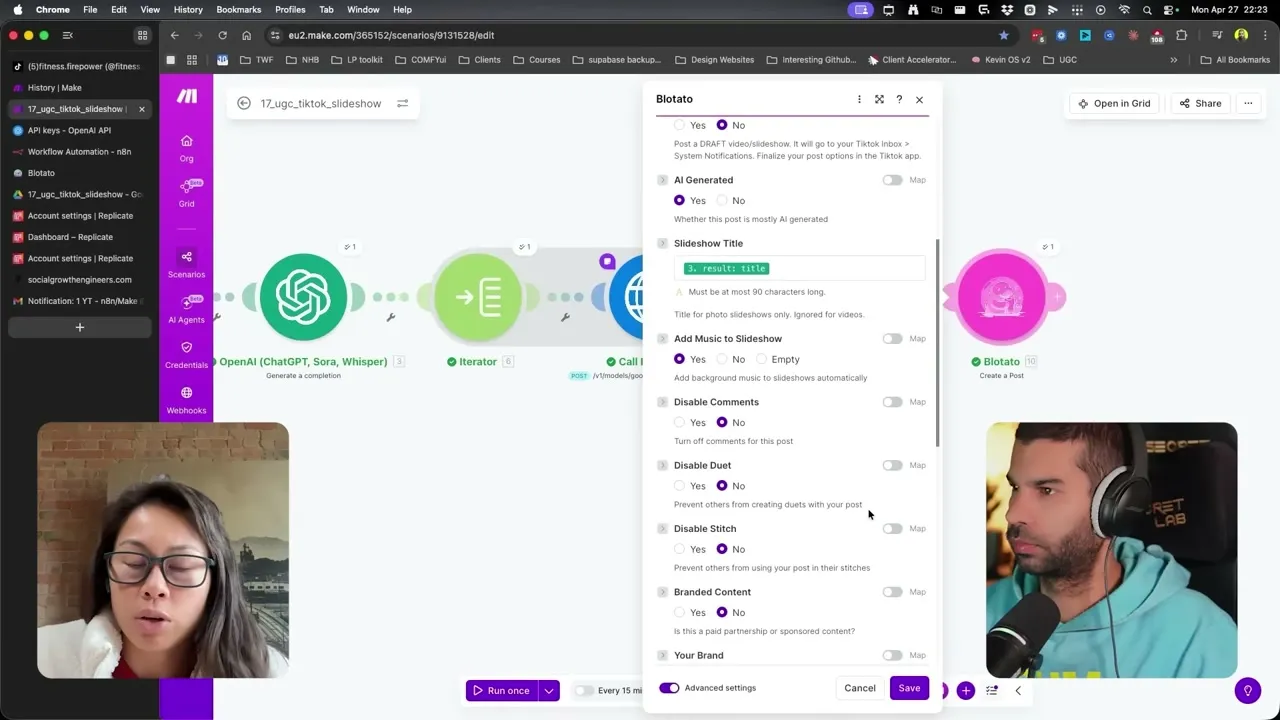
With auto-music on, Blotato picks a trending TikTok sound and applies it to the slideshow at publish time. If you’d rather hand-pick the audio (which I do when I’m chasing a specific trending sound), flip the “Post as Draft” toggle and the slideshow lands in your TikTok inbox under System Notifications. You finish the post inside the TikTok app and pick the exact track you want.
For scheduling, I almost always use “next free slot.” I set up a weekly schedule on Blotato that says, for example, “post to TikTok at 10am and 2pm Monday through Friday,” and every run of this workflow drops the new slideshow into the next open slot. No date math, no calendar wrangling.
Pro Tips From Building This Across Multiple Accounts
Be specific in the topic field. The model treats topic as the steering input for every scene. “5 outfits with one denim jacket” produces a tight, themed slideshow. “Clothes” produces nothing useful. Treat the topic field like a creative brief, not a tag.
Use Post-as-Draft when you’re chasing a sound. Auto-music is great for evergreen slideshows. For trend-jacking, push to draft, then finish in-app. The pipeline still does 90% of the work, and you just pick the audio.
Keep one Replicate token, one OpenAI key, one Blotato key. This is a one-time setup. Don’t make the mistake of rotating keys per scenario, because you’ll forget which is which when something breaks.
What This Workflow Can’t Do (Yet)
A few honest limits worth knowing before you build this for a brand.
Beat-synced photo timing isn’t exposed. TikTok itself decides how long each photo holds when auto-music is on. You can’t drive the photo-to-beat transitions from the API in the way a manual editor can. For most product and UGC slideshows that’s fine. For music-genre or dance-cue slideshows, you’ll want to do those in-app.
Reference image quality matters more than you’d expect. A low-resolution or poorly-lit reference image produces inconsistent scenes downstream. Use the best UGC photo you have, not a phone screenshot of a screenshot.
TikTok rate limits apply at the account level. This isn’t a Blotato or Make limit, it’s TikTok’s. Don’t try to post 30 slideshows a day to a single account. Two to four per day per account is the sweet spot I’ve seen work without throttling. TikTok documents a per-creator daily ceiling shared across every API client touching the account, so a second tool posting to the same profile eats into the same allowance.
Multi-account scaling needs more than one workflow. This build is one account per scenario. If you’re running 10 brand accounts, duplicate the scenario, swap the Blotato account selector, and stagger the schedule slots.
Results You Can Expect
I’ve used this exact stack to run consistent daily TikTok slideshows for a pet-product test account and a UGC creator account, and the workflow stays under 5 cents per slideshow in API credits. The biggest unlock isn’t the cost: it’s the reference-image consistency. Viewers see the same subject across every slide and that’s what makes the slideshow stop feeling like AI noise. The full Blotato side of the build (TikTok publish, auto music, draft mode, scheduling slots) is on every Blotato plan, including the 7-day trial.
Sabrina’s Final Take
This is the cleanest “automate one thing with AI” build I’ve shipped in a while because the surface area is tiny: three inputs, one image model, one publishing node. If you already run a TikTok account where slideshows convert, this is the workflow to clone first. If you’re running multiple accounts or want to test trending-sound posts at speed, the draft-mode toggle plus a social media automation tool handling the scheduling slots is the combo I’d lean on.
Automate TikTok Slideshows FAQs
Can you actually automate TikTok slideshows end to end with AI?
Yes. The full loop (reference image in, AI scenes generated, caption + title written, slideshow published with auto music) runs as one Make or n8n workflow. The only manual decision is the topic and which reference image to use, and everything else, including the music, happens at publish.
What’s the best image model for keeping the subject consistent across slides?
Google’s Nano Banana via Replicate. It’s an image-edit model that takes a reference image plus a text prompt and preserves the subject’s appearance automatically. Standard text-to-image models drift, which makes every slide look like a different dog.
Do I need both Make and n8n, or just one?
Just one. The workflow is identical between them, and the only difference is the Replicate call (a native module in Make, an HTTP node in n8n). Pick whichever platform you already use or want to learn.
Why use Blotato instead of calling the TikTok API directly?
TikTok’s slideshow publishing endpoint is the part of this build that breaks most often when people wire it themselves. Blotato handles the endpoint, the auto-music toggle, the draft-mode workflow, and the scheduling slots, so the rest of your workflow stays no-code. It’s also how this build supports multiple TikTok accounts without rewriting the publish node. For the full sandbox-to-production audit walkthrough and 6-per-minute posting cap math, see the TikTok API pricing guide.
How much does each AI-generated TikTok slideshow cost in API credits?
Roughly 3-15 cents per slideshow depending on how many slides you generate. Nano Banana on Replicate runs 1-3 cents per image, plus a small OpenAI cost for the caption and prompts. There’s no monthly minimum on Replicate, you pay only for what you run.