How to Use Claude Cowork: Complete Beginner Setup (2026)
How to use Claude Cowork from zero: what it is, the plan you need, first task setup, permission modes, and a real social media workflow with Blotato.

Claude Cowork turns Claude from a chatbot into an assistant that actually does the work, across your files and apps. Learning how to use Claude Cowork comes down to three moves: get on a paid Claude plan, select “Cowork” in the message box, and describe what the finished work should look like. Claude writes its own plan, runs the task, and hands you the results. You can watch it think through every step, or walk away and come back to finished work.
In this guide I’ll set you up from zero, then point Cowork at a real job: running social media posting through Blotato. I’m the founder, so take this with whatever grain of salt feels right. Cowork on top of Blotato is part of how I run my own accounts, 3M+ followers and 500M+ views.
Most Cowork tutorials are videos. I made one too, and this post is its written companion for everyone who would rather read, search, and copy-paste than scrub a timeline.
What Is Claude Cowork?
Claude Cowork is Anthropic’s agent mode for knowledge work. It uses the same agentic engine as Claude Code, with no terminal involved. Where regular chat answers one message at a time, Cowork takes a whole task, breaks it into subtasks, runs them (in parallel when it helps), and delivers finished outputs: organized folders, spreadsheets with working formulas, slide decks, research reports, published social posts.
Two details separate Cowork from the chat window you already know. First, it can work directly with your stuff: local files on desktop, connected apps like Gmail or Notion, and any MCP server you add. Second, sessions run remotely on Anthropic’s servers (in beta), so a task keeps going after you close your laptop, and you can check on it from your phone.
What You Need Before You Start
- A paid Claude plan. Cowork is included with Pro, Max, Team, and Enterprise. There is no free tier for it.
- The Claude Desktop app (macOS or Windows) if you want Cowork to touch local files or your browser. Download it at claude.com/download.
- Or no install at all: Cowork also runs on the web at claude.ai and in the mobile apps. Both are in beta and rolling out gradually across paid plans, starting with Max.
- An internet connection for the whole session, since tasks run on Anthropic’s servers.
How to Use Claude Cowork Step by Step
The full Cowork setup runs from a fresh install to your first finished task. Budget about ten minutes.
Step 1: Open Claude and Select Cowork
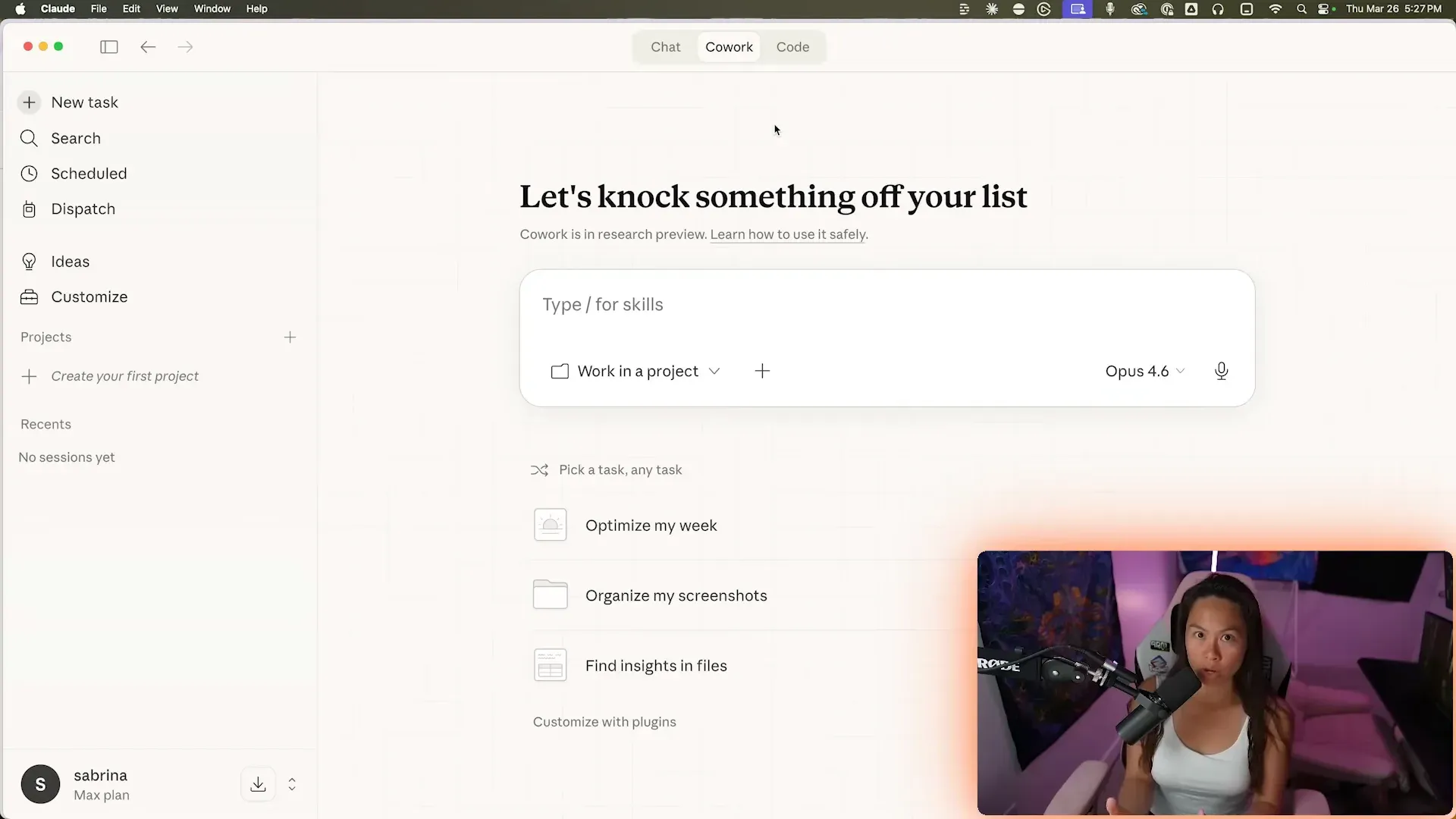
Chat and Cowork share one home. Open the Claude Desktop app, claude.ai, or the mobile app, and look at the message box. Select “Cowork” where you would normally just type. That switches you from conversation mode to task mode. If you don’t see the option on web or mobile, your plan’s rollout may not have reached you yet, so use the desktop app.
Step 2: Give Cowork a Folder to Work In
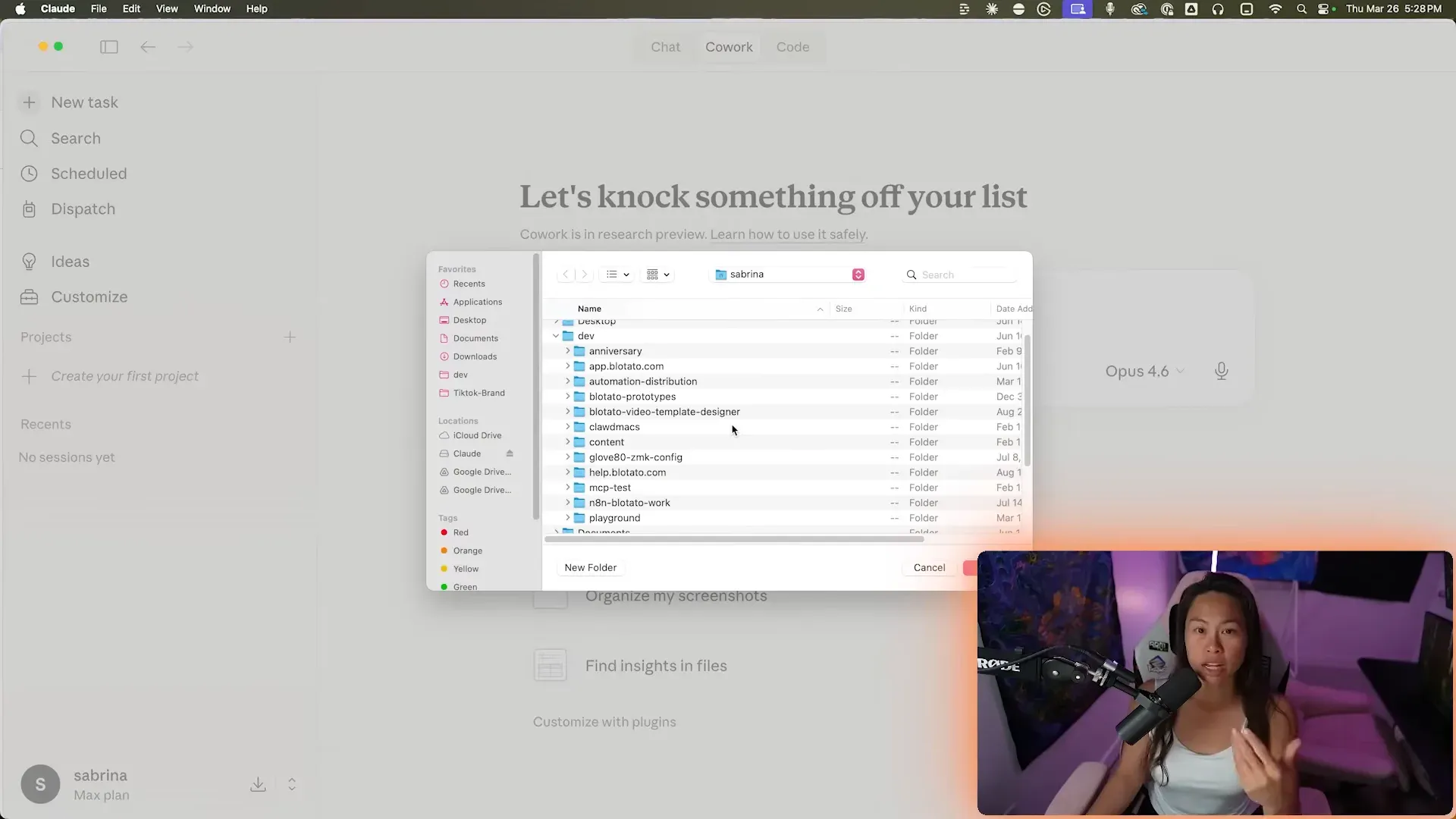
On desktop, Cowork asks which local folder it can read and write. Create a dedicated folder for the project (mine are as simple as ~/Desktop/Content), drop the relevant files in it, and select it. Claude can only touch folders you grant, and it must ask before permanently deleting anything. Skip this step on web and mobile, where Cowork works with uploaded and generated files instead.
Step 3: Describe the Outcome, Not the Steps
Outcome-first task writing is the skill that makes or breaks Cowork. Don’t prompt it like chat (“what should I name these files?”). Hand it the finished picture: “Organize this folder by file type, rename everything to YYYY-MM-DD format, and leave me a summary.md of what changed.” Claude writes its own plan, shows it to you, and starts working. A messy Downloads folder is my favorite first task to give people: nothing important can break, the payoff is instant, and seeing your own files reorganize themselves teaches you what Cowork is faster than any explanation. Watch the right-hand panel while it runs: it lists every step of the task and checks them off in real time, and shows which of your files Claude is pulling context from.
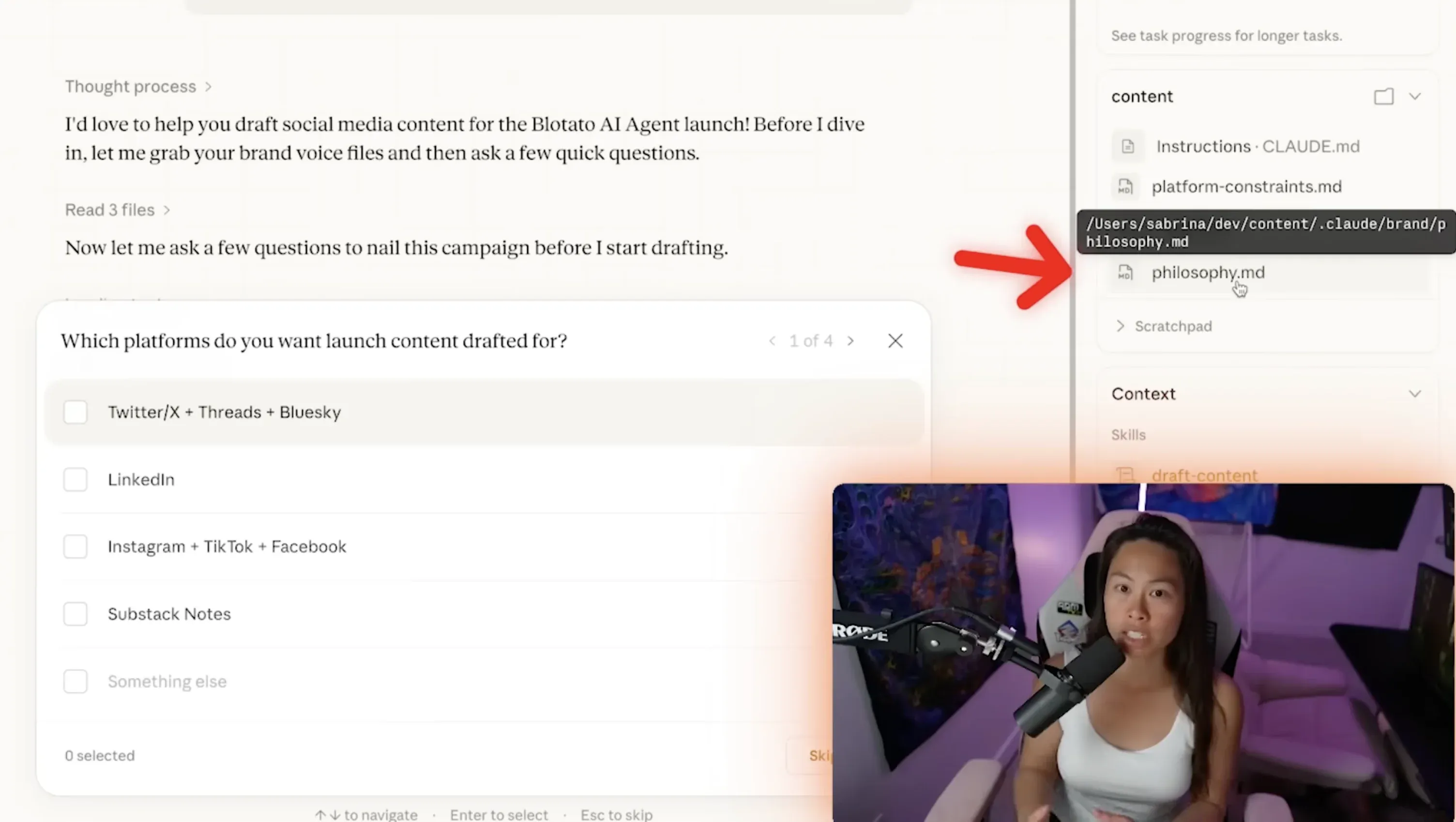
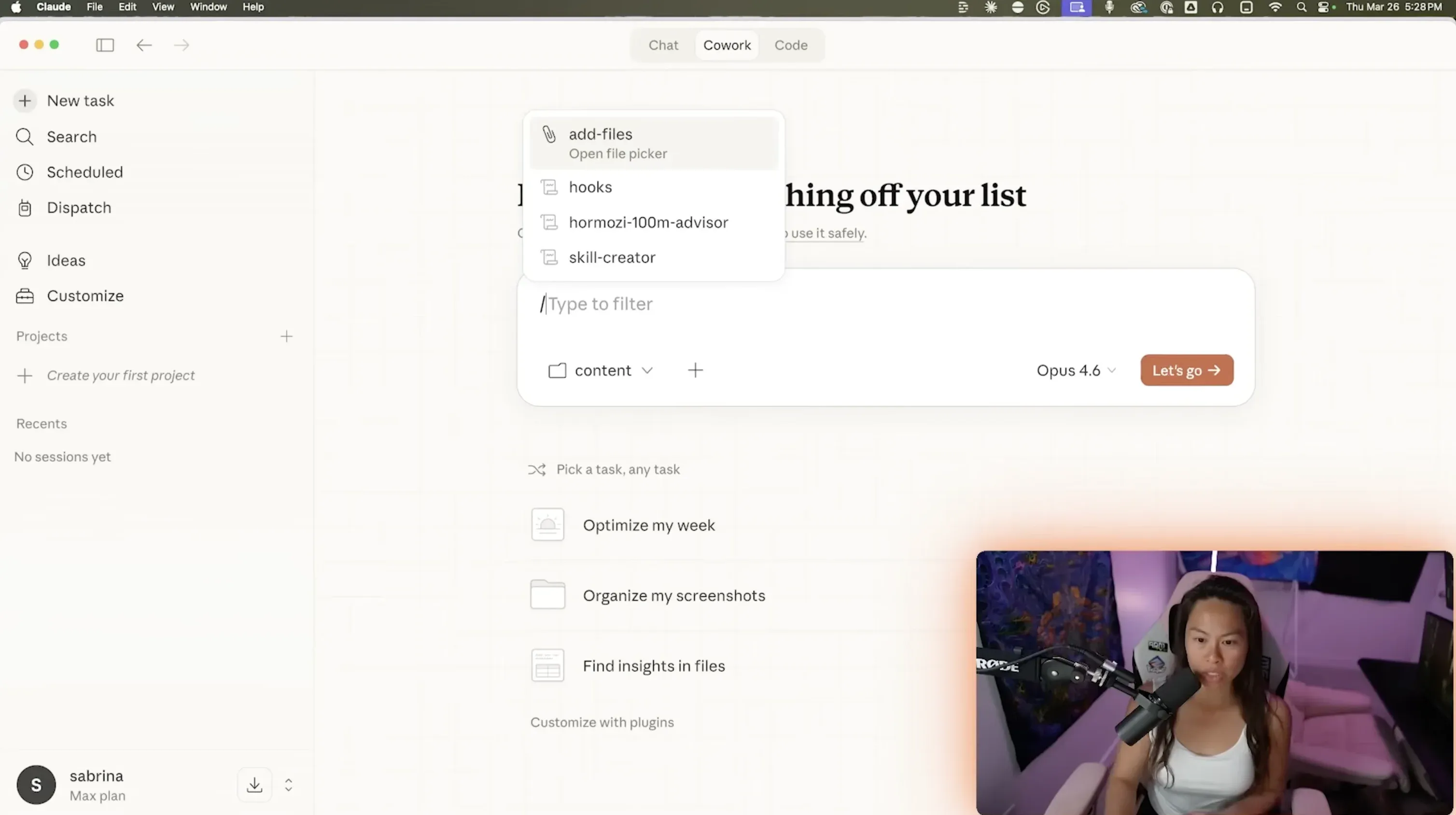
A folder playbook file makes this even better. In my own content folder I keep an instruction file that Cowork reads on every task: my platform constraints (character limits, which platforms get hashtags), examples of my copywriting, and how I want drafts structured. In the video above you can see Cowork pulling from those files as it writes. That brand file is the foundation of my whole operation: I distribute 250+ pieces of content per week and quality-check each one, and every piece starts from the same voice rules Cowork reads on session one. Type / in the task box to call any skills you’ve installed, which work like more powerful custom GPTs if you’re coming from ChatGPT.
Step 4: Pick How Often Claude Asks Permission
Cowork has three permission modes in the chat box selector. They decide when Claude stops to ask you before acting.
| Mode | What it does | Best for |
|---|---|---|
| Manually approve | Pauses and asks before every action | Your first tasks, sensitive files |
| Automatically approve | Keeps working, safety-checks each action itself, uses more of your usage limit | Daily work once you trust the setup |
| Skip all approvals | Never pauses, never checks | Only tasks where you trust every file and connector completely |
Start on Manually approve for your first few tasks so you can watch what Cowork actually does. Switch to Automatically approve once the novelty wears off and the interruptions start to cost you more than the check-ins are worth.
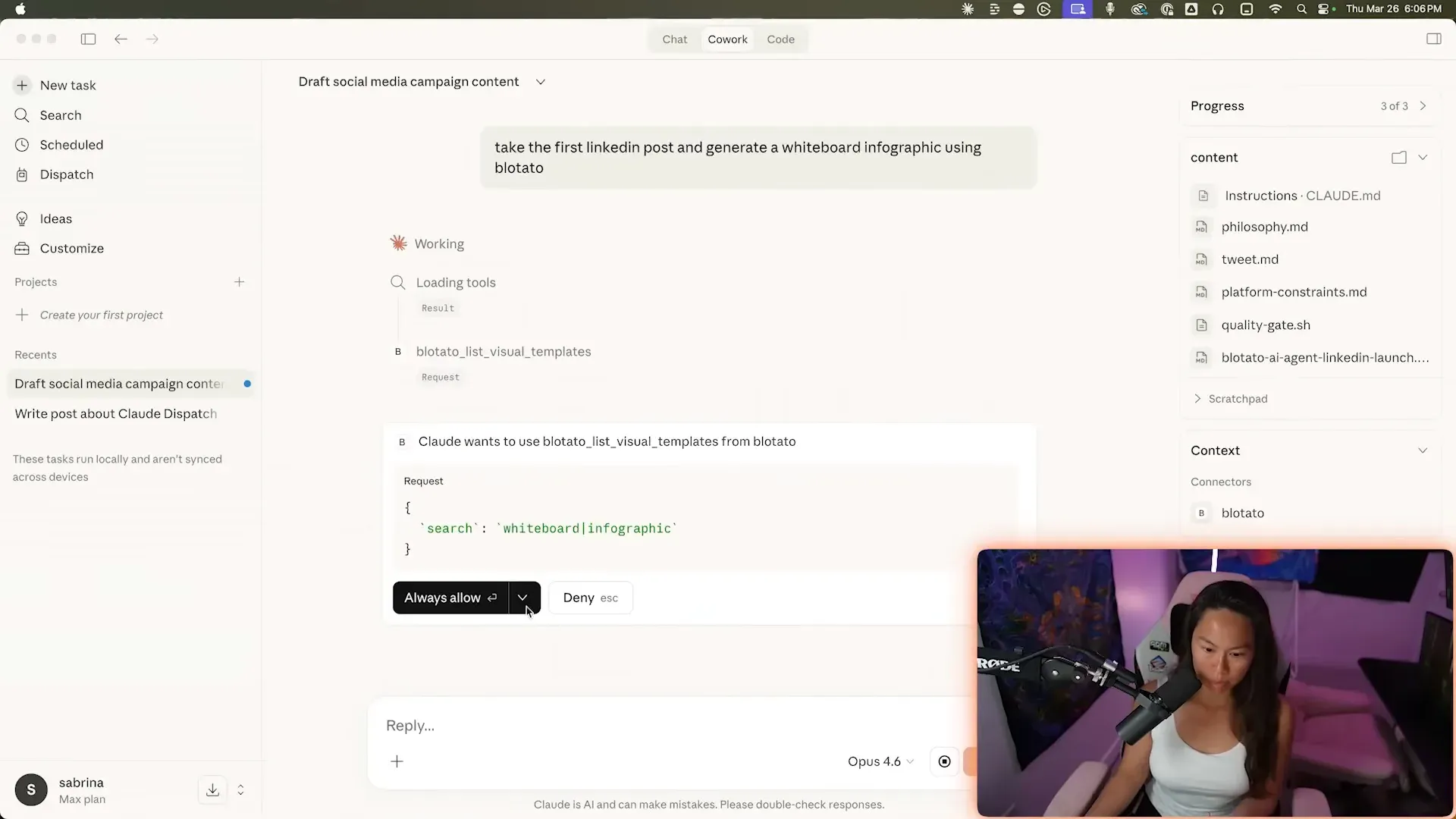
Step 5: Steer While It Works, Then Collect the Output
Cowork surfaces its reasoning as it goes. You can jump in mid-task to course-correct, answer its questions, or redirect it, from any device since the session follows your account. When it finishes, preview the outputs in the session and download them, or find them written into your selected folder on desktop.
Step 6: Save the Setup You Like
Two settings make every future task better. Global instructions (Settings > Cowork > Global instructions) apply to every session: your tone, your output format, your role. Folder instructions add project-specific context that Claude can even update itself as it learns the project. Set the global ones now, once, and stop repeating yourself.
How Do You Give Claude Cowork Real Tools?
Out of the box, Cowork handles files, documents, research, and spreadsheets. The jump from neat demo to daily driver happens when you connect it to the tools where your work actually lives, through Connectors and MCP servers.
Social media is the example I know best, because it’s my product and my own workflow. Click the + button in the chat box, choose Add custom connector, name it Blotato, and paste https://mcp.blotato.com/mcp. Approve the OAuth prompt while logged into your Blotato account, and Cowork can now draft, publish, and schedule posts across nine platforms as task steps. One note if you follow along with my video: it shows the original install path through Settings > Developer with an API key, which still works, but the custom connector method above replaced it as the simple route.
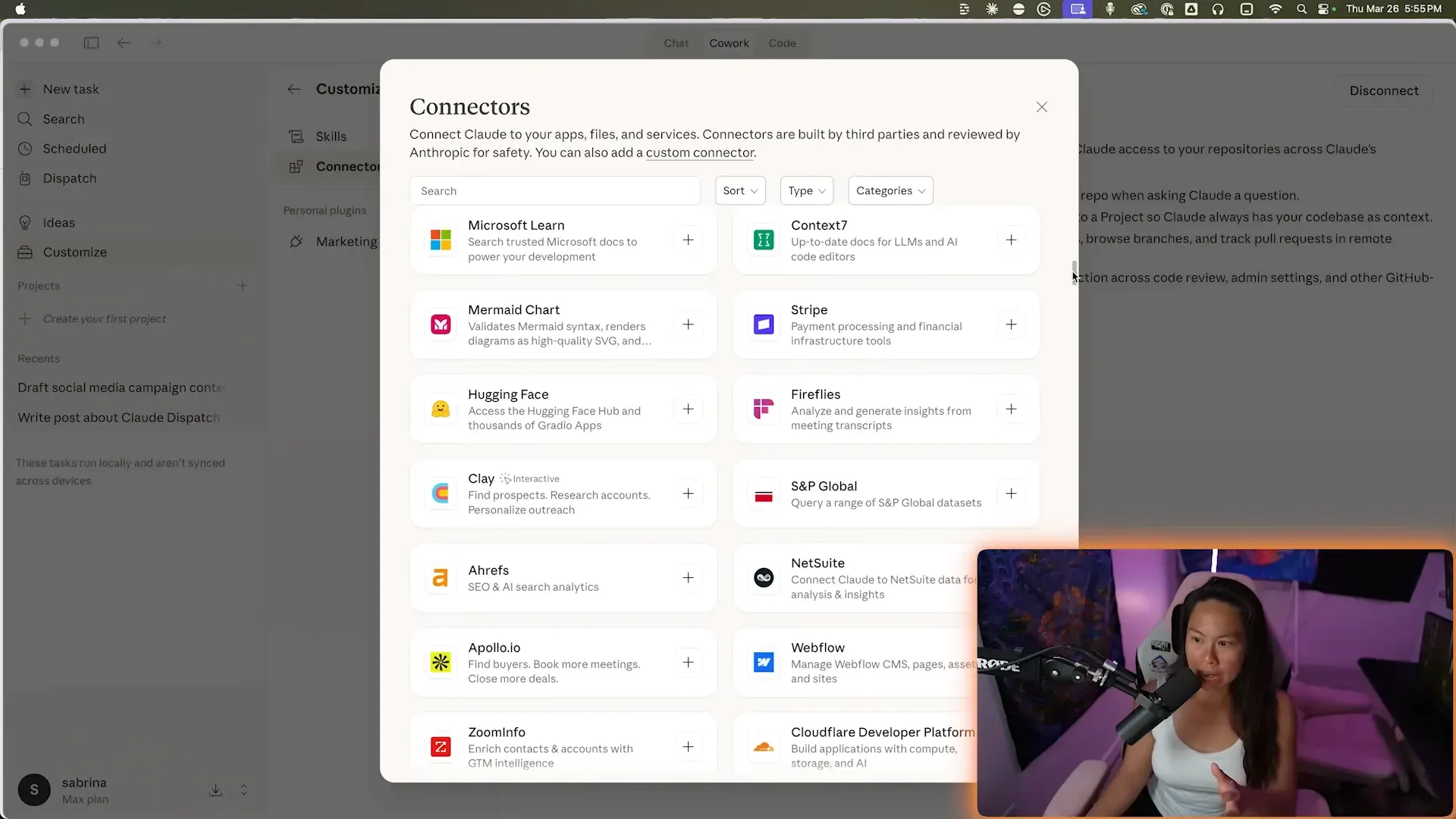
Everything I demo in the video runs through this one connection: a LinkedIn post with a generated infographic, a YouTube video repurposed into a carousel, cross-platform scheduling, and a content calendar Cowork manages for me. The full connection walkthrough lives in the Blotato MCP setup guide, and I break down the complete content workflow, from screenshots to scheduled posts, in how to automate social media with Claude Cowork.
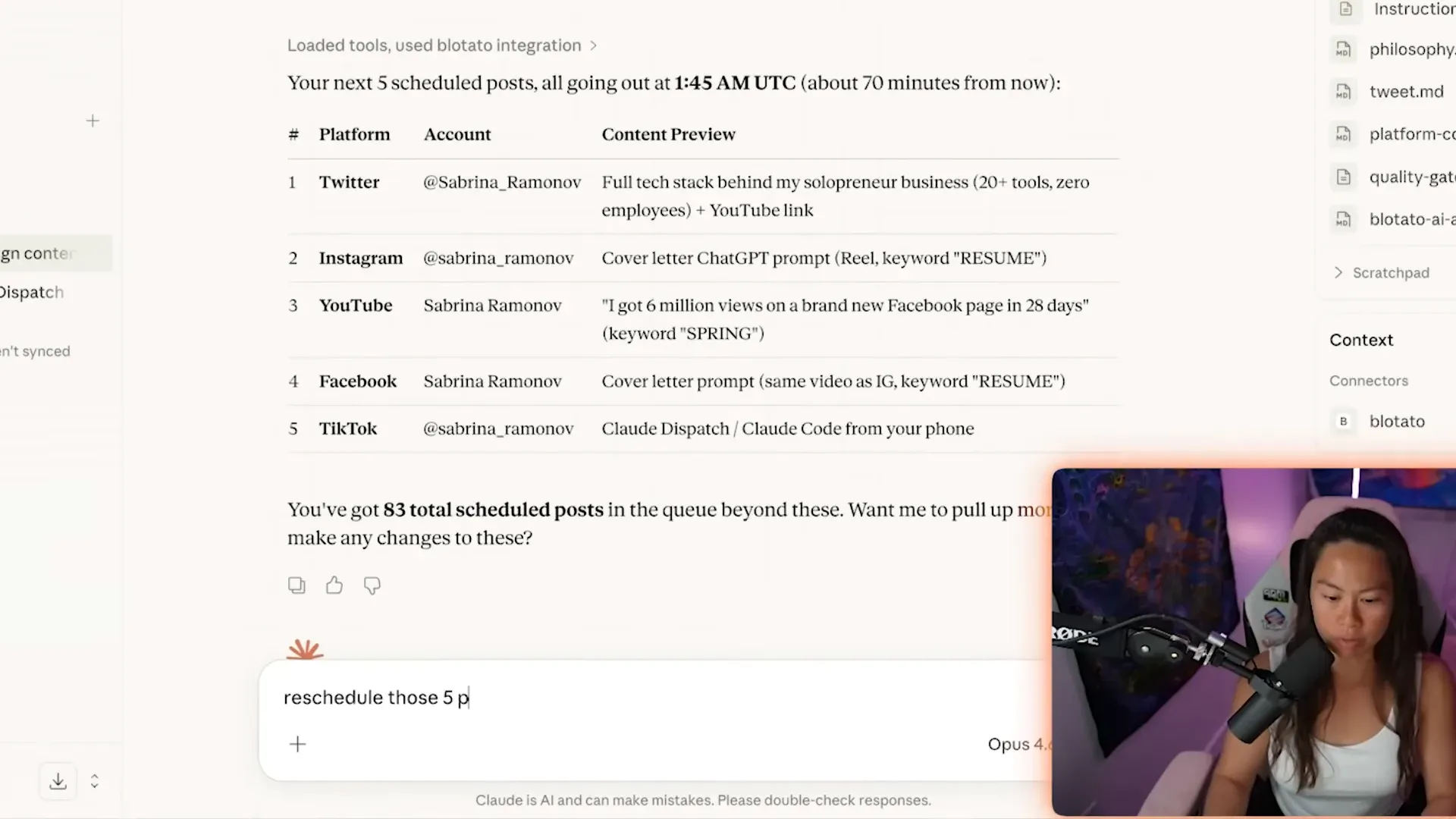
The same pattern works for whatever your version of Blotato is: your CRM, your database, your project tracker. Cowork is the engine, connectors are the wheels.
Is Claude Cowork Free?
No. Claude Cowork requires a paid Claude subscription: Pro, Max, Team, or Enterprise. There is no separate Cowork fee on top of your plan, but Cowork tasks consume your usage allocation noticeably faster than chat, because multi-step agent work runs more tokens. If you hit limits often, run simple questions in regular chat and save Cowork for tasks that genuinely need file access or long execution. “Automatically approve” mode also uses more of your limit than Manual, since Claude spends extra work safety-checking itself.
Tips to Get Better Results
- Write global instructions before your third task, not your thirtieth. Every session inherits them.
- Batch related work into one session instead of five small ones. It saves usage and keeps context together.
- Use
/scheduleinside any task to make it recurring. Scheduled tasks run remotely, so your computer can stay asleep. - Try plugins for your role. Each one bundles skills, connectors, and sub-agents into one install.
- Keep the desktop app open when a task uses local files or your browser. The session runs remotely, but it reaches your computer through the app.
Common Mistakes to Avoid
- Prompting instead of delegating. “Help me think about my folder structure” is a chat message. “Reorganize this folder and document what you did” is a Cowork task.
- Granting your whole home directory. Give Cowork the narrowest folder that contains the work. Wide access plus “Skip all approvals” is how agent horror stories happen. Anthropic’s own Cowork getting-started guide is blunt about reviewing planned actions on sensitive files.
- Expecting chat memory. What Claude remembers about you in chat doesn’t carry into Cowork sessions yet. Within Cowork, memory lives in projects only, so put standing context in global or folder instructions.
- Treating it as a Claude Code replacement. They share an engine but serve different people. If you’re deciding between them for content work, I compared all three surfaces in Claude vs Claude Code vs Cowork for social media.
Conclusion
You now know how to use Claude Cowork: pick the Cowork mode, grant a folder, describe outcomes, choose a permission mode, and wire in the tools you already use. The setup is ten minutes, and the payoff scales with how much real work you route through it. If social media is the work you want off your plate, connect Blotato and hand Cowork the posting while you keep final approval on every piece. The 7-day free trial at blotato.com is the fastest way to test the full loop.
How to Use Claude Cowork FAQs
Does Claude Cowork work on Windows?
Yes. Claude Cowork runs in the Claude Desktop app on both macOS and Windows. On Windows it requires the latest version of the app, so update at claude.com/download if the Cowork option doesn’t appear in your message box.
Can I use Claude Cowork in the browser or on my phone?
Yes, in beta. Cowork runs on the web at claude.ai and in the latest Claude apps for iOS and Android, rolling out gradually across paid plans starting with Max. Local file access, browser actions, and computer use still need the desktop app, since those reach things on your computer.
What is the difference between Claude Cowork and Claude Code?
Claude Cowork and Claude Code run the same agentic architecture. Claude Code lives in the terminal and is built for developers working in code repositories. Cowork wraps that engine in a no-terminal interface for everything else: files, documents, research, spreadsheets, and connected apps. Non-technical users should start with Cowork. Even longtime Claude Code users come back to Cowork for the features it does better, like scheduling and visual artifacts.
Can Claude Cowork post to social media?
Not by itself, but yes with a connector. Add the Blotato MCP server (https://mcp.blotato.com/mcp) as a custom connector and Cowork can draft, publish, and schedule posts to nine platforms, including Instagram, TikTok, X, and YouTube, as part of any task. You need a paid Blotato plan with at least one social account connected.
Why did Claude Cowork stop working on my task?
For tasks that use local files or your browser, the desktop app has to stay open, because the remote session reaches your computer through it. Remote-only sessions keep running in the background, so reopen the session from any surface to check progress. Frequent stops usually mean usage limits, and Cowork drains them faster than chat.