Instagram Auto Reply: Three Paths, and Which One You Qualify For
Instagram auto reply comes in three forms, each with its own requirements. What each one sends, and which your social media account can actually turn on.
Search Instagram auto reply and you get three different answers, all confidently presented as the answer. One is a free greeting inside Meta Business Suite. One is an AI that answers your messages in your style. One is the comment-a-keyword-get-a-DM system creators use to sell things.
They are not versions of the same feature. They send different messages, to different people, at different moments, and each carries requirements that quietly disqualify a lot of accounts before setup begins.
Below is what each one sends, the requirements that decide whether you can use it at all, and where to set it up. You can end up running more than one.
Start With the Requirement, Not the Feature
Most setup guides open with steps. That order wastes your time, because the requirement is what stops people, not the clicking.
None of them work on a personal account. Beyond that Meta words it differently per path, and if you run a Creator rather than a Business account that difference is the one to check:
- Auto reply runs in Meta Business Suite, and Meta’s documentation names Instagram business accounts as what it supports rather than professional accounts generally. Its custom keyword and comment-to-message templates are desktop only.
- AI auto replies needs a professional account in Meta’s wording, plus a creator AI you have already built in Meta AI Studio, and the feature is still rolling out.
- Keyword automation starts with two free Business Suite templates and moves to a paid tool when those run out of room, and either way it only answers people who contact you first.
Read those three lines and you probably already know which ones are open to you. The sections below confirm it.
Paths one and two are Meta’s own and they cost nothing. Path three starts free in Business Suite too, and only needs a paid tool once Meta’s templates run out of room, which is where the one I build at Blotato comes in. Read the sections that match you first.
The Three Instagram Auto Reply Paths
Here is each path, what it sends, and the honest limit that comes with it. The first two are Meta’s own and I give the steps in full. The third starts with Meta’s own templates and then depends on which tool you move to, so I cover both and point you to the walkthrough.
1. Auto Reply and Away Message: The Free Greeting
This is the one most people mean when they ask about an Instagram auto reply. Someone messages your account for the first time, and Instagram sends back a greeting you wrote. Away message is a separate template in the same place, and it fires outside the hours you set.
A naming note, because it trips people up: Meta’s desktop template is called Auto reply, while Meta’s own help pages elsewhere call the same thing an instant reply. Same feature.
It lives in Meta Business Suite under Inbox, then Automations. Meta calls these Inbox automations and ships ten templates, including auto reply, away message, frequently asked questions, location, contact information, hours, custom keywords and comment to message.
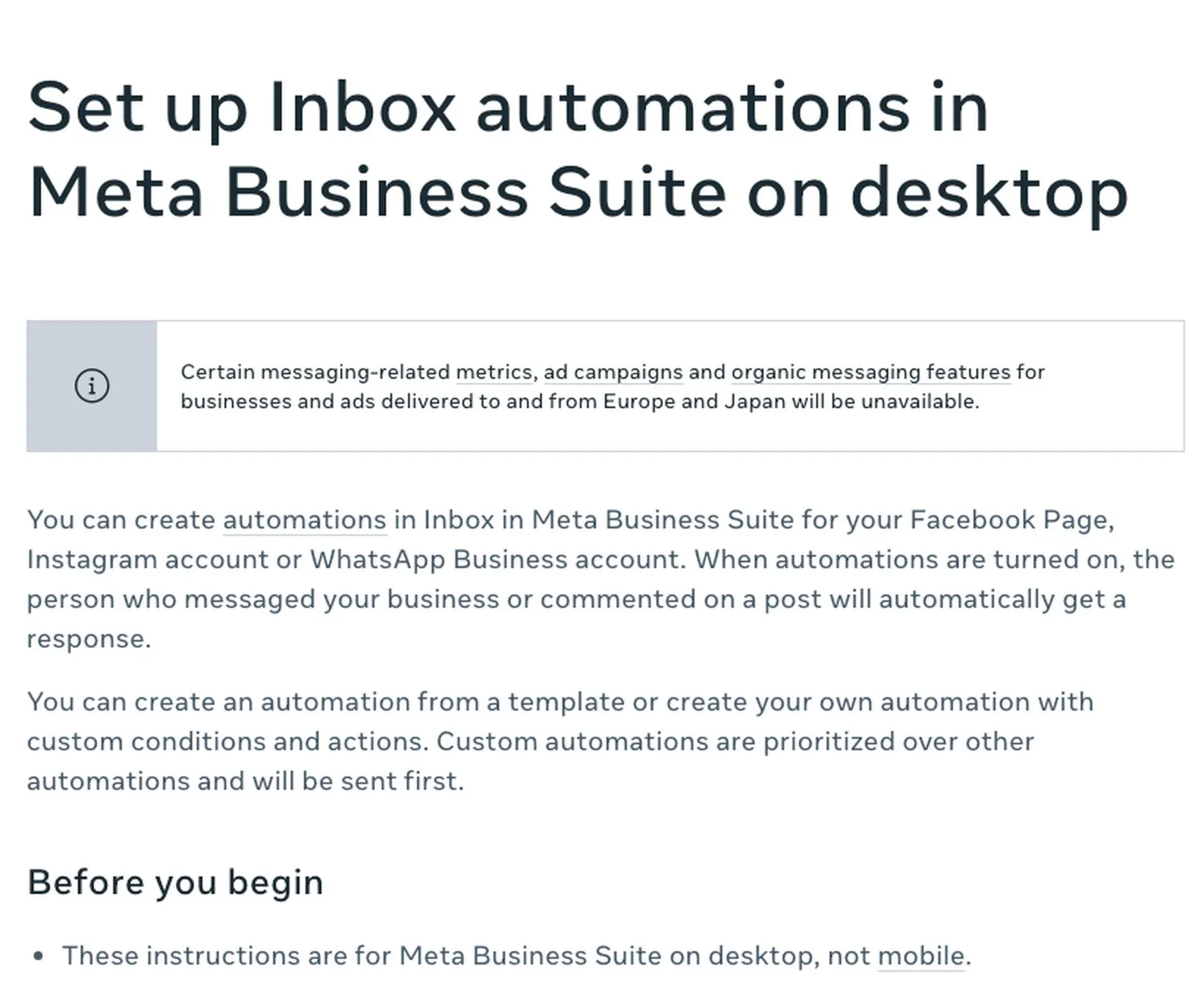
Meta’s own instructions for desktop are four steps:
- Go to Inbox in Meta Business Suite.
- Click Automations.
- Click Create automation in the top right.
- Click the template you want, which for this is Auto reply, then click Create automation and complete the on-screen instructions.
Your automation can take a few minutes to appear, and you may need to refresh. After that you turn it on and off with the toggle under Status.
What it sends: one message, the same to everyone, on first contact.
The honest limit: it does not read what the person actually said. Everyone gets the identical greeting whether they asked your price or your shipping time. Meta’s custom keyword and comment-to-message templates are more selective, and both are desktop only. More on those in path three.
Best for: setting expectations. A message that says you reply within a day, and here is the FAQ link, does real work for a small account and costs nothing.
2. Meta AI Auto Replies: The Path Most Guides Skip
It is Meta’s own feature and it barely appears in the guides. Instagram lets a creator AI answer your messages for you, in your style, from a persona you build.
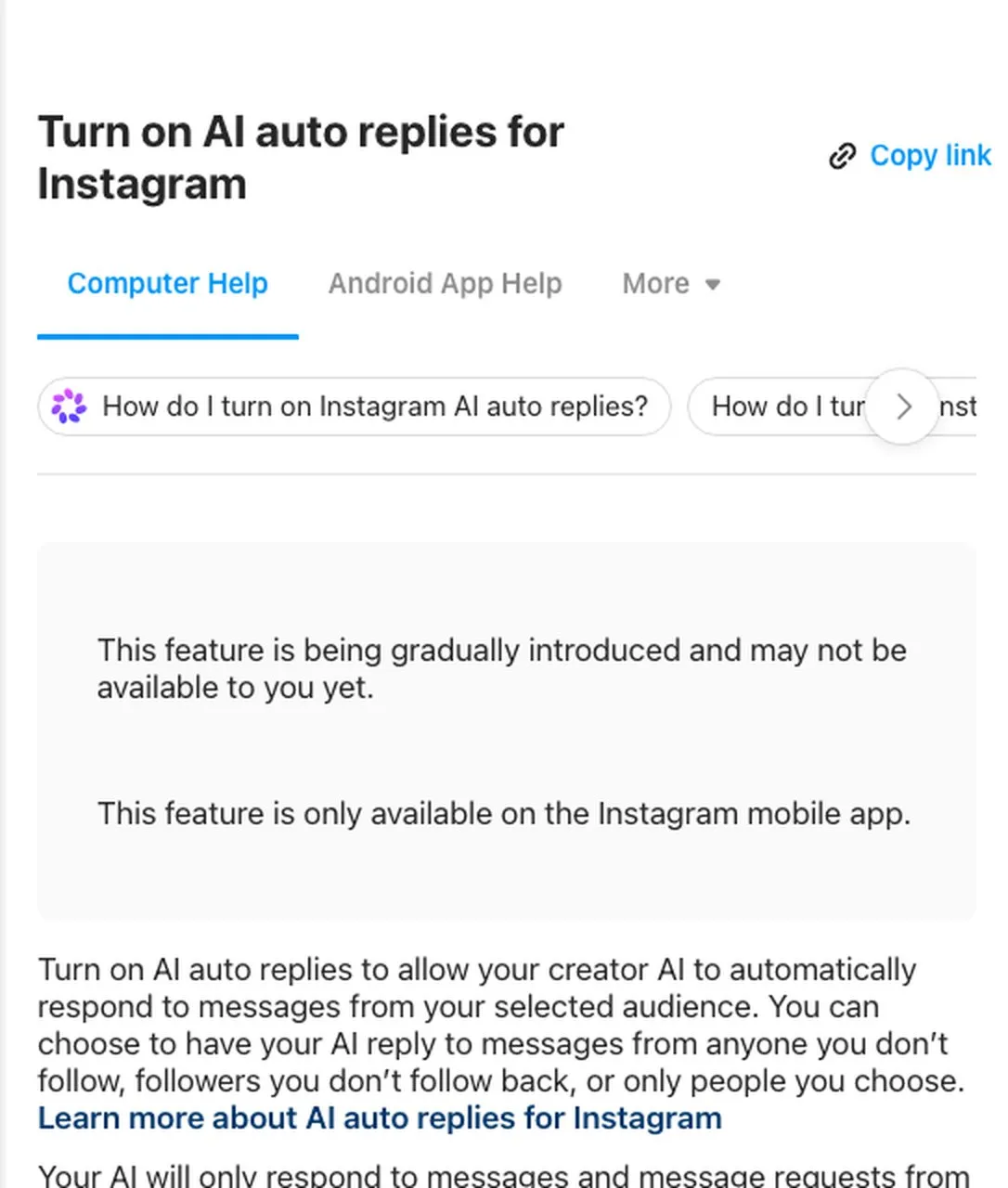
Meta’s help page is direct about it. Turning it on lets your creator AI “automatically respond to messages from your selected audience,” and you pick that audience: anyone you do not follow, followers you do not follow back, or only people you choose.
The requirements are where most readers stop, so here they are before the steps. You need a professional account, a creator AI you have already built in Meta AI Studio, and you have to accept the Instagram Creator AI Terms.
Two more things are outside your control. Meta states plainly that the feature “is being gradually introduced and may not be available to you yet,” and it works only in the Instagram mobile app.
If you clear those three requirements and the feature has reached you, here is the path:
- In the Instagram app, open your profile and tap Professional dashboard.
- Under Your tools, tap Your AI.
- Tap the gear icon to open Your AI Settings.
- Turn on auto replies and choose your audience.
What it sends: a written reply your AI generates from the message it received, rather than one fixed greeting.
The honest limit: the rollout. You may follow every step and find the setting absent, which is not something you can fix. Meta also documents the controls only in the Instagram mobile app, so there is no desktop settings path for it. You can jump into any chat and take over, and your AI pauses while you reply, then resumes later.
Best for: creators with high DM volume who want conversation rather than a form letter, and who already live in AI Studio.
3. Keyword Automation: Comment a Word, Get a DM
This is the one you have seen on reels. Someone comments “LINK” and gets a DM with the link.
Meta does offer versions of this free, and they are two separate templates worth keeping straight. Comment to message is the comment-to-DM one, and Meta’s own two help pages describe its trigger differently, one saying hashtags and the other saying keywords or phrases, so test it before you build a campaign on it. Custom keywords is the other, and it answers a message rather than a comment: up to five keywords per automation, matched exactly and case-sensitively, with Meta holding the reply for 15 minutes in case you answer first. I broke down where they stop in my Instagram automation tools roundup.
A third-party tool is what you move to when those limits start costing you leads.
The trigger can be a comment or a message, and those are really two jobs sold under one name. Somebody comments your keyword on a post and gets a private reply, or messages your account with the keyword and gets a DM back. I split those apart properly in the DM automation API guide.
This is what most creators are actually buying when they buy an auto reply tool, and it is where Blotato’s DM automation sits, at $29 a month with 1,000 active contacts on a 7-day trial you can cancel anytime. It covers Instagram and Facebook, and on Instagram you can add a follow gate that asks someone to follow before the link arrives. I walked through building these keyword flows, including creating six at once from a spreadsheet, in my Instagram DM automation guide.
What it sends: a targeted reply, triggered by a specific word.
The honest limit on the comment-triggered side, and it is Meta’s, not any vendor’s: each comment gets one automated private reply, and it has to go out within 7 days of that comment. If the person writes back, you are in a normal conversation and the 24-hour message window applies from their last message. Those windows apply to every tool in this category, so treat a vendor claiming otherwise as a warning. Blotato’s own limit is narrower than the category: Instagram and Facebook only, where some competitors cover more platforms. It is also reply-only. Nothing here sends a cold DM to someone who has not contacted you. Tools that promise cold outreach are generally working outside the official API, which is what gets accounts restricted.
Billing is where this category differs most. Blotato counts active contacts, meaning people you reach out to, and someone who comments or messages you does not count until you reply. A post that goes viral costs you only the replies it actually earns, not the attention.
Best for: anyone converting content into leads, where the reply needs to carry a link, a code, or a file. If you get to the point of running these across a lot of accounts, they can also be created by software rather than by you filling in the form each time, which is what the API and the Claude connection are for.
How to Choose in One Pass
These are not exclusive. Match every line that describes you, because most accounts end up running more than one.
- You want people to know when you will reply. The free auto reply, and it is the quickest of the three to switch on.
- You have a creator AI and heavy DM volume. AI auto replies, if the rollout has reached you.
- You want a comment to deliver a link. Keyword automation, free in Business Suite until its limits bite, then a tool.
Auto reply and Custom keywords mostly stay out of each other’s way, because one fires on a first message and the other on a keyword. They can still collide when someone’s very first message contains your keyword, and Meta’s own documentation does not settle what happens. One help page says that when a template and a custom keyword automation both trigger, it sends the template response. Another says custom automations are prioritized and sent first. Turn them on one at a time and watch what your inbox actually sends, because the docs will not tell you.
One thing to know before you build anything: Meta Business Agent, if you turn it on, pauses your existing automations including auto replies and away messages. It is out of scope here because it replaces the automations above rather than sitting alongside them, but it is worth knowing it exists before you wonder why your greeting stopped.
Two Questions the Guides Skip
Can you do this on a personal account? No, and this is the most common reason setup fails. Meta documents Inbox automations for Instagram business accounts, and AI auto replies for professional accounts. Either way you switch in Instagram’s settings, at no cost.
How do you turn an auto reply off? For auto replies and away messages, open Meta Business Suite, go to Inbox, then Automations, and switch the toggle under Status off. For Meta’s AI auto replies, open your profile, tap Professional dashboard, tap Your AI, and turn off the Auto replies toggle. You can also switch them off inside a single chat by tapping the person’s name and turning off AI auto replies there. The person you are talking to sees a note that you turned them off. For a third-party tool, turn off the automation in that tool rather than disconnecting the account, which is cleaner to undo.
Where I Would Start
Turn on the free auto reply today. It is the fastest of the three to set up, and it sets a response-time expectation while you work out the rest.
Then read a week of your incoming messages. If they are mostly the same handful of questions, Meta’s Frequently asked questions template or the AI path will serve you better than Custom keywords will, because Custom keywords match exactly and real questions arrive worded twenty ways. If they are all different and there are a lot of them, that is the AI path.
Comment-to-DM is a different decision, and your inbox will not tell you about it. It is worth setting up when you are running a post or reel that asks people to comment for something, because that is a campaign you create rather than demand you observe. If you already have that post planned, start there and skip the week.
Instagram Auto Reply FAQs
How do I set up an automatic reply on Instagram?
Meta Business Suite has a free Auto reply template under Inbox, and the four-step path is in the first section above. That covers the greeting sent to anyone who messages you. Keyword-triggered replies and Meta’s AI auto replies are separate systems with their own requirements, so setting one up does not give you the others.
Which Instagram autoresponder should I use?
Choose by the job, since tools and guides use autoresponder for three different Instagram features. For a greeting that tells people when you will reply, Meta’s free greeting in Business Suite, called Auto reply, is the Instagram autoresponder to use. For heavy DM volume with a creator AI already built, Meta’s AI auto replies answer in your style, where the rollout has reached you. For a post that asks people to comment a word to get a link, you need keyword automation. Start with Meta’s free Comment to message template, test it first because Meta’s own help pages describe its trigger two different ways, and move to a paid tool such as Blotato if it misses the comments you need.
Can I set up an auto reply bot for Instagram?
Yes, through a tool connected to your account via Instagram’s official API. It answers people who comment on your posts or message you first. Cold DMs to strangers are not part of any official path, and a tool that asks for your Instagram password instead of an official connection puts your account at risk of restriction.
Why can I not find AI auto replies in my Instagram settings?
Check the mobile app rather than desktop, and confirm you have already built a creator AI in Meta AI Studio, because the setting does not appear without one. If both are true and it is still missing, Meta says the feature is being gradually introduced and may not have reached your account, which is not something you can force. Use the free Auto reply template in Meta Business Suite in the meantime, since that one is available today.
How many times will Instagram auto reply to the same comment?
Once. After that the automation stops, and any further messaging depends on the person replying to you first. The reason it works this way is that Meta caps it, not your tool, so switching vendors will not raise the limit.
How do I change or edit my Instagram auto reply?
In Meta Business Suite, go to Inbox, then Automations, find the automation and click Edit. Meta lets you edit or switch off any Inbox automation there at any time. For Meta’s AI auto replies, the audience selection is what you change, in Your AI Settings, and you can change it whenever you want.
What should a Meta Business Suite auto reply say?
Keep it to three things: that it is an automated reply, when a person will actually answer, and where to go in the meantime. Something like “Thanks for the message. We reply within one business day. For sizing and shipping, the FAQ link in our bio has it.” Avoid writing it as if you are personally there, because that sets up a worse experience than saying plainly that it is automated.
Do I need Instagram auto reply if I only get a few DMs?
Probably not, and the free auto reply is enough. The thing that changes the maths is not how many DMs you get, it is whether you are running posts that ask people to comment for a link. A tool bills you per person you reply to, so a quiet account pays for very little, and an account with one post doing numbers pays for that post.