How to Switch From Buffer Without Losing Your Social Media Queue
Switching from Buffer? Export your analytics first, then rebuild your social media queue by hand or through Buffer's API with an AI agent.

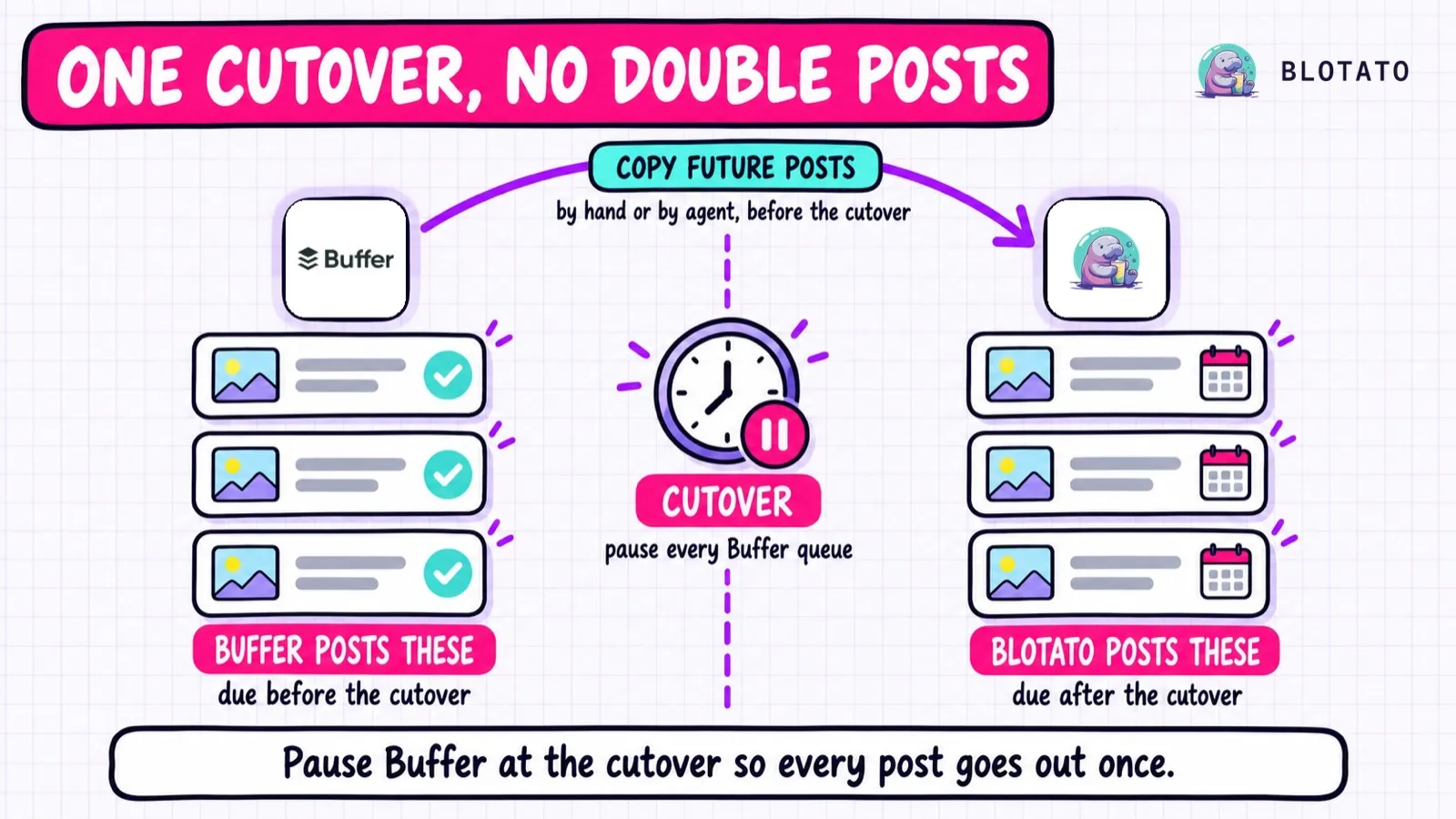
To switch from Buffer without losing your history or your queue, export your Insights while you’re still on a paid plan. Pick a cutover time and rebuild every post due after it in your new tool. Then pause Buffer at the cutover and cancel. Buffer publishes the posts before that line, and the new tool publishes the rest.
The queue is the step that needs a plan. Buffer’s help center says it doesn’t “currently support exporting scheduled posts directly.” Analytics come out as a file in a few clicks, but scheduled posts have to be recreated. If your new tool runs its own MCP server, as Blotato (the app I built) does, an AI agent can read your Buffer queue and rebuild it there for you.
Before You Leave Buffer, Know What Comes With You
Since the agent route ends in my own product, read those parts knowing who wrote them. The Buffer details come from Buffer’s own help center and developer docs, linked where I use them. If you’re still choosing a destination, our roundup of tools people move to from Buffer compares eight of them. If it’s Metricool you’re leaving, the Metricool version of this guide covers its CSV export and the disconnect that stops its queue, and the Postiz one covers the media its post list leaves behind. Zernio users have their own cutover guide, because a Zernio disconnect cancels the posts aimed only at that account an hour later.
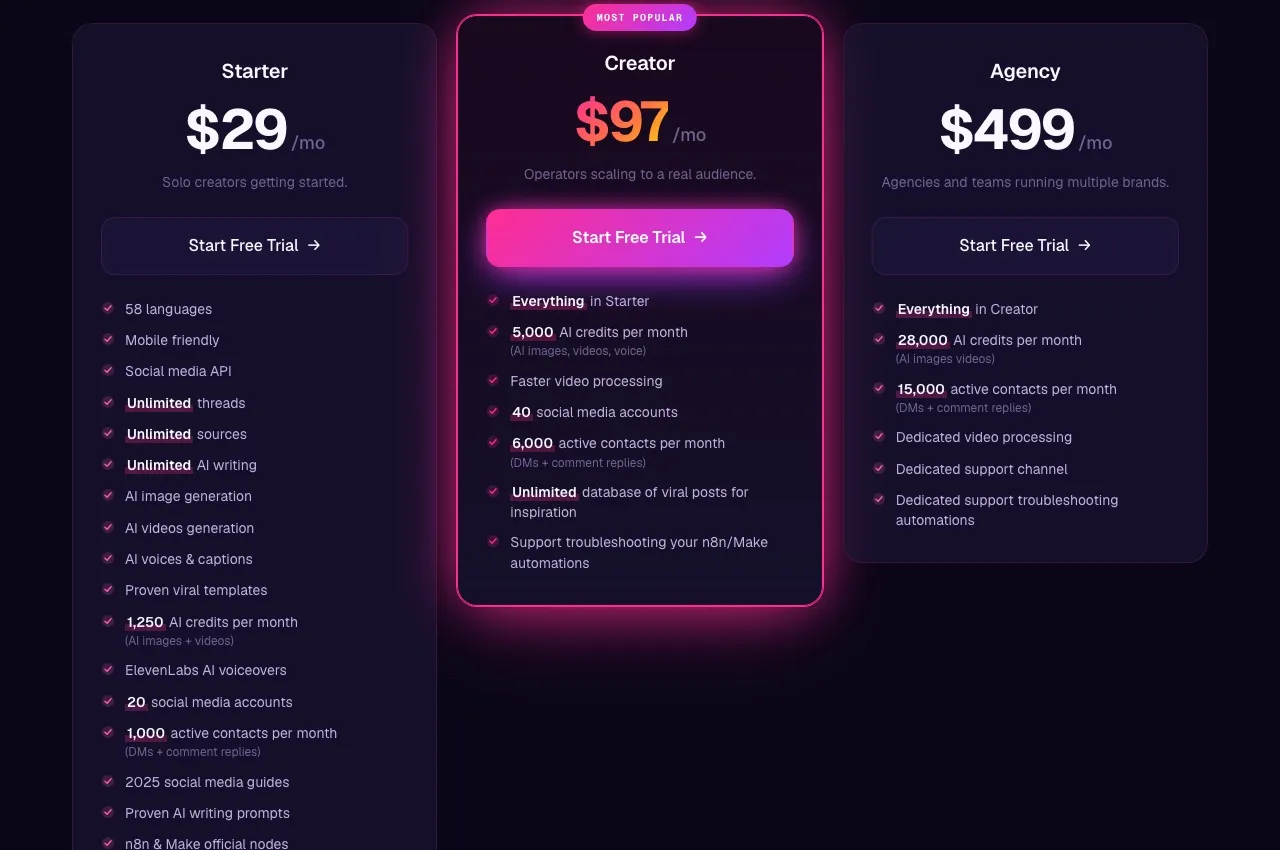
If Blotato is where you’re headed, Starter is $29 a month for up to 20 accounts. Its hosted MCP server at mcp.blotato.com/mcp is the receiving end of the agent route in Step 4.
What Buffer Lets You Export, and What It Keeps
Buffer’s analytics tool is now Insights. Its help center notes that Buffer Analyze was retired on October 7, 2026. Older migration guides that point you to Analyze menus are out of date.
What you can take, and where it comes from:
| What you want to keep | From the Buffer dashboard | Through Buffer’s MCP server | After you drop to Buffer Free |
|---|---|---|---|
| Published post performance | Insights export: CSV (a .zip of summary, posts and timeseries files), Markdown or PDF, paid plans only | list_posts with includeMetrics | 30 days of history, no CSV export |
| Scheduled posts in the queue | No export | list_posts with status scheduled returns text, time, channel and media | Keeps publishing on channels that aren’t locked |
| Drafts | No export documented | list_posts with status draft | Free allows unlimited drafts |
| Ideas board | No export documented | list_ideas returns each idea’s text, media and tags | Up to 100 ideas |
| Comments in the Community inbox | Not part of the Insights export | Not covered by the named tools | Free keeps the Community inbox |
Insights leaves out Facebook Groups, Instagram personal profiles and Start Page. It doesn’t support Google Business Profiles at all. Those channels have no performance file to take.
For the queue, Buffer suggests Zapier, which can copy scheduled posts into Google Sheets or Google Calendar. That gives you a list to rebuild from.
Timing matters for the export. Buffer’s downgrade notes say the Free plan shows only the last 30 days of Sent history, so export while your paid plan is still active.
Leave the Disconnect button alone until then. Buffer’s channel docs warn that disconnecting a channel “will remove all existing posts, comments, analytics, and data” for it, and that they “cannot be recovered.”
How to Move Your Buffer Queue Without Losing a Post
The steps run in order, and the cutover time you pick in Step 4 decides what moves and what stays.
Step 1: Export your Insights while you’re still on a paid plan
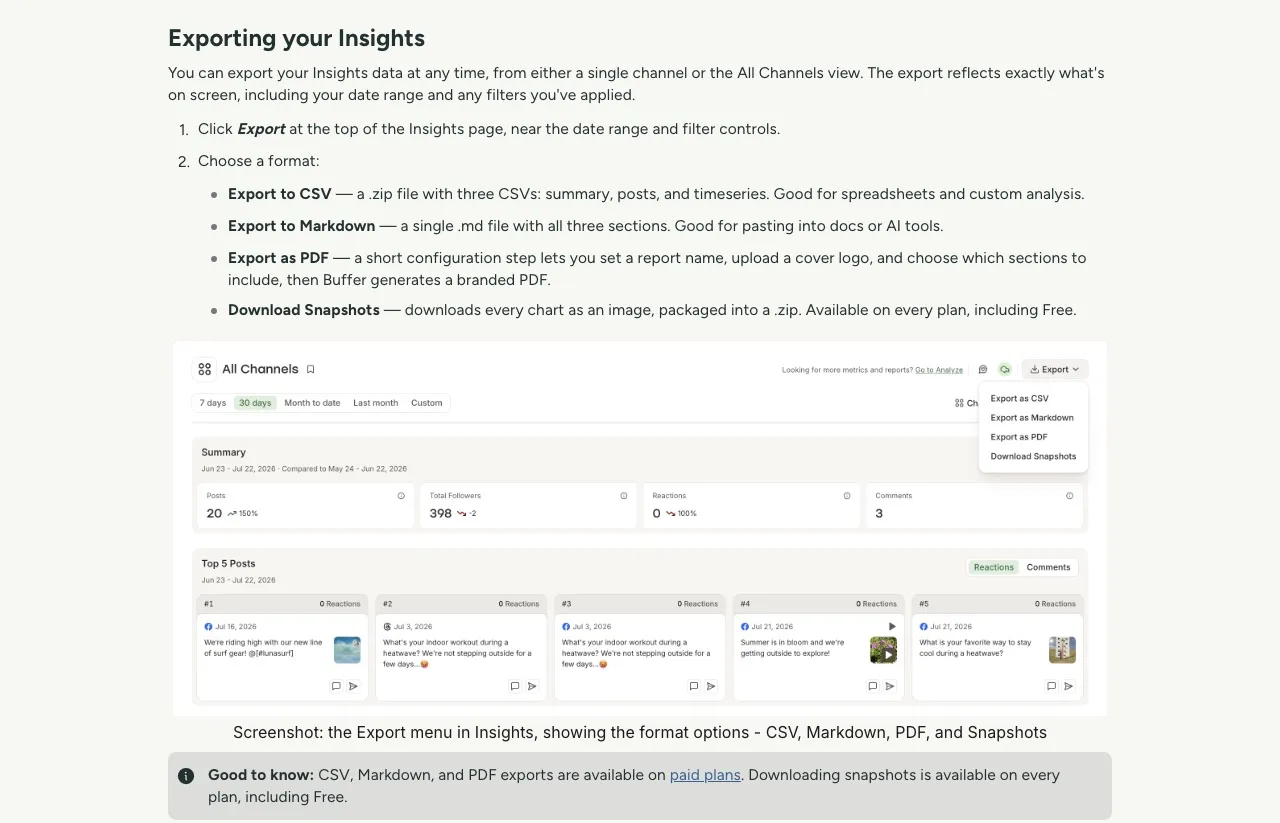
Open Insights, pick the All Channels view, clear any filters, set the widest date range you care about, and click Export. The file matches what’s on screen.
Export to CSV downloads a .zip of three spreadsheets. Export to Markdown gives you one file you can hand to an AI tool later. Save it somewhere outside Buffer.
Keep that file even after you’ve switched. Blotato’s analytics follow the posts it publishes, and its docs say connecting an account doesn’t promise a backfill of older posts. Your export is the record of how your Buffer posts performed.
Step 2: Connect the same social accounts in Blotato
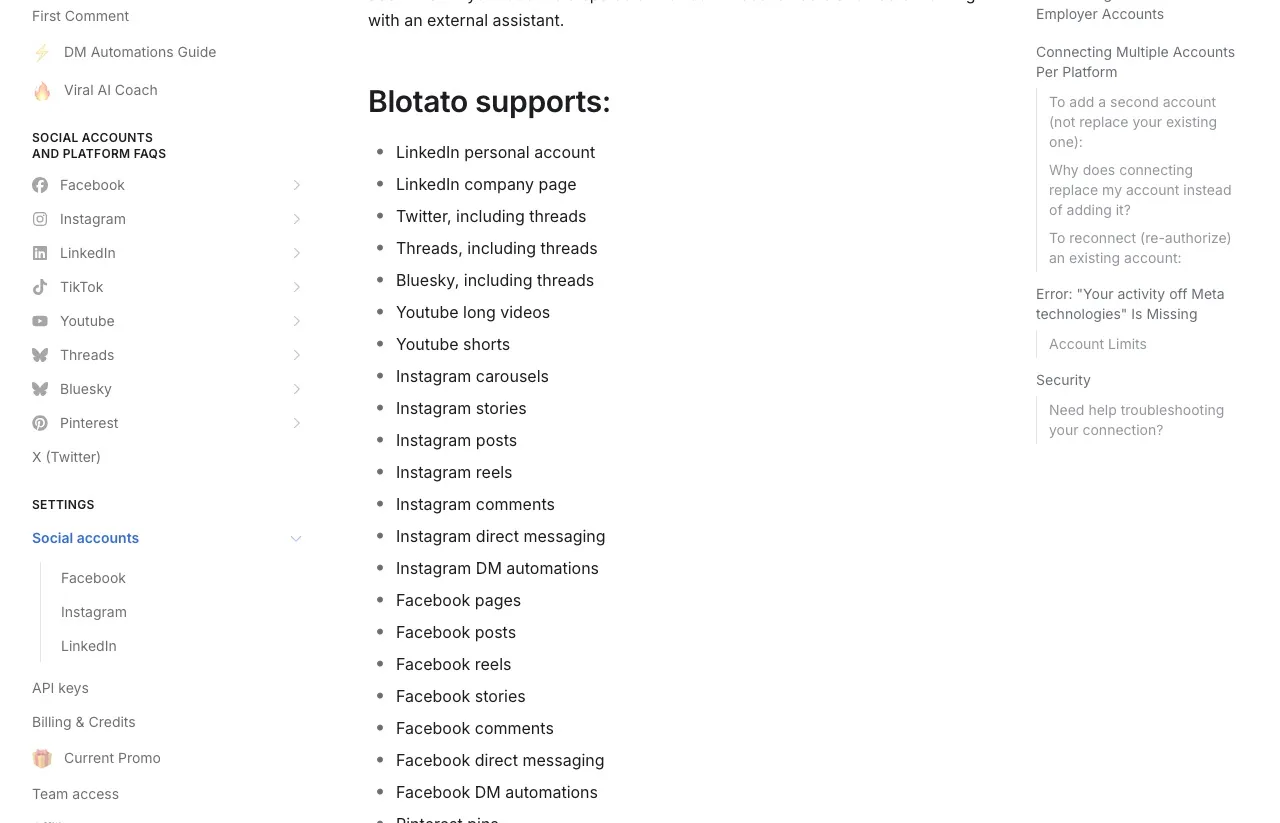
Connect each account from the Accounts page. Blotato publishes to 9 platforms: X, LinkedIn, Facebook Pages, Instagram, Pinterest, TikTok, Threads, Bluesky and YouTube. Mastodon, Google Business Profiles and Facebook groups aren’t on that list, so those channels need a different home. Instagram connects as a Business or Creator account.
Blotato also sets its own posting caps, and some are stricter than the platforms’ own limits. Instagram gets 50 posts per 24 hours per account, Facebook 25 per Page, and LinkedIn 50 per profile or Page. On Starter, YouTube allows 10 uploads per channel per day, and TikTok allows posts to 3 different accounts in any 24 hours.
Step 3: Rebuild your posting schedule as time slots
Buffer’s posting schedule becomes a set of weekly slots in Blotato. Each slot is a day and time plus the accounts that post then. A post sent to the next free slot lands in the next open time, which is how Buffer’s Add to Queue behaves.
If you don’t have your Buffer times written down, an agent can read them. Buffer’s get_channel tool returns each channel’s posting schedule and timezone. Add the slots in Blotato under Calendar, then Weekly schedule, entering each time as the local time you want posts to go out.
Blotato stores slots in UTC, and its docs warn that “a fixed UTC slot does not promise a fixed local hour” across a daylight-saving change. Recheck your slot times the week the clocks move. If you script slots through the REST API, enter them in UTC, so a Monday 8 PM slot in Los Angeles becomes a Tuesday slot. Blotato’s MCP server can fill the next free slot but has no tool for creating slots.
Step 4: Pick a cutover time, then move every post due after it
Pick a cutover time with nothing due in the hour around it. On a paid Buffer plan, put it in the last week or two of your billing period.
Size the move to your plan. Blotato caps the queue at 200 scheduled posts on Starter and 1,000 on Creator, and nothing can be scheduled more than 9 months out. If more posts are due after your cutover than your plan holds, move the cutover later or start on a bigger plan.
By hand, this is a short job for a dozen posts. Save the images and videos from each Buffer post first. Then open Content Studio, create the post, choose the accounts, and set the Page or board options where asked. Pick the same date and time and click Schedule.
Buffer’s calendar shows your browser’s timezone, and a channel can be set to a different one, so check before you copy.
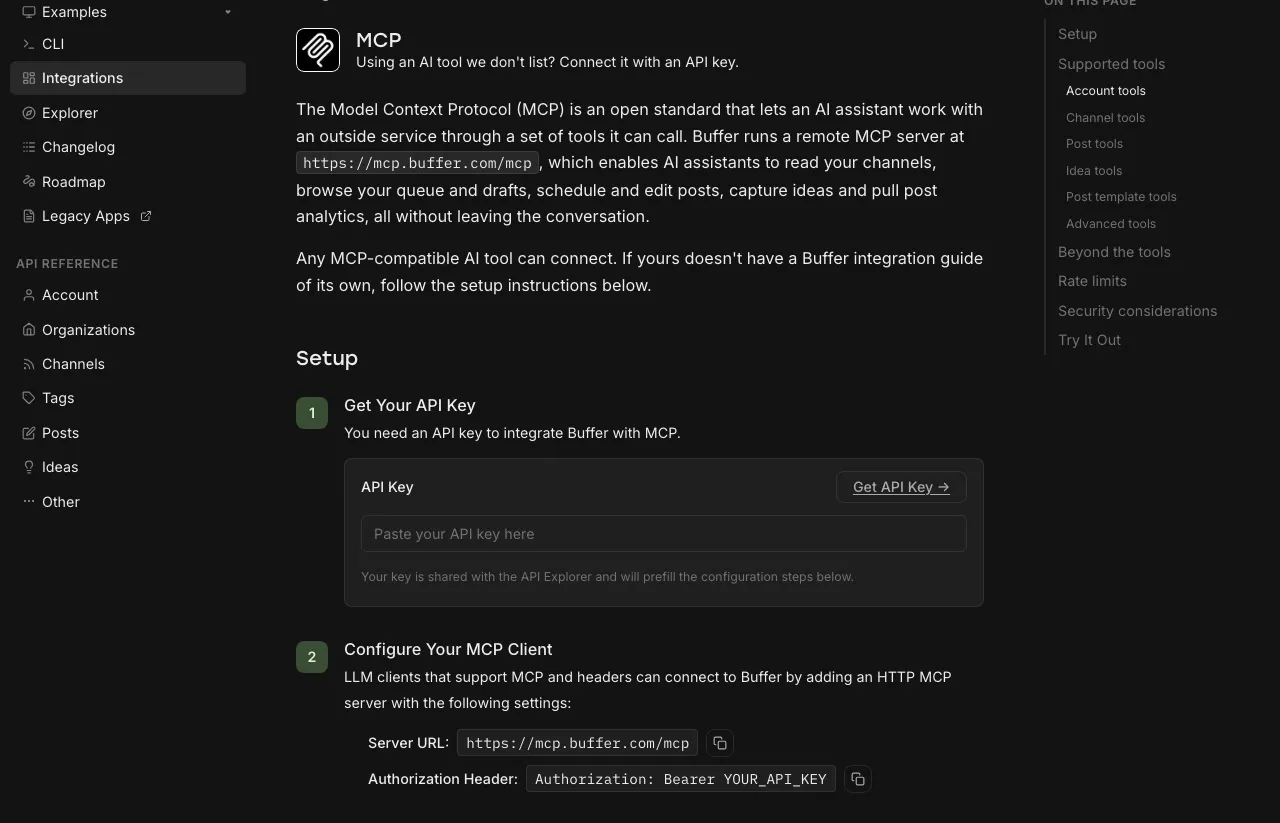
For a longer queue, let an AI assistant such as Claude do the copying. Buffer runs a remote MCP server at mcp.buffer.com/mcp, and its list_posts tool filters posts by status. It returns each post’s text, scheduled time, channel and media, up to 100 posts per page. This route needs a paid Blotato plan, because the 7-day trial covers the web app only and excludes API and MCP access.
Every Buffer plan, Free included, comes with an API key that the client sends as a Bearer token. Connect Buffer’s server and Blotato’s (mcp.blotato.com/mcp) to the same client, then give it one job:
Read every post in my Buffer queue with status "scheduled" and a due time
after [CUTOVER], oldest first, 100 at a time. Open each one with get_post so
threads, titles, boards and privacy settings come along. Before creating
anything, show me which Buffer channel maps to which Blotato account and wait
for my OK. Then create each post with blotato_create_post: same text, the
media from the post's assets, and scheduledTime set to Buffer's dueAt. Keep a
list of each Buffer post ID and the Blotato post you created from it. After an
interruption or an unclear response, check blotato_list_schedules (every page)
before creating anything again. If a post is missing a field Blotato needs, or
its channel isn't supported, list it instead of guessing. Don't publish
anything now and don't change anything in Buffer.
Expect a few posts on that list. Blotato needs a title for YouTube and a board for Pinterest, and TikTok posts need privacy settings.
If a media link from Buffer won’t load outside your account, download the file. The agent can then call blotato_create_presigned_upload_url, PUT the file to the URL it returns, and post with the public URL.
Leave the Buffer queue alone while the copy runs. Every request to Buffer counts against its API limits, which on Free are 100 per 15 minutes, 250 a day and 3,000 a month.
Step 5: Check the new queue post by post
Counts can hide a swapped account or a shifted time. Compare each post instead. By hand, open Posts, then Scheduled in Blotato and check each account against your Buffer calendar for the same days. With an agent, ask it to page through every result of blotato_list_schedules and show a side-by-side table of account, text, time and media for every post it moved.
Look closely at anything with video or several images. Then watch the first few posts after the cutover. Blotato publishes asynchronously, so a post marked scheduled hasn’t gone live yet. blotato_get_post_status shows whether each one is still scheduled, published or failed.
Step 6: Pause every Buffer queue at the cutover, then cancel
The Free plan holds 10 scheduled posts per channel. Buffer’s downgrade notes say that even when a channel holds more, its scheduled posts “will continue to publish” unless the channel is locked. So an old queue left running would fire alongside the new one.
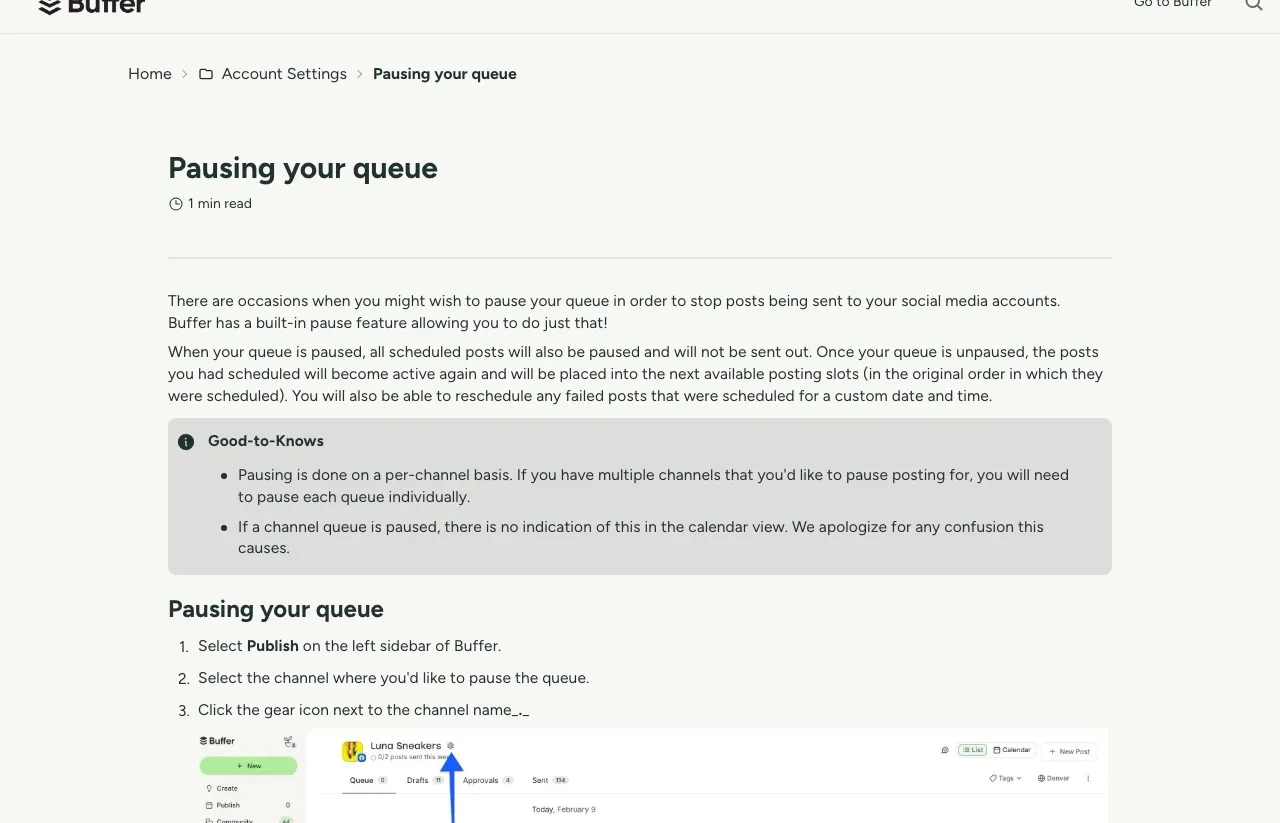
Pausing is per channel, so pause each queue on its own. Buffer also warns that a paused queue shows no sign of it in the calendar view. Once every queue is paused, the account owner cancels from Billing (a subscription bought in Buffer’s mobile app is cancelled through that app store). Your plan stays active until the end of the billing period, and Keep My Plan still works before then.
The Buffer Habits That Need a New Home
Most of what you do in Buffer has a direct match in Blotato. Here is where each habit goes, including the ones with no match:
| In Buffer | Where it lives in Blotato |
|---|---|
| Queue and posting schedule | Weekly slots with “next free slot” scheduling |
| Custom date and time | A scheduled time, up to 9 months ahead |
| Drafts | Drafts in Content Studio. The MCP create call publishes or schedules, with no draft step |
| Approval workflows (Team plan) | No approval workflow. A review step has to live in your agent or automation |
| First comment scheduling (Essentials and Team) | First comment on Instagram and Facebook. LinkedIn isn’t supported |
| Community inbox (comments on 10 networks) | One inbox for comments and DMs, Instagram and Facebook only |
| Insights | Analytics in the web app and REST API on 8 of the 9 platforms, everything except LinkedIn |
| Unlimited team members (Team plan) | One user per account |
| Mastodon, Google Business, Start Page | No equivalent |
Blotato’s inbox adds Instagram and Facebook DMs, and its DM automation replies when a comment or message matches a keyword. That pays off once your posts already draw comments.
What Your Bill Does After the Switch
The route you pick for Step 4 decides how you start on Blotato. The trial is enough to connect accounts and rebuild a short queue by hand. For the agent route, creating an API key ends the trial and starts Starter from the first day.
Once you’ve switched, five channels cost $30 a month on Buffer Essentials billed monthly, against $29 flat on Blotato Starter. From 6 to 20 channels the gap widens with every account, and past 20 you’d move to Blotato’s Creator plan. If you want the full table, we priced 3, 10 and 20 channels on both tools.
When Blotato Isn’t the Fit Yet
Blotato is the wrong destination in four setups:
- You post to one or two channels a few times a week. Blotato has no free plan, and at that size a paid scheduler is rarely worth it.
- A teammate approves posts before they go out. Blotato has one user per account and no approval workflow.
- Mastodon or Google Business is a core channel. Neither is among Blotato’s 9 platforms.
- You report on LinkedIn performance. Blotato returns no LinkedIn metrics yet.
If you’re clear of all four, check which plan covers your account count before you start Step 4, since your queue size can decide it.
Switching From Buffer FAQs
Can I export my scheduled posts from Buffer as a CSV?
Not from the dashboard. Buffer’s help center says it doesn’t currently support exporting scheduled posts directly and points to Zapier for copying them into Google Sheets or Google Calendar. Buffer’s MCP server can read them, though: its list_posts tool returns each scheduled post’s text, time, channel and media.
What happens to my scheduled posts when I cancel Buffer?
They keep publishing on every channel that isn’t locked, through the rest of your billing period and after the drop to Free. Pause each channel’s queue at your cutover, or posts you’ve rebuilt in another tool will go out twice.
Will I lose my Buffer analytics when I leave?
Not if you export them first. On a paid plan, Insights exports post performance as CSV, Markdown or PDF. Free keeps 30 days with no CSV, Markdown or PDF export, and disconnecting a channel deletes its Buffer data for good, so export, then downgrade, then disconnect.
Can my AI agent move my Buffer queue for me?
Yes, for scheduled posts, if your AI client connects to both Buffer’s and Blotato’s MCP servers. Buffer’s list_posts reads them, and blotato_create_post recreates each one at its original time. Drafts don’t carry over as drafts, since that call schedules or publishes. Blotato’s MCP access needs a paid plan.
Does Blotato import a CSV or a Buffer export?
Not with a built-in importer. Blotato’s help docs list no tool for importing posts, so scheduled posts get recreated in Content Studio or by an agent that reads Buffer’s API. Buffer’s own bulk-upload CSV only adds posts to Buffer, and Buffer documents no matching export.
Can I switch from Buffer if I’m on the Free plan?
Yes. Free has no CSV, Markdown or PDF export, but chart snapshots still download, and its one API key lets an agent read your queue through Buffer’s MCP server. With at most 10 scheduled posts per channel on Free, copying by hand is often quicker.