Google Drive to Instagram Automation (Post on Autopilot With AI)
Google Drive to Instagram automation, three ways: Make, n8n, or Claude Code. Drop a photo in a folder, AI captions it, and it posts without you.
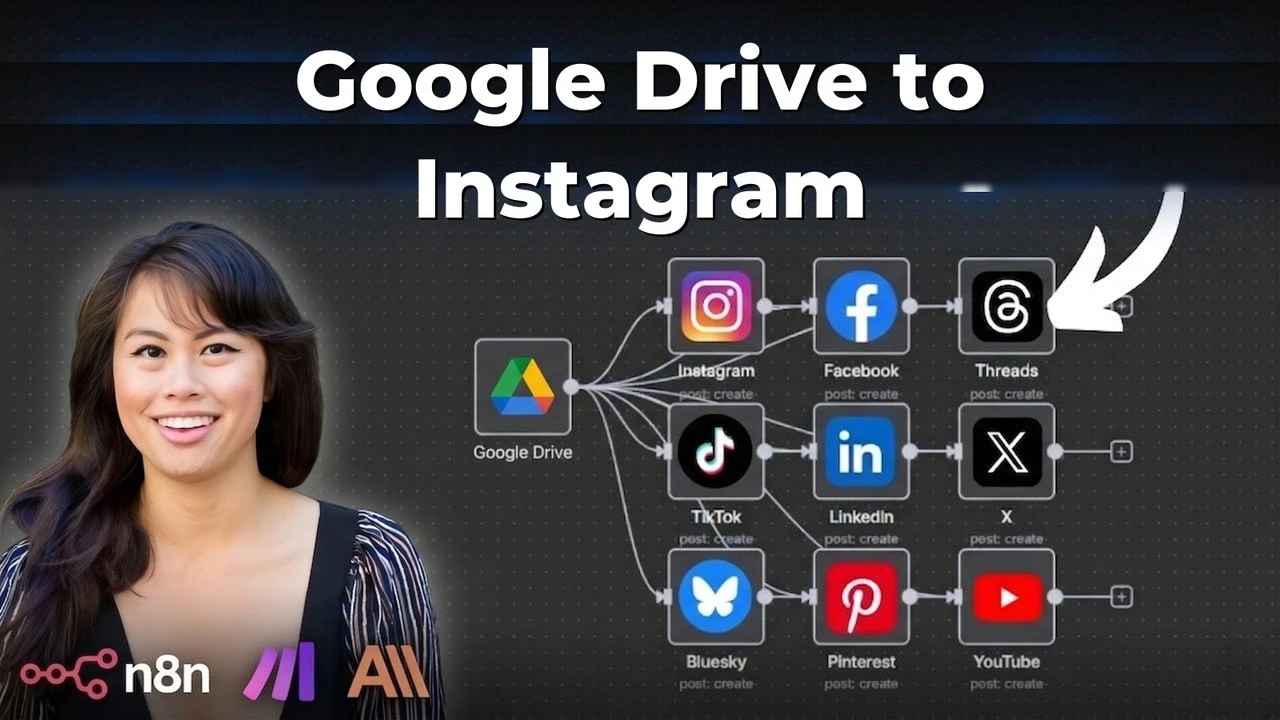
Google Drive to Instagram automation starts one step earlier than almost every guide you have read. Most tutorials begin at the caption box. This one begins at the file: you drop a photo into a Drive folder, and the caption writes itself and goes out without you opening the app.
That gap is where content dies. You take the photo. It sits in a folder. It never gets posted, because posting it means opening Instagram, thinking of a caption, and doing it again on LinkedIn. If you are a solo creator, a faceless operator, or a small agency shipping for clients, that folder is your unpublished backlog.
Kevin built this one and walked me through it. He is 36, lives in Malta, and has been building AI automation solutions for several years. He shows three versions of the same workflow: Make.com if you are new to automation, n8n if you want more control, and a custom Claude Code app if you want a real interface. All three hand the publishing step to Blotato.
One thing to set expectations honestly: in the video, Kevin runs the live demo end to end on LinkedIn. Instagram is the same build with the account swapped, and he configures it on camera without pushing the post live. I will show you exactly where that swap happens.
How to Automate Google Drive to Instagram (Video Guide)
If you would rather watch than read, this is the full walkthrough with Kevin. The written guide below adds the configuration details and the limits worth knowing before you turn it on.
Why the Trigger Matters More Than the Tool
Every “automate Instagram” guide I have read starts from the same place: you already have a caption, and the automation just schedules it. That skips the part that actually stops people.
The real bottleneck is the distance between having a photo and publishing it. You are not blocked on scheduling. You are blocked on staring at a blank caption box for a photo you took three days ago.
Making the file itself the trigger closes that gap. The folder becomes the queue. Anything you drop in is content, and the workflow handles the rest: watch the folder, read the image, write the caption, publish it.
My Tool Stack for Google Drive to Instagram Automation
Four pieces, and you probably already have two of them:
- Google Drive is the trigger. A watched folder is your whole content queue.
- Make.com or n8n is the wiring. Make is the gentler start, and n8n gives you self-hosting and parallel branches. Both have an official Blotato node, so the publish step is a module, not a hand-rolled API call.
- OpenAI or Claude reads the image and writes the caption. Kevin uses OpenAI in the Make build and swaps in Claude for the n8n one.
- Blotato publishes. One connection covers 9 platforms, so you are not wiring the Instagram Graph API by hand.
It is also my own product, since I founded Blotato, so take the endorsement with that in mind. The reason it earns its slot here is narrow: the publish step is the part of a DIY build that breaks, because Instagram will not accept a Google Drive share link as media. It wants a real hosted URL, which is why most templates bolt on a separate image host.
One honest note before you build: the API is what both the Make and n8n versions post through, and it is not part of the free trial. It starts on the $29 Starter plan, which is also where the official Make and n8n nodes live. If you want to try the app itself first, the trial covers everything except the API.
Make.com vs n8n vs Claude Code: Which Should You Use?
| Approach | Best for | The tradeoff |
|---|---|---|
| Make.com | Zero automation experience | Easiest to wire, one branch at a time |
| n8n | You want control or self-hosting | Google auth is a real setup step |
| Claude Code | You want a content OS your team can use | You are running a local app |
My read: start with Make. If you have zero technical experience, it is a really great starting point. Move to n8n when you want something more powerful and flexible. Claude Code is the Ferrari level, where the automation stops being a canvas you maintain and becomes an interface you actually use. If you are weighing these three more broadly, I broke that down in n8n vs Make vs MCP.
How to Automate Google Drive to Instagram (Step-by-Step)
This is the Make.com build, module by module. The n8n version follows the same shape with different node names.
Step 1: Create the folder you will drop files into
Kevin made a folder, then a subfolder inside it for the specific automation. Nesting sounds fussy until you run three of these and cannot remember which folder feeds which workflow.
Anything landing in that folder is now queued content. That is the whole mental model.
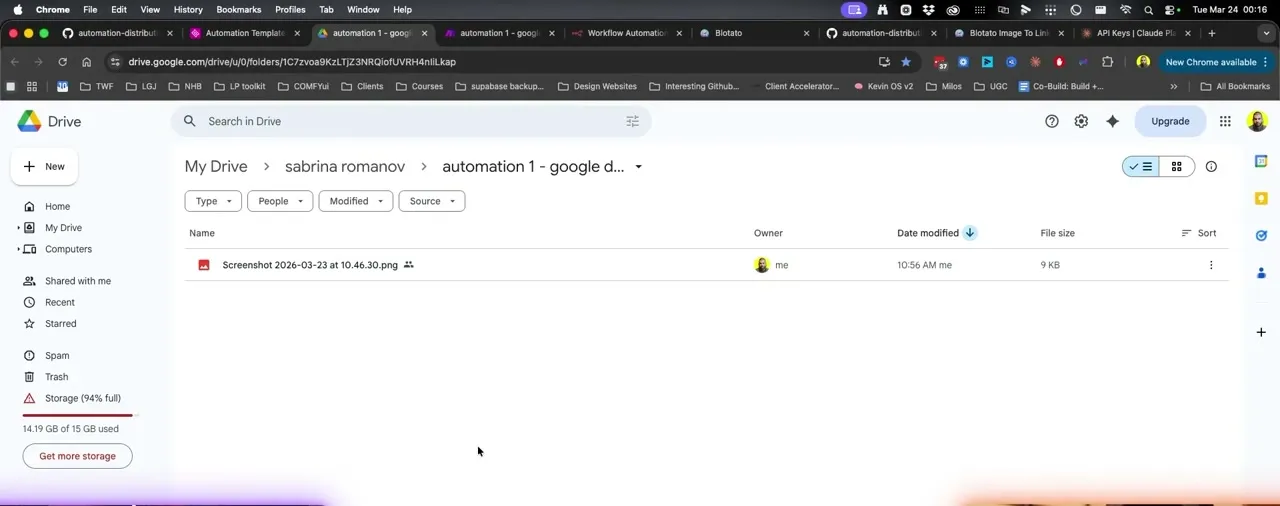
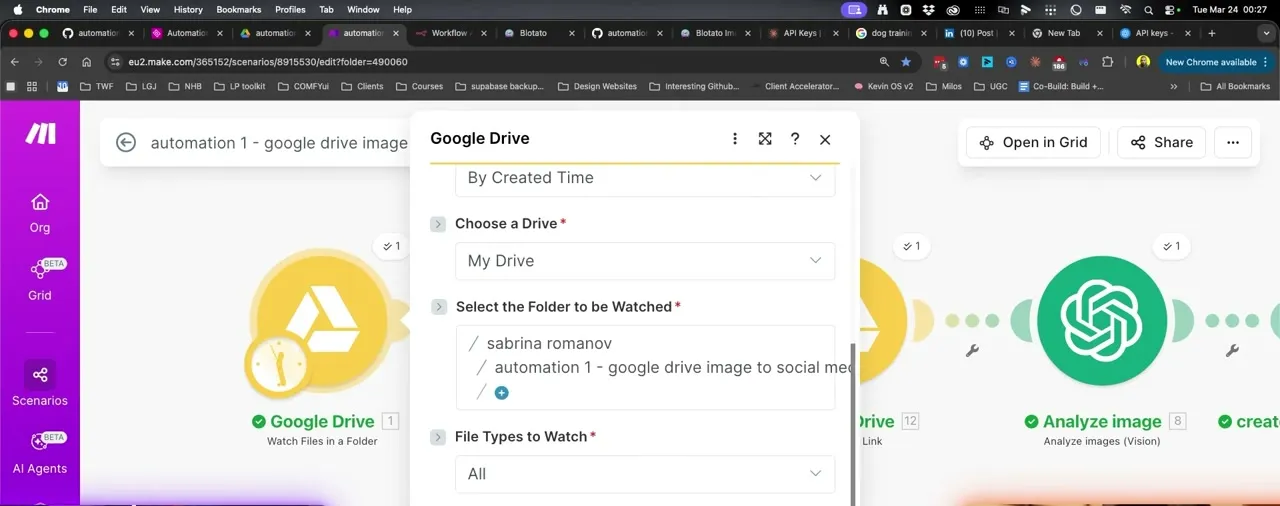
Step 2: Wire Google Drive into Make
Add a Google Drive “Watch Files in a Folder” module, hit Add, and sign in with your Google account. Pick the folder from Step 1. Kevin’s tip: once that connection exists, the next two Drive modules reuse it, so you only authenticate once.
Set the Limit field deliberately. Kevin sets his to 2, which is the maximum number of files pulled per run. If ten images are sitting in the folder, a limit of 2 takes two of them.
Step 3: Download the file and read the image
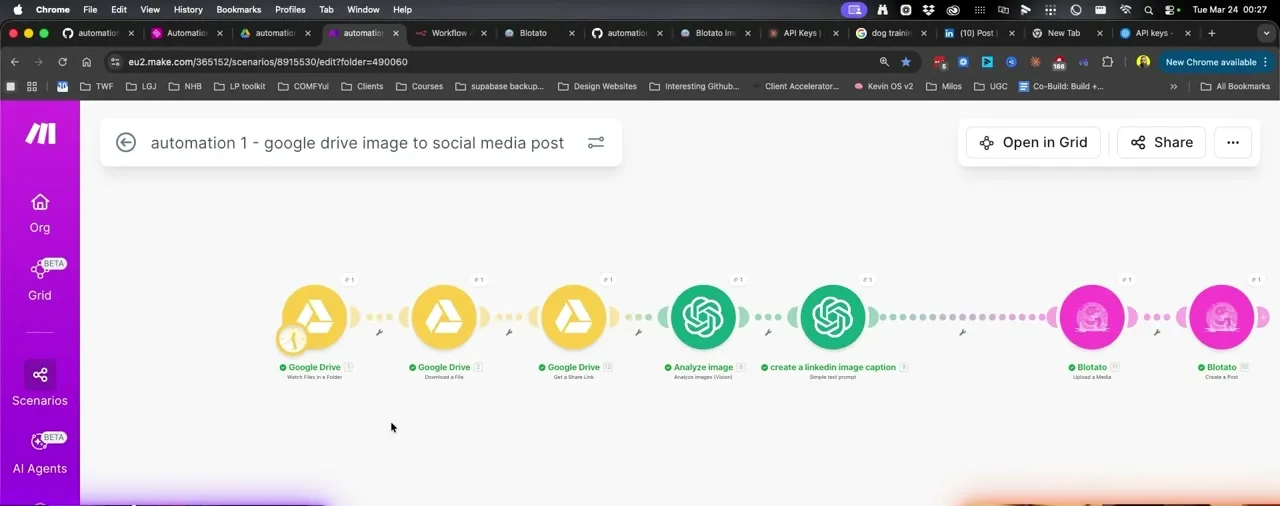
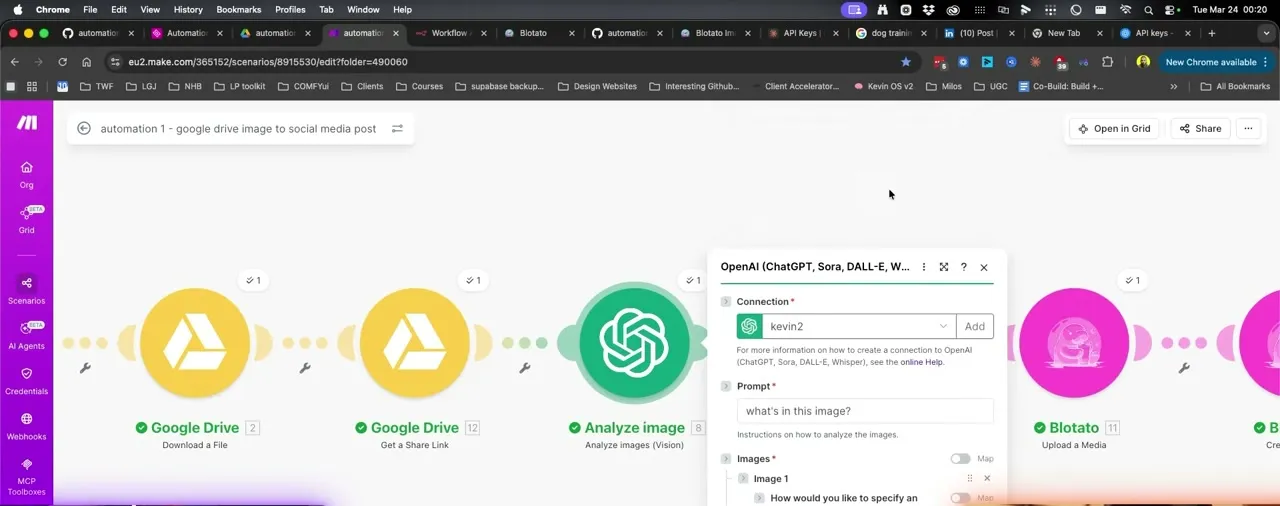
Two Drive modules do the plumbing: download the file, then get a share link. Then the OpenAI “Analyze Images (Vision)” module looks at it.
On the dog training photo, the vision model came back with a man eating outdoors holding up one hand. That plain description is the raw material the caption is built from, which is why the next module matters so much.
Step 4: Turn the description into a caption
A second OpenAI module takes that description and writes the post. This module is where the build is won or lost, and it is where almost everyone leaves value on the table.
Kevin’s first pass used a bare prompt and got a generic caption. Then he added two lines of business context: what the offer is, and to end the output with a call us at line. The rewrite came back specific to the business, CTA included.
My rule for this box: load your business name, your offer, and your CTA into the system prompt. If you do not want hashtags, say so in the prompt. Kevin singles this out as the one part of the build worth investing real time in.
Step 5: Publish, and swap the platform to Instagram
Two Blotato modules finish it: Upload a Media sends the image, then Create a Post publishes. Create a Post takes exactly two inputs, the text from your OpenAI module and the media URL from the upload step.
Here is the Instagram swap, and it is the whole answer to the question this post is named after. Open the Platform dropdown and pick Instagram instead of LinkedIn, then choose your connected account. Kevin’s point is that the text and media URL fields do not change: they are already mapped. If you want Instagram Stories rather than a feed post, change the post type parameter to story. Facebook works the same way.
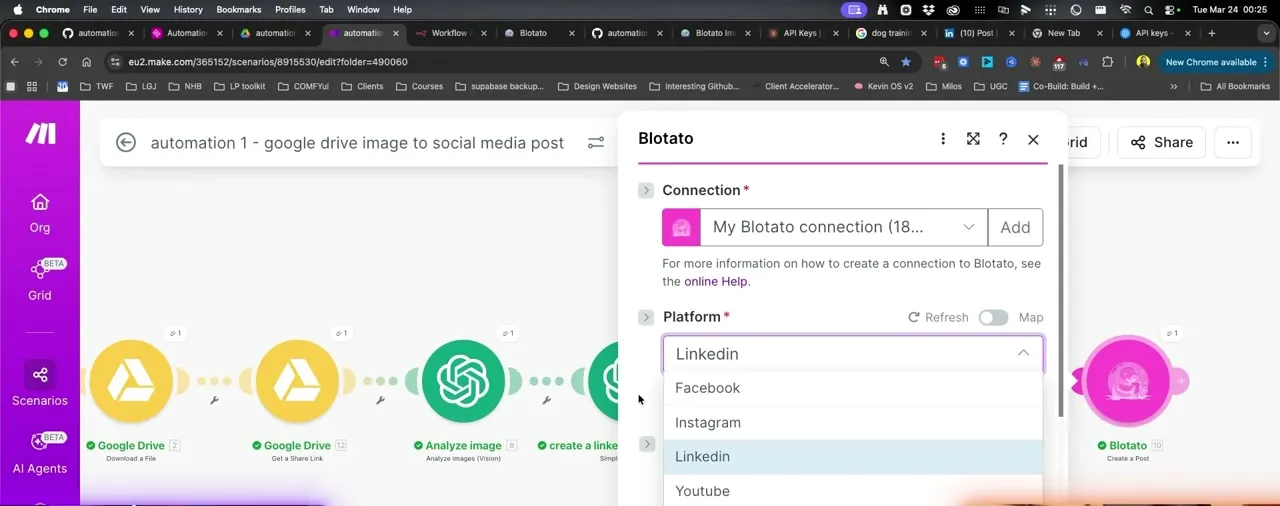
In the demo Kevin runs it on LinkedIn and the post appears on his profile with the AI caption and the image, from nothing but a file drop.
Building the Same Workflow in n8n
Same logic, three differences worth knowing.
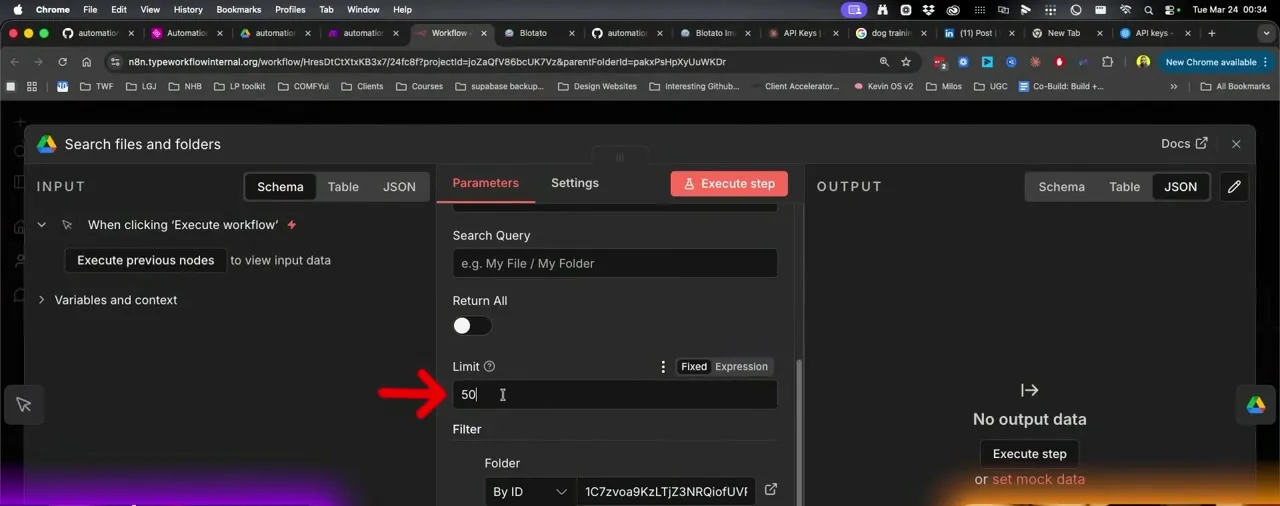
The Limit default will surprise you. In n8n the search node defaults to 50, not 2. Kevin sets it down. If you leave it, your first run reaches for fifty files.
Google auth is heavier if you self-host. On n8n cloud you sign in and move on. Self-hosted, you go to Google Cloud Console, create a project, and enable the APIs. Kevin’s advice is to follow the n8n docs from the credential screen, which walk it step by step.
Claude instead of OpenAI, and parallel branches. Kevin swaps in Anthropic’s Claude here, connected to Sonnet 4.6 via an API key. n8n can also run branches at the same time: the image analysis and the media upload run in parallel, then a merge node combines the caption with the image URL before posting. Make cannot do that.
For scheduling, n8n has a custom cron setting. Kevin points to cron-job.guru for examples and notes you can have Claude or ChatGPT write the expression for you.
The Claude Code Build (Your Content Operating System)
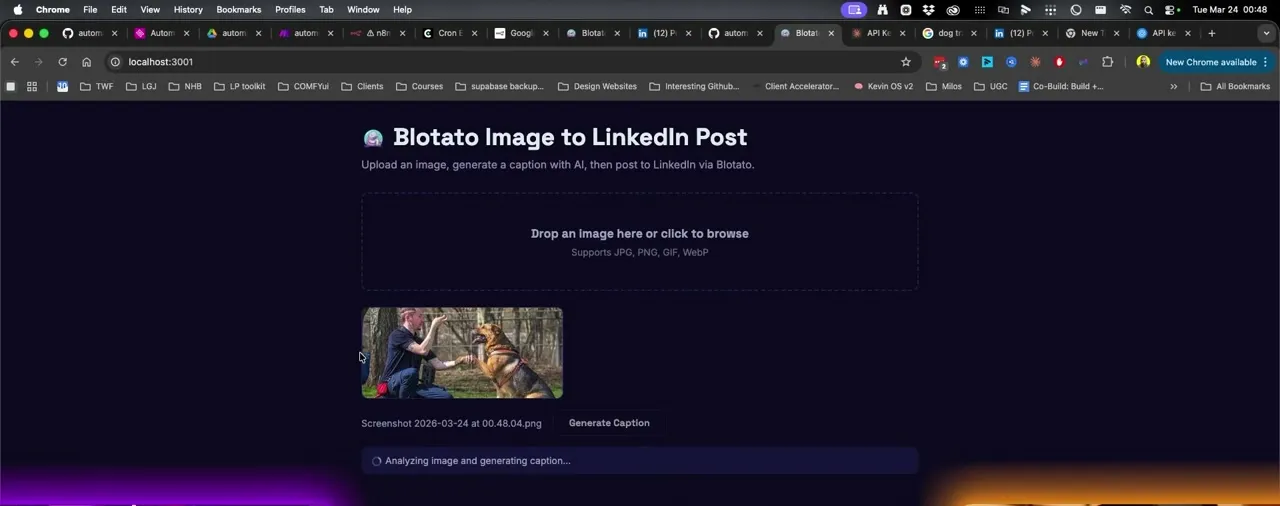
If Make is the starting point and n8n is the powerful one, this is the Ferrari level. It is also the version I would not have predicted. We built a small web app with Claude Code: it runs on localhost, you drag an image in, hit Generate Caption, edit what comes back, and click Post to LinkedIn.
The first thing it buys you is the approval step. You can build review into Make or n8n too, but it means writing to a Google Sheet or Airtable and checking it there, which is more complicated. This puts the media and the caption in front of you with one button to send it, focused on the content task.
The bigger thing is what it becomes. Because it is your code, you can truly build a custom interface and treat it as your content operating system, and different employees can even access it. Tell Claude “add a preview button” or “show me what hashtags it’s using” and it builds it step by step. Kevin edited the caption before posting, kept the hashtags he liked, hit post, and it landed on LinkedIn. If you want to let Claude handle the posting too, that is the same direction I take further in my AI content pipeline in Claude Code.
Pro Tips for Google Drive to Instagram Automation
Prove it on one platform first. The demo runs on LinkedIn, and I would start there too: it is the shortest path to seeing the loop work end to end. Get one file to become one post, then swap the dropdown.
Set the Limit before your first run, not after. Kevin sets Make to 2. n8n ships with 50. This is the field that turns a quiet test into forty posts.
Schedule the run before you raise the limit. When I asked Kevin how to handle more photos per day, he gave two options and said changing the schedule is the better one. Make can run every 15 minutes, and you can set it to specific days and times.
What This Workflow Can’t Do (Yet)
Instagram needs a professional account. The Instagram Content Publishing API works with professional (Business or Creator) accounts, not personal ones. Instagram itself caps API publishing at 100 posts in a rolling 24 hours, with carousels counting as one. Plan against 50, not 100: Blotato applies its own stricter anti-spam limit of 50 posts per Instagram account per 24 hours, so that is the number this workflow actually hits first, and it is worth knowing before you plan volume around Instagram API pricing.
It is not instant. The Drive watcher polls on a schedule. Drop a file and it goes out on the next run, not the moment you release the mouse.
The AI writes from pixels, not context. On a dog training photo, the model came back with a man kneeling down. It does not know the dog’s name, your business, or that the shot is from your Tuesday class. Every bit of that has to come from your prompt, which is why the system prompt does the heavy lifting.
Review is not built in. Left alone, the Make and n8n versions publish what the model writes. You can add an approval layer with a Sheet or Airtable in the middle, but it is more work, which is the gap the Claude Code interface closes.
Results You Can Expect
The honest result is not a metric, it is a behavior change: the photo you took stops dying in a folder. Kevin drops one image and a captioned LinkedIn post exists, with no app opened and no caption written.
The ceiling is your prompt, not your plumbing. Kevin’s first caption was generic, and two lines of business context made the second one usable. The build takes an afternoon. Getting the prompt right is the part that keeps paying, and it costs nothing but your attention, unlike the plan the API itself runs on.
Sabrina’s Final Take
If you have a folder of photos you never posted, this is the automation to build first, because it attacks the actual reason they never went out. Start in Make, move to n8n when you want parallel branches or self-hosting, and reach for Claude Code when you want to see posts before they publish. Do not overthink the tool: the version that beats all three is whichever one you finish, connected to a prompt that actually sounds like you. If a file-triggered build is not the shape you need, the social media automation tools roundup covers the other approaches worth knowing.
Google Drive to Instagram Automation FAQs
Can I post to Instagram from Google Drive automatically?
Yes, but not by pointing Instagram at a Drive link. Instagram’s API will not take a Drive share URL as media, so the workflow downloads the file, hands it to an AI model for a caption, uploads the image to a service that gives it a real hosted URL, and publishes from there. That upload step is what most DIY builds are missing.
Do I need a Business account to post to Instagram via API?
Yes. Instagram’s Content Publishing API covers professional accounts, meaning Business or Creator, and does not support personal ones. Switching is free in your Instagram settings. LinkedIn has no equivalent requirement, which is one reason I suggest proving the build there first.
Should I use Make.com or n8n for this?
Make if this is your first automation, which is what I recommend in the video. n8n once you want self-hosting, cron-level scheduling, or parallel branches like running the image analysis and the upload at the same time. The workflow itself is identical.
Can I use Claude instead of OpenAI for the captions?
Yes. Kevin runs OpenAI in the Make build and swaps in Anthropic’s Claude on Sonnet 4.6 for the n8n build. It is an API key and a node change, and the prompt structure stays the same.
How do I stop it from posting everything at once?
Two dials. The Limit field caps files per run, and the schedule controls how often it runs. Kevin’s advice is to leave the limit low and change the schedule instead, so posts spread out rather than firing in a batch.