How to Post to Instagram with Claude (No Meta API Setup)
Publish Reels and carousels to Instagram from Claude, no Meta Graph API. Covers collaborators, alt text, and where hashtags belong.

To post to Instagram with Claude, you connect the Blotato MCP server to Claude once, then type a prompt like “post this image to my Instagram.” Claude calls Blotato, Blotato publishes to your Instagram account, and you skip the Meta Graph API, the business verification, and the OAuth token juggling entirely. I’m the founder here, so take this with whatever grain of salt feels right. It’s the same way I run my own posting, 3M+ followers and 500M+ views.
Claude cannot reach Instagram on its own. It can write the post, but it has no way to publish it, so you need something that gives it that ability. There are two routes, and they differ mainly in how much setup you absorb yourself.
Route 1, build it yourself: wire the Instagram Graph API into your own server and hold the credentials. Free, fully under your control, and slower to get running.
Route 2, connect a hosted MCP server: point Claude at a server that already holds an approved Instagram integration. Minutes to set up, and the same connection covers your other networks.
| Build it yourself (Instagram Graph API) | Hosted MCP server | |
|---|---|---|
| Setup time | Days to weeks, gated by app review | Minutes |
| Developer app required | Yes, plus business verification | No |
| Account type | Business or Creator, linked to a Facebook Page | Business or Creator, linked to a Facebook Page |
| Scheduling | You build the queue | Included |
| Other networks | A separate integration per platform | Usually one connection for all |
| Cost | Free, plus your engineering time | Subscription, from $29/mo |
The walkthrough below runs Route 2, on Blotato’s MCP server.
Most guides for this either walk you through the Meta API (which needs business verification and app review) or browser automation (which breaks the moment Instagram changes a button). The Blotato MCP path is neither. One connection lets Claude publish to Instagram plus eight other platforms. Once posting works, you can run the whole content engine this way, drafting, grading, and scheduling, which is what I cover in how to automate social media with Claude Cowork.
What do you need to connect Claude to Instagram?
A few things have to be in place before Claude can post anything:
- A paid Blotato plan. The MCP server is part of Blotato’s API, which is included on every paid plan (Starter $29/mo, Creator $97/mo, Agency $499/mo). API and MCP access is not available on the free trial.
- A connected Instagram account inside Blotato. Connect it under Settings before you write a single prompt.
- An Instagram Business or Creator account. Meta requires this for any third-party publishing, Blotato included.
- Claude Desktop, Claude Code, or Claude.ai on the web. The same MCP server drives all three.
How do you post to Instagram with Claude?
The setup runs from connecting your account to firing the prompt that publishes your post. Four steps, in order. If you want the reference version of this setup, including exactly which Instagram actions Claude can call, the Instagram MCP server page covers it.
Step 1: Connect your Instagram account
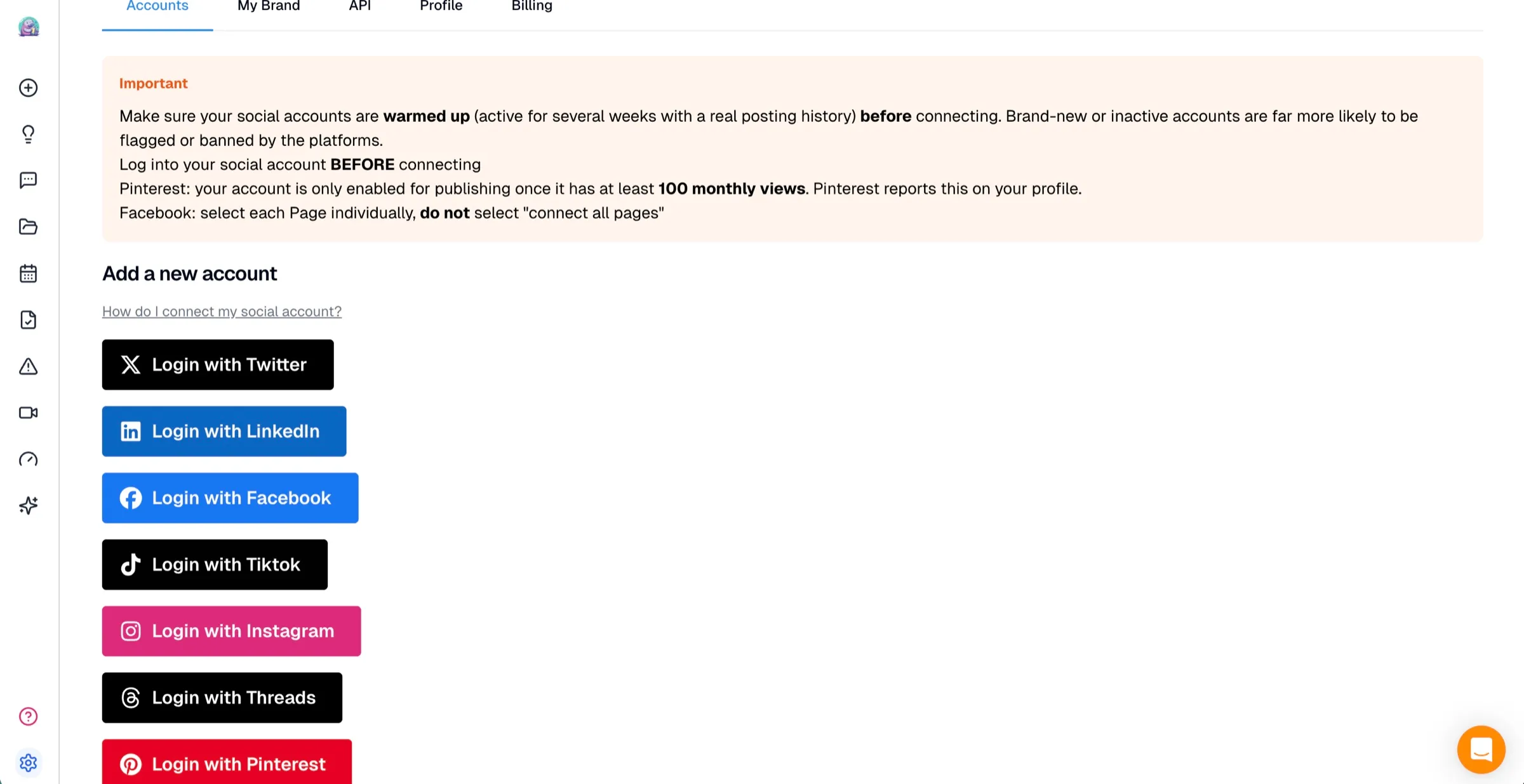
Log into Blotato, open Settings, and connect your Instagram account under your social platforms. Blotato handles the Meta authentication, so you never open the Graph API dashboard or request a developer token. This connection is what lets Claude publish later without any per-platform OAuth on your side.
Step 2: Add the MCP server to Claude
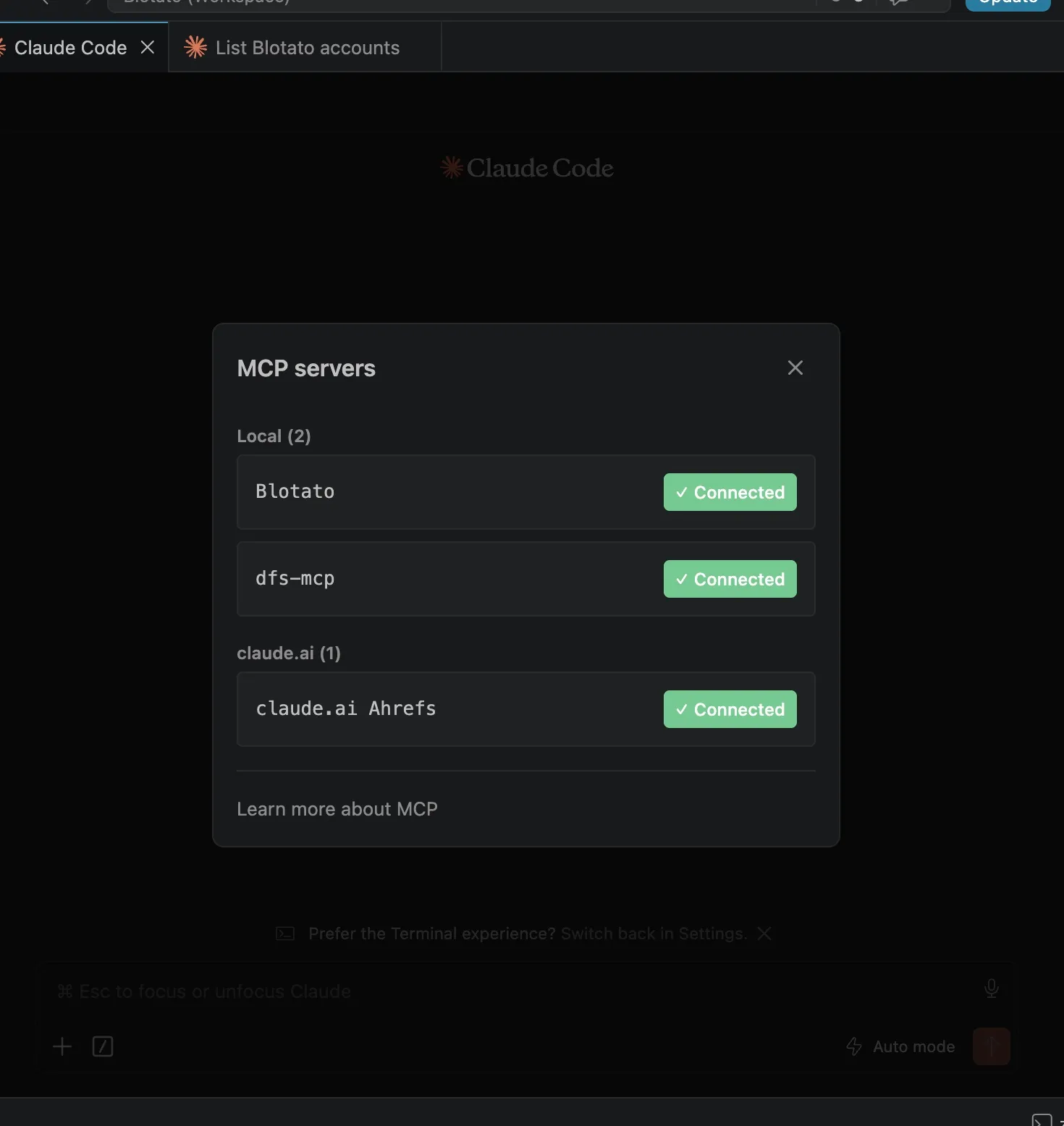
Wire the Blotato MCP server into Claude. In Claude Desktop, open Customize, go to Connectors, and add a custom connector at https://mcp.blotato.com/mcp. In Claude Code, run the command below, then /mcp, select Blotato > Authenticate, and approve access.
claude mcp add --transport http Blotato https://mcp.blotato.com/mcpNothing to copy, no API key, it uses your logged-in browser session. On Claude Code the tools only register at startup, so restarting is part of the step rather than an optional extra. The Claude Code page has that detail and the rest of the client-specific setup. The complete walkthrough is in Blotato’s MCP setup guide. Once the /mcp panel shows Blotato as connected, Claude can publish on your behalf.
On Claude.ai in the browser there is an even shorter path. This link opens the Add custom connector dialog with Blotato’s name and server URL already filled in, so you review the two fields and click Add. Free Claude accounts get one custom connector, and Pro and Max accounts can add more.
Step 3: Confirm the account is visible
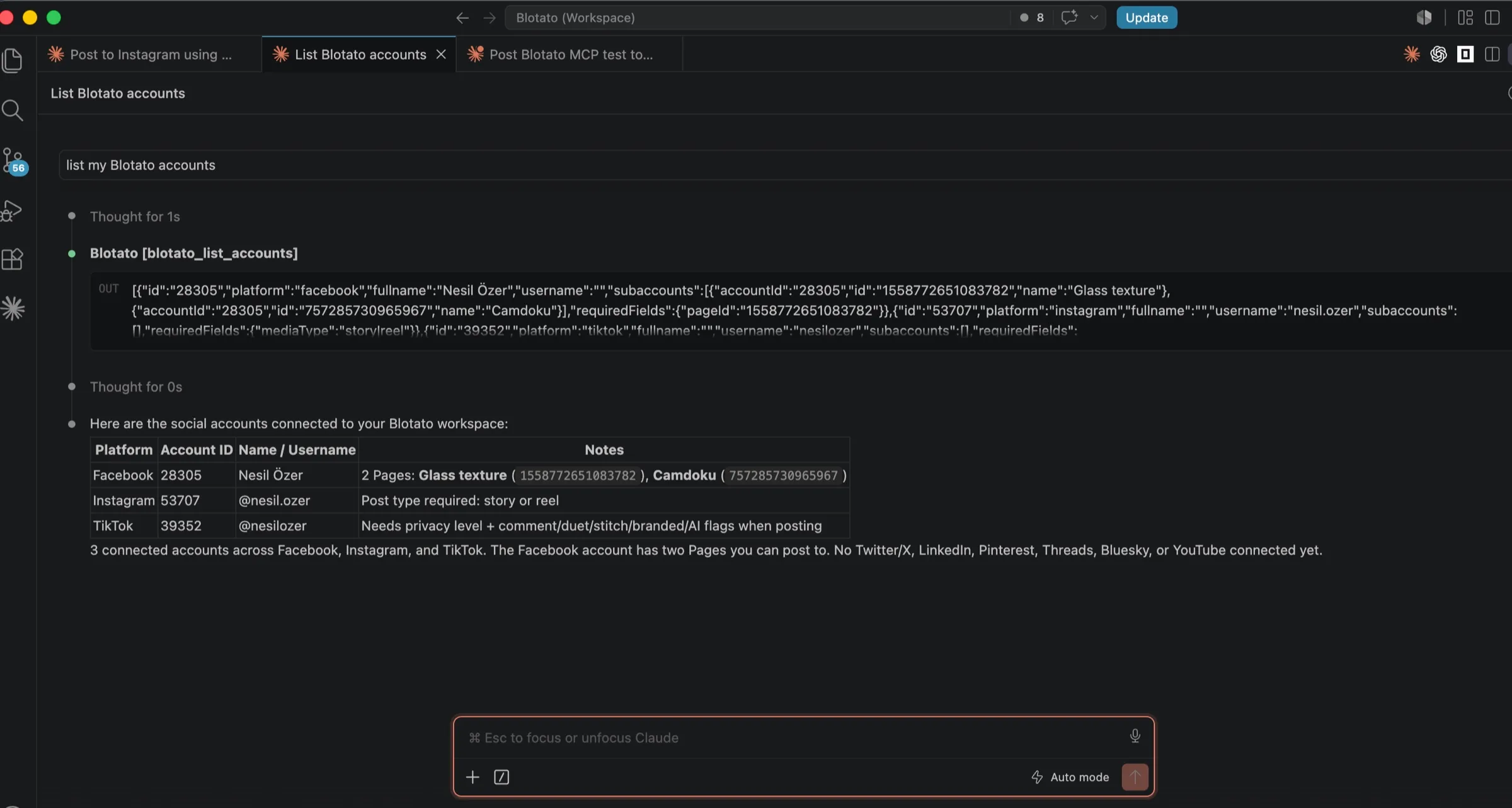
Ask Claude to “list my Blotato accounts.” Claude runs the blotato_list_accounts tool and returns every platform you have connected, including Instagram, with each account ID. Seeing your Instagram account in that list confirms Claude can publish to it. If Instagram is missing, go back to Step 1.
Step 4: Write the prompt that publishes
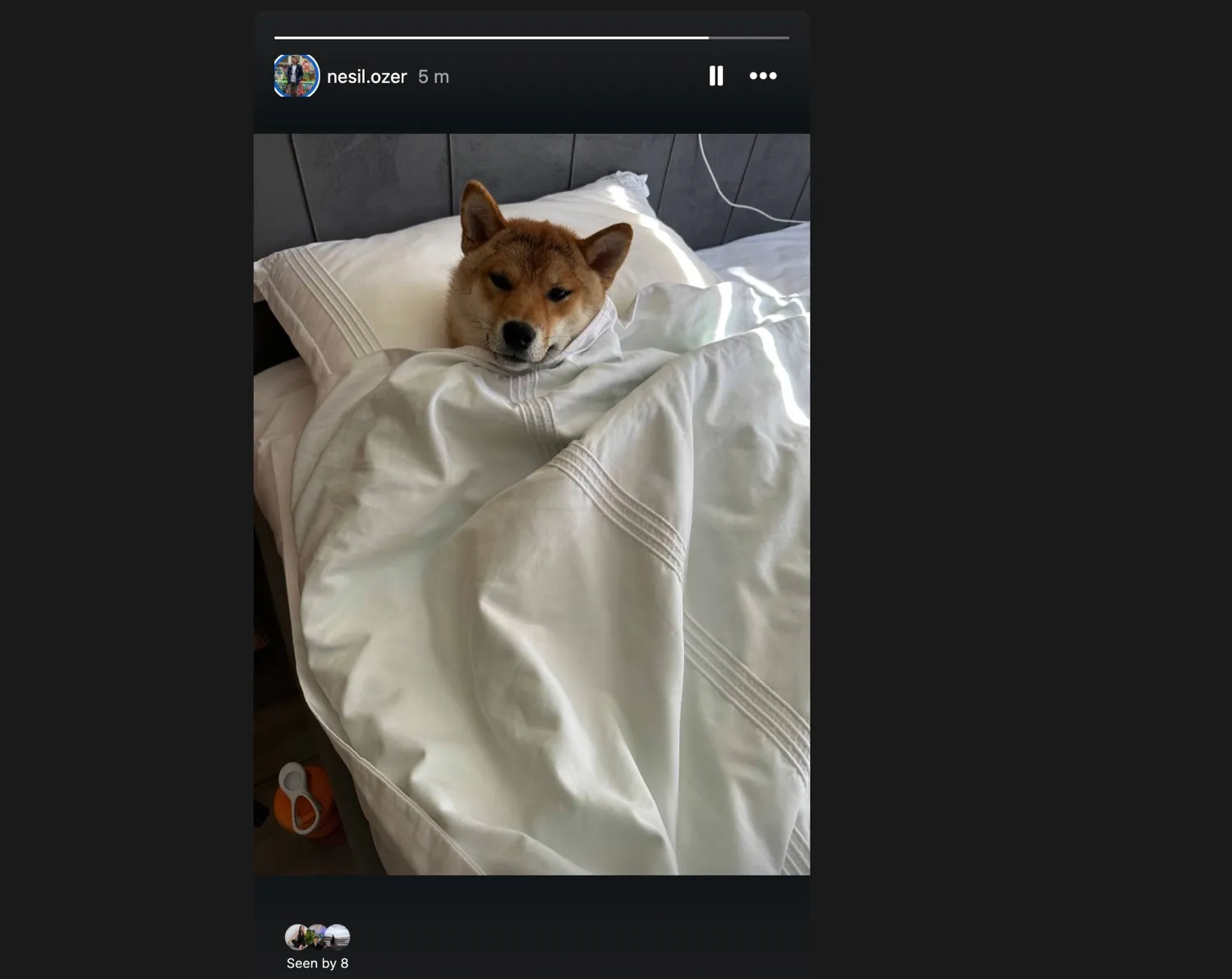
Tell Claude what to publish in plain language. A prompt like “Post this image to my Instagram with the caption: swipe for the full reveal” is enough. Claude calls blotato_create_post with your account ID, the instagram platform, your caption text, and the media URL. For a Reel, mention it, and Claude sets the mediaType so it publishes as a Reel instead of a feed post. Claude returns a postSubmissionId, and you can ask it to check blotato_get_post_status to confirm the post went live. I ran exactly this to post a Story, and it published in seconds.
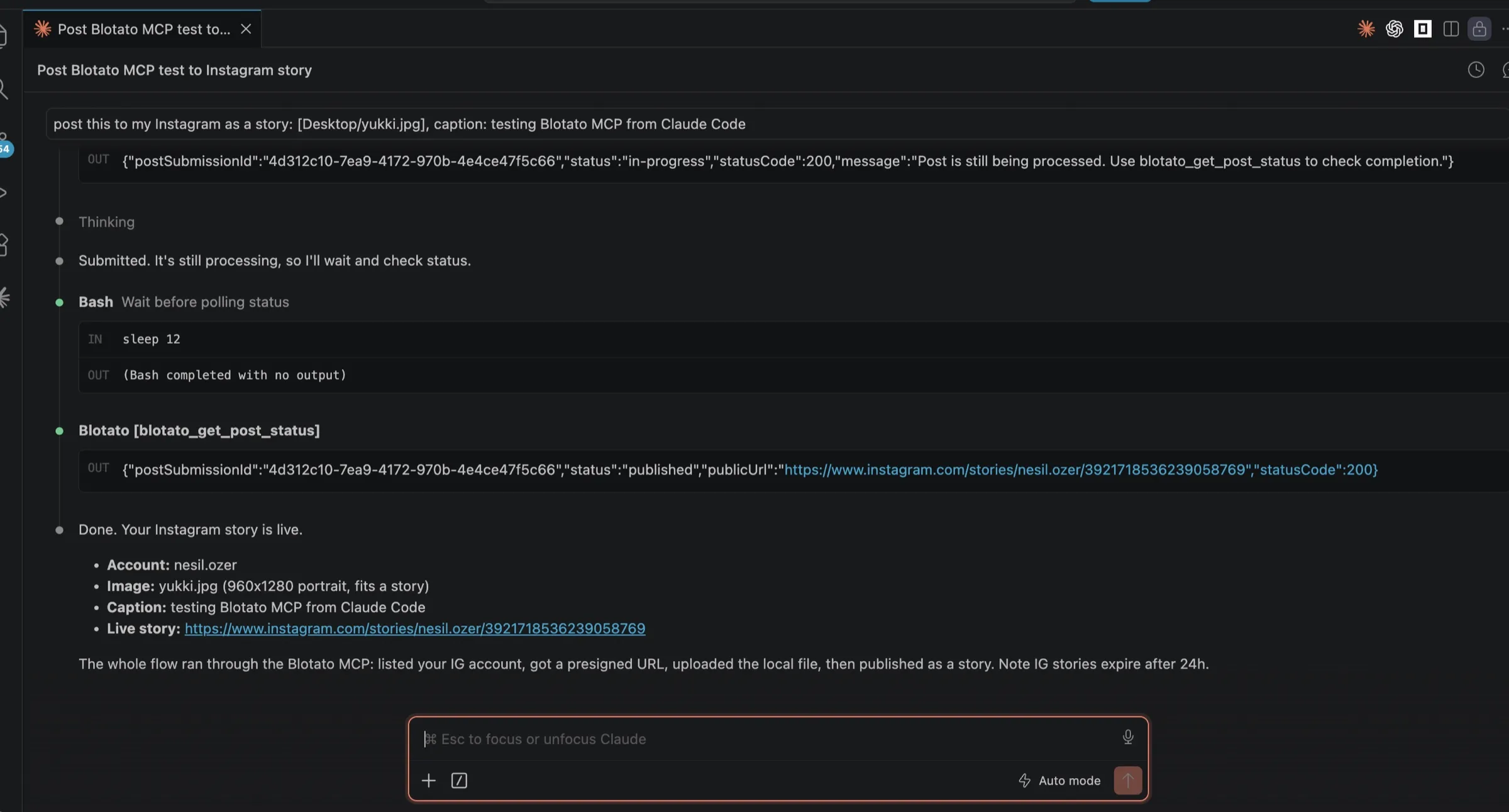
Once the status comes back as published, the Story is live on your account.
Want Claude handling more of your content stack? See post to Facebook with Claude for Pages, how to post to YouTube with Claude for video, or how to create social media posts with Claude and Canva for the design side of the workflow.
Step 5: Can Claude schedule the post for later?
Say “send this out Monday at 8am” and Claude passes a scheduledTime to Blotato, or ask for your next free slot and it takes the next opening on your calendar. Scheduled posts live in Blotato, where you can move or delete them later.
Worth scheduling the first comment along with the post on Instagram specifically. Because hashtags belong in a firstComment rather than the caption, a queued post that carries its own comment publishes complete, instead of leaving you to paste hashtags in manually at 8am to catch the early engagement window.
Ready to post to Instagram straight from Claude? Start with Blotato and connect the MCP server in a couple of minutes.
Which Instagram formats can Claude publish?
All four Instagram formats go out through the same blotato_create_post call. What changes is what you attach and what you tell Claude the post is.
| Format | What to attach | What to tell Claude | Extras available |
|---|---|---|---|
| Single image | One image URL | Nothing special, this is the default for images | Alt text, up to 3 collaborators, first comment |
| Carousel | 2 to 10 images or videos | "Post these as a carousel" | Alt text, first comment. No collaborators |
| Reel | One video, 3 seconds to 15 minutes, aspect ratio between 4:5 and 1.91:1 | "Post this as a Reel" | Cover image, share to feed, custom audio name, trial reel, up to 3 collaborators, first comment |
| Story | One image or one video | "Post this as a Story" | None. Stories take no first comment |
Two things catch people here. Blotato publishes any Instagram video that is not a Story as a Reel, so say “Story” when you mean one. And a carousel that names collaborators fails to publish, since Instagram only allows collaborators on single images and Reels. The full field list is in Blotato’s API reference and the media limits are in the media requirements page, and if carousels are your main format, automating Instagram carousels covers generating the slides themselves in bulk before anything reaches the queue.
Why not just build it against the Meta API?
The Blotato MCP server skips the two painful paths most people hit when they try to get Claude posting to Instagram. The Meta Graph API forces you through a business account, app review, and business verification before you can publish once. The same gate applies on the messaging side if you want the agent answering DMs too. Browser automation, where Claude clicks through Meta Business Suite, breaks every time Instagram changes its file picker or date fields, and people end up writing AppleScript hacks to keep it alive.
There’s a reason the direct route is this heavy: Meta’s Instagram content-publishing API only works with a professional account and caps you at 100 published posts per rolling 24 hours, on top of Instagram’s usual 2,200-character caption limit, which you can check a draft against before you send it. Captions published through the API also keep their newline characters, so the invisible-character line-break tricks hand-posted captions rely on are unnecessary here. Blotato holds that connection for you, and applies its own tighter cap of 50 Instagram posts per 24 hours per account to keep accounts out of spam trouble, so you never touch the API that enforces the underlying limits.
Generic agent toolkits have their own catch. They make you connect OAuth for each platform separately, so Instagram, TikTok, and LinkedIn are three setups, not one. Blotato connects each account once on its side, then exposes all nine platforms (Instagram, TikTok, YouTube, X, LinkedIn, Facebook, Threads, Pinterest, Bluesky) through a single MCP connection. The same prompt that posts a Reel can post that content everywhere else.
If you want the deeper reason the Meta API is so heavy, the Instagram API pricing guide breaks down the access tiers and limits. And once you are publishing, automating Instagram Reels with AI shows how to feed the whole pipeline.
What goes wrong the first time?
A handful of things trip people up on the first try:
- Trying this during the trial. Both the API and MCP sit behind a paid plan. Note too that creating an API key in Settings cuts the trial short and moves you straight onto paid Starter.
- Skipping the account connection. Claude cannot post to an Instagram account that is not connected in Blotato first. Run “list my Blotato accounts” to check.
- Using a personal Instagram account. Meta blocks third-party publishing to personal profiles. Switch to a Business or Creator account.
- Forgetting the media for Reels. A Reel needs a video URL. Tell Claude it is a Reel so it sets the right format instead of trying to post a feed image.
Conclusion
Posting to Instagram with Claude comes down to one connection and one prompt. Connect your Instagram account in Blotato, add the MCP server to Claude Desktop or Claude Code, then tell Claude what to publish or schedule. No Meta API, no browser automation, no per-platform OAuth. Try Blotato and let Claude run your Instagram posting.
How to Post to Instagram with Claude FAQs
Can you post to Instagram with Claude?
Yes. Claude cannot post to Instagram on its own, but it can through the Blotato MCP server. Once you connect Blotato to Claude and link your Instagram account in Blotato, a prompt like “post this to my Instagram” tells Claude to publish through Blotato’s API. It works in Claude Desktop and Claude Code.
How do I connect Claude to Instagram?
You connect in two places. Add your Instagram account in Blotato under Settings, then add Blotato’s MCP server (https://mcp.blotato.com/mcp) to Claude, as a custom connector in Desktop or with one claude mcp add line in Code. Approve access and Claude publishes to that account.
Does Claude have an Instagram integration?
Not a native one. Claude has no built-in Instagram connector, so it reaches Instagram through an MCP server. Blotato’s MCP server (https://mcp.blotato.com/mcp) is that bridge: Blotato holds the Instagram connection, and Claude publishes through Blotato. You need an Instagram Business or Creator account, since Meta blocks API publishing to personal profiles.
Do you need the Meta API to post to Instagram with Claude?
No. Blotato handles the Meta authentication on its side, so you never set up the Meta Graph API, request a developer token, or pass business verification yourself. You connect your Instagram account once in Blotato, and Claude publishes through Blotato instead of talking to Meta directly.
Can Claude schedule Instagram posts for later?
Yes. Tell Claude when, and it passes that time to Blotato instead of going out now. Pick a specific time or use Blotato’s next open slot. The scheduled post sits in Blotato, where you can reschedule or delete it beforehand.
Does Claude need my Instagram password?
No. Instagram authorization runs through Meta’s OAuth screen, which issues a scoped token to the connecting app rather than exposing your login. Claude only ever sees the publishing tools.
Will Instagram flag posts published this way as automated?
No. Posts published through Meta’s official Instagram API are normal posts, not labeled as automated or downranked for being scheduled. This is the same mechanism every legitimate scheduling tool uses. What does carry risk is browser automation that drives the Instagram UI, since that generally violates platform terms.
Can Claude read my Instagram analytics too?
Yes, on Instagram. Blotato’s analytics cover eight of the nine platforms, everything except LinkedIn, so you can ask Claude to pull performance data back off your Instagram posts.
What does this cost?
The price is $29/mo flat for 20 connected accounts and does not scale with volume. Plan to subscribe rather than trial it: the 7-day trial covers the web app, not the API, and issuing a key moves you onto Starter.
Can I post to Instagram from inside Claude without leaving the chat?
Yes. After the one-time connector setup, you never open Instagram or the Blotato dashboard: the prompt, the tool call, and the publish confirmation all happen in the same Claude conversation. The same MCP server serves Claude.ai on the web, Claude Desktop, Claude Cowork, and Claude Code.
Is Blotato in Claude’s connector directory?
No. Blotato connects as a custom connector, which you add by URL (https://mcp.blotato.com/mcp) or with the one-click link in Step 2, instead of from the directory search inside Claude. Anthropic runs directory connectors and custom connectors on the same MCP infrastructure, so publishing works the same way once Blotato is added. The practical difference is discovery: Claude’s in-chat connector suggestions draw only from the directory, so add Blotato once by link and it stays in your connectors list until you remove it.
For the reference version of this setup, including every Instagram action Claude can call, see the Instagram MCP server page.