Higgsfield Supercomputer Tutorial: Prompt to Social Media
Higgsfield Supercomputer made a faceless video from one prompt. My exact prompt, setup answers, credit tips, and the social media automation I use.
I made a complete faceless YouTube video with Higgsfield Supercomputer from a single prompt. It was a 3-minute documentary on where Samoyed dogs come from, with original visuals, a voiceover, music and edited cuts. It asked a few setup questions and waited for my approvals along the way. I picked the topic because I have two Samoyed puppies.
Most faceless workflows still split that job into five parts: research, script, visuals, voiceover and editing. I wanted all five at once, in a format I could repeat as a channel. And I wanted it to look good, not like a pile of random AI clips.
This guide is for solo creators starting or running a faceless channel. It covers the exact prompt, the setup questions Supercomputer asks and what I answered. Then it shows how I’d spend fewer credits next time, and how I schedule a second, vertical Supercomputer video to YouTube, TikTok and Instagram.
How to Use Higgsfield Supercomputer (Video Guide)
The video shows the finished Samoyed documentary, then a new 30-second build. This written version adds the options for every setup question and what the style-image approval costs.
One Look Across Every Scene
Supercomputer is built to keep one look across a whole video. Its help center describes it as a chat-driven agent that breaks a request into steps, picks the right model for each one, runs them, and assembles the result. The script, scenes, clips, voice and final edit all happen in one chat, under one style.
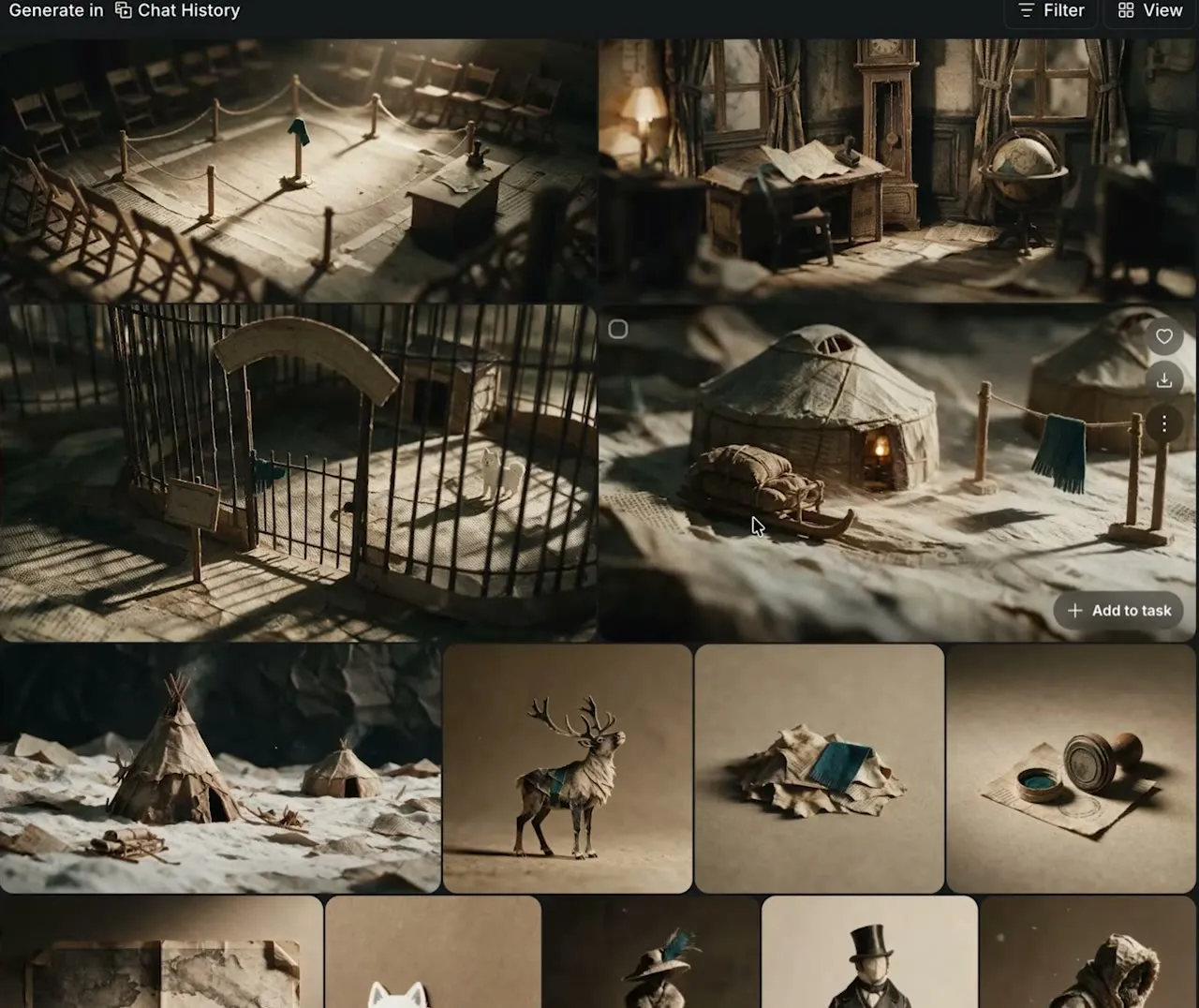
On my Samoyed video, the miniature paper-diorama look holds from the first scene to the last, and so do the colors. It mixes very wide shots with close-ups full of detail, and the scenes flow into each other. It is something I’d be proud to send to people.
My Setup: Supercomputer for the Video, Blotato for Posting
Two tools handle the making and the posting, plus one optional route if you live in Claude:
- Higgsfield Supercomputer: the chat where you type the prompt. It asks a few setup questions, then writes the script, makes the scene images and clips, records the voiceover and assembles the video. You pay for generations in Higgsfield credits.
- Blotato: schedules the finished video to YouTube, TikTok, Instagram and the rest of the 11 platforms it publishes to. Its chat writes the caption for you.
- Optional, for agent builders: run Higgsfield from Claude through its MCP server and add Blotato’s as the publishing connector. My Higgsfield MCP setup guide walks through that chain.
Blotato is an app I built and a company I run, so weigh what I say about it with that in mind.
Higgsfield’s published connector pages don’t list YouTube, so your long-form video still needs a way onto your channel.
If you want the posting side handled, start a 7-day Blotato trial, connect your YouTube, TikTok and Instagram accounts, and schedule your first Supercomputer video. The trial includes scheduling, publishing and 300 AI credits, and you can cancel anytime.
The Six Requests Inside My One Prompt
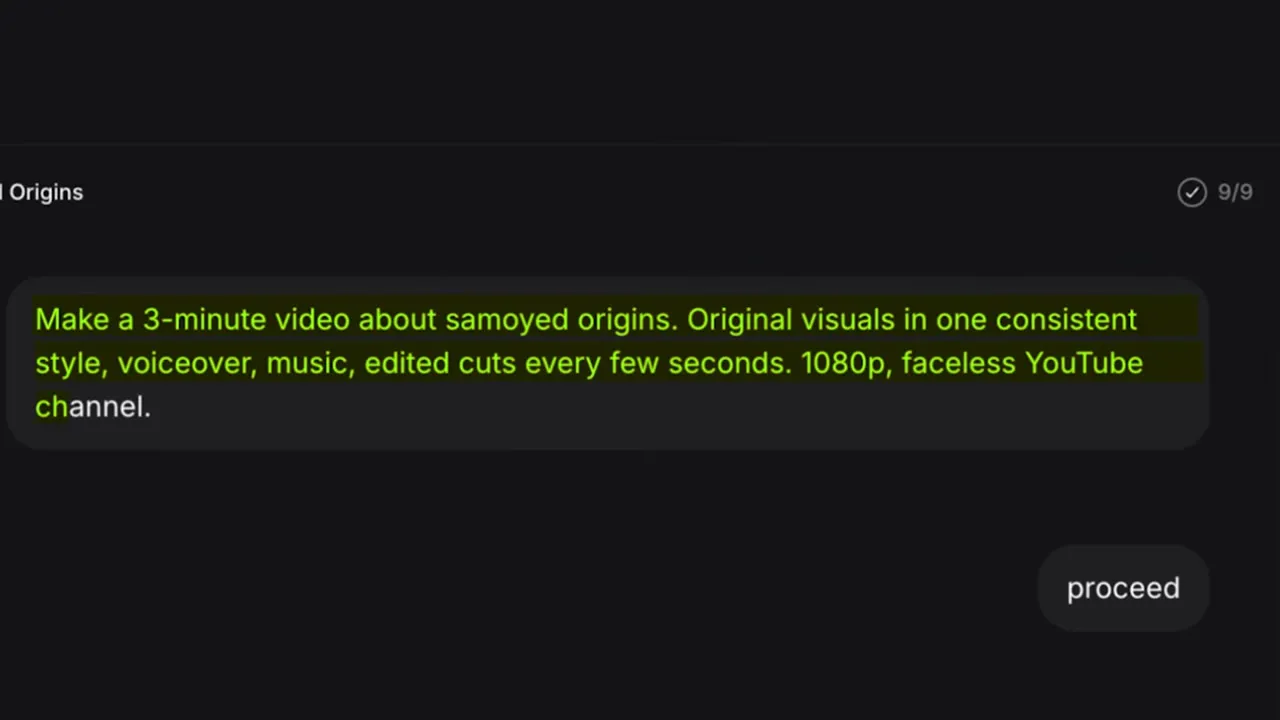
This is the prompt, word for word:
Make a 3-minute video about samoyed origins. Original visuals in one consistent style, voiceover, music, edited cuts every few seconds. 1080p, faceless YouTube channel.
It reads like one line, but six separate requests are packed in. Here’s what happened with each one. The voice, music and pacing details come from my demo build:
| Request | Words in the prompt | What Supercomputer did with it |
|---|---|---|
| Duration | "3-minute video" | Planned the full runtime (I cut it to 30 seconds for the demo build) |
| Topic | "samoyed origins" | Wrote the Samoyed script around it, then waited for my approval |
| Style | "original visuals in one consistent style" | Asked me to pick one look for the whole video |
| Voiceover | "voiceover" | Asked which narrator voice to use |
| Music | "music" | Listed a music bed under the narration |
| Pacing | "edited cuts every few seconds" | Read it as hard cuts about every 2 seconds |
The tail of the prompt, “1080p, faceless YouTube channel,” sets the output target. On the demo build, Supercomputer said it would deliver at 2K, above the 1080p I asked for. What the prompt leaves out, it asks about next.
How to Make a Faceless Video in Supercomputer (Step-by-Step)
I used this prompt shape for both the finished 3-minute Samoyed documentary and a 30-second pixel-art demo I built live. Each setting below comes from the build that showed it on screen.
Step 1: Type your prompt
Go to higgsfield.ai/supercomputer and paste a prompt shaped like mine, with your own topic. For the demo, I switched the topic to bird migration and cut it to 30 seconds.
Step 2: Answer the setup questions
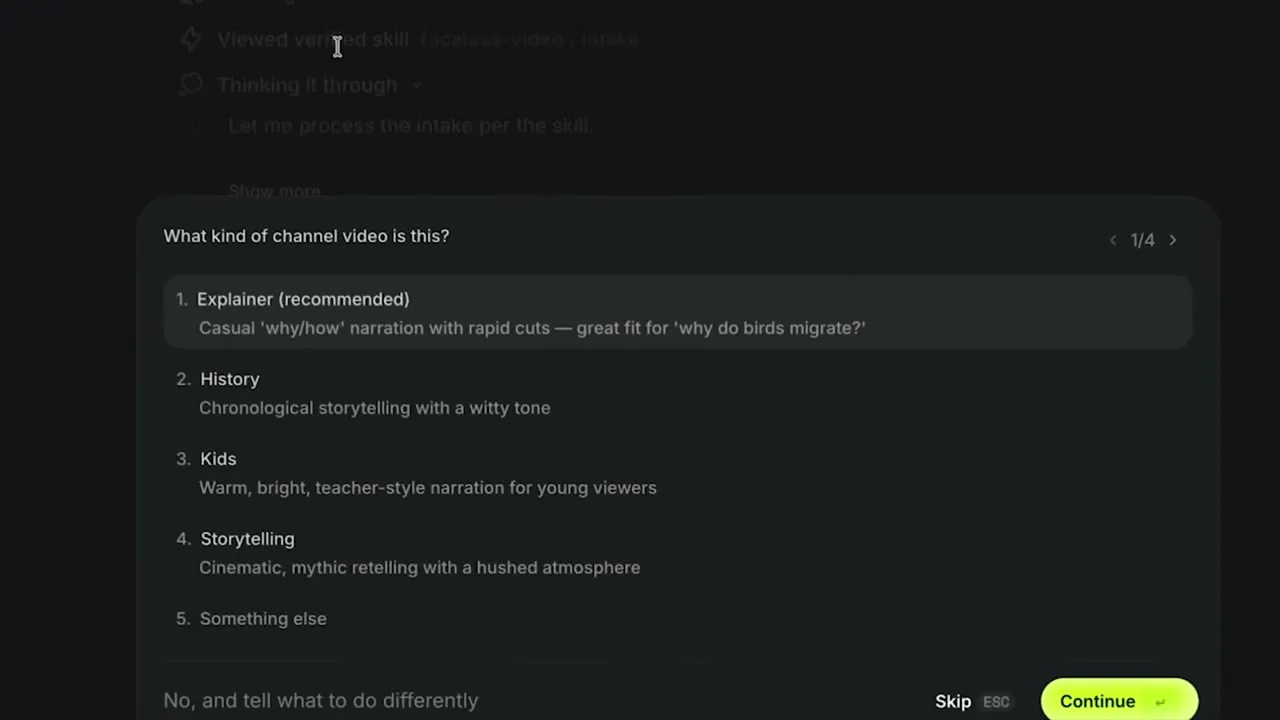
Before it generates anything, it asks a few questions. On the demo it asked four:
- Channel video type: Explainer (marked recommended), History, Kids, Storytelling, or something else. I picked History for the Samoyed video and Storytelling for the demo.
- Aspect ratio: 16:9 for long-form YouTube, 9:16 for Shorts, Reels and TikTok.
- Burned-in subtitles: I said no, the usual call for long-form YouTube. You can add captions later.
- YouTube thumbnail cover: yes on the Samoyed video, skipped on the demo to save time.
Step 3: Pick one style for the whole video
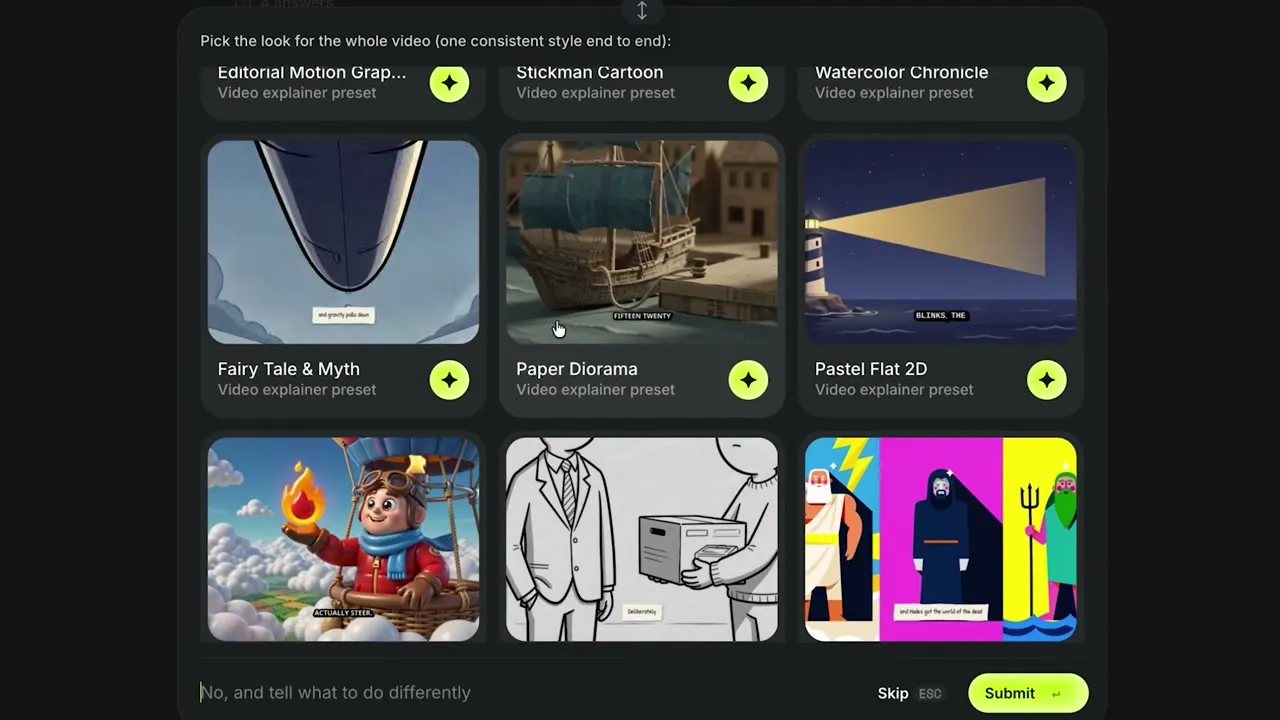
Next comes a grid of style presets for the whole video. You can describe your own, but on your first video I’d honestly just pick a preset. Stickman is a really popular one. I used Paper Diorama for the Samoyed video and Pixel Art for the demo.
Step 4: Choose the narrator voice
For cinematic storytelling, it suggested Arthur or Callum, and you can pick any other voice. I chose Arthur.
Step 5: Approve the style image
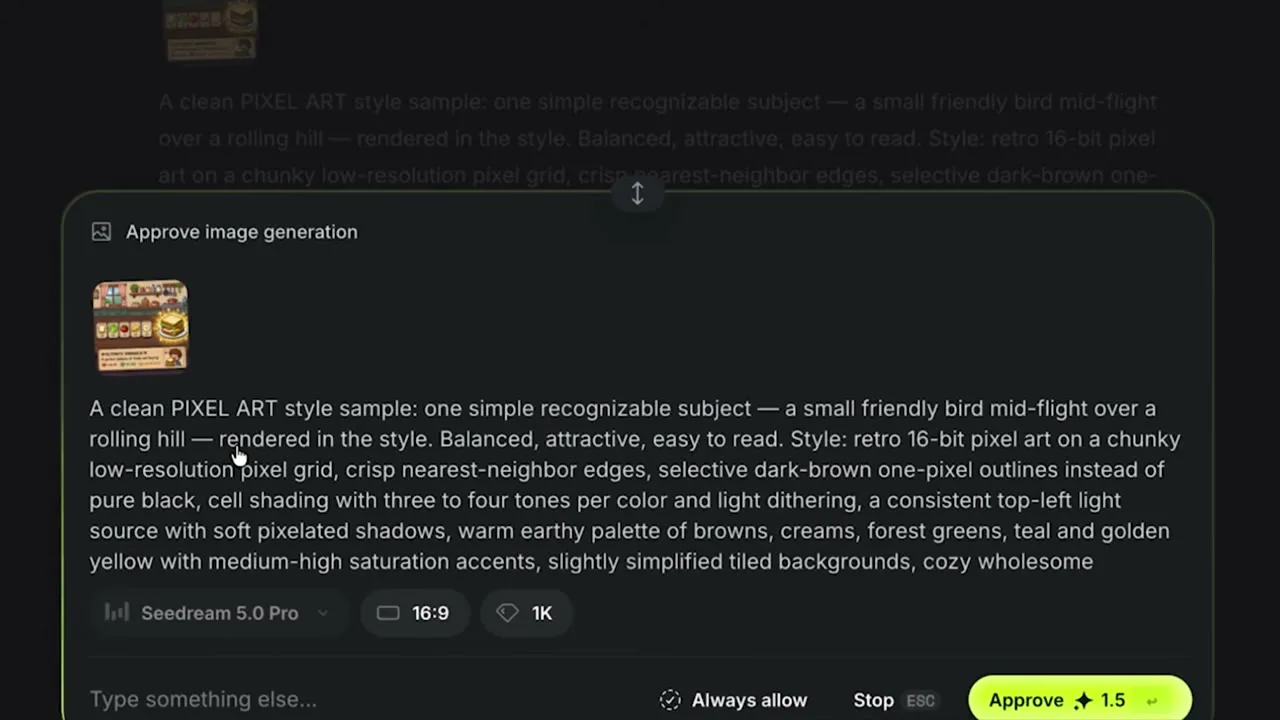
Supercomputer asks you to approve one sample image in your style. It shows the image prompt, the model and the credit cost first. On my demo, that one image cost 1.5 credits.
Step 6: Let it build the scenes, clips and voiceover
On the Samoyed video, it wrote the script and waited for my approval. Then it made an image for every scene and turned each one into a clip. The clips already had sound effects, like snow sweeping across the ground and a map crumpling.
Last, it generated the voiceover and stitched the final video, with no export to CapCut or Adobe Premiere.
Step 7: Schedule it to YouTube, TikTok and Instagram with Blotato
For this step I used a second Supercomputer video, a vertical UGC-style ad for a mug.
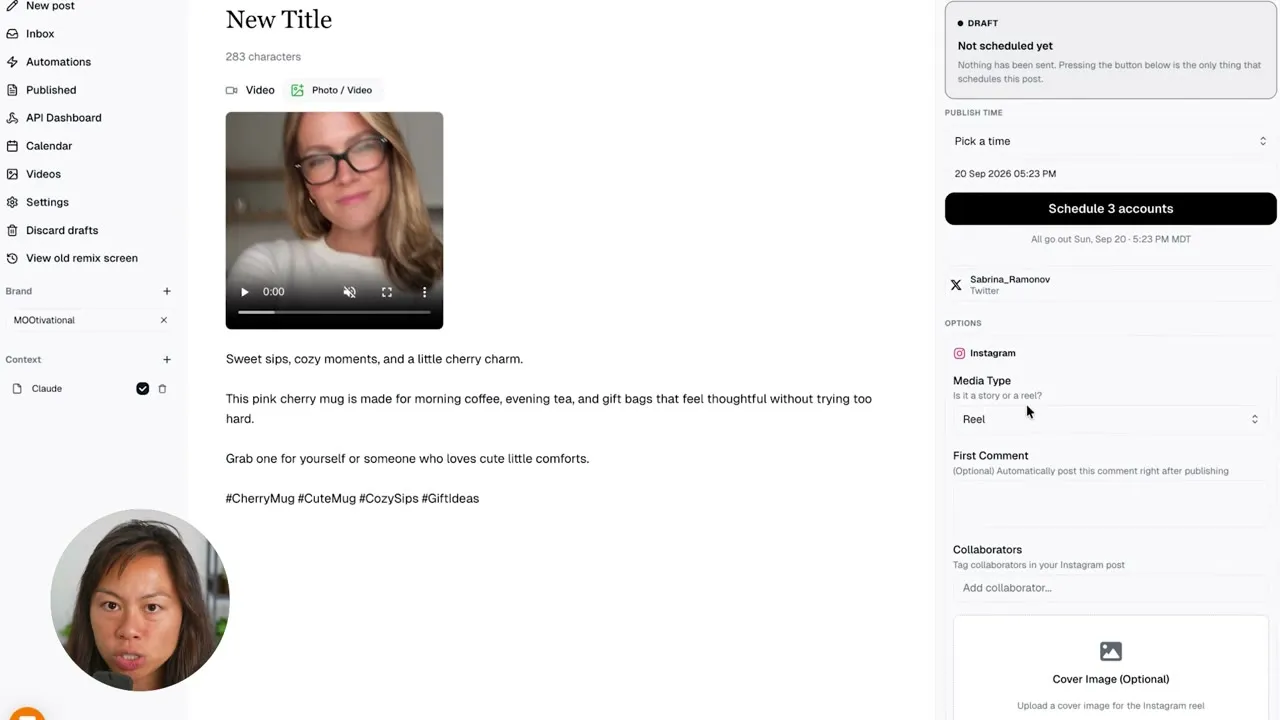
In Blotato, open a draft and switch to the Chat tab. I typed “write a caption for this mug I’m promoting,” uploaded the video, and added that the mug is pink with cherries. The agent wrote a caption that fit.
Then click Schedule in the top right, pick your accounts (I picked Instagram, YouTube and TikTok), and publish now or at a set time. Extras include Instagram collaborators, an automatic first comment and trial reels.
How I’d Spend Fewer Credits Next Time
Nail the script before a single image renders. On my Samoyed project, Supercomputer waited for my script approval before it generated any scene images. Use that checkpoint to fix the script before you spend credits on visuals.
Treat the style image as the whole video. On my demo, Supercomputer used that first image as the reference for the next images. Be really happy with it, and with each scene image, before Supercomputer turns them into clips.
Where Supercomputer Falls Short
- Cost. Higgsfield is expensive, and I think its credit system is pretty overpriced. A full video means many images, many clips and a voiceover for every scene, and each one draws from the same balance. My Higgsfield pricing breakdown runs the plan math per generation. Unused subscription credits don’t roll over, either. They reset at each paid renewal on monthly plans, and every 30 days on annual plans.
- Plan an hour or two per video. My 3-minute video took about 90 minutes from prompt to final cut. It is not a one-click button.
- Publishing stops short. Higgsfield describes its own posting reach two ways. Its social connectors page lists X, Threads and Instagram, and its ad-production guide adds TikTok and LinkedIn, with Instagram only in select regions. Neither page lists YouTube, so plan on getting the long-form video onto YouTube some other way.
- Monetization risk. One prompt makes it easy to crank out the same template every day. YouTube’s monetization policies rule out content that is “repetitive or mass-produced,” and YouTube can remove monetization from your entire channel, not just one video. My guide to faceless YouTube niches ranks niches by how well they survive that policy.
- A Blotato limit, too. Blotato caps YouTube at 10 uploads per channel per rolling 24 hours on Solo. Team and Agency allow 25, per its account limits.
What One Prompt Got Me
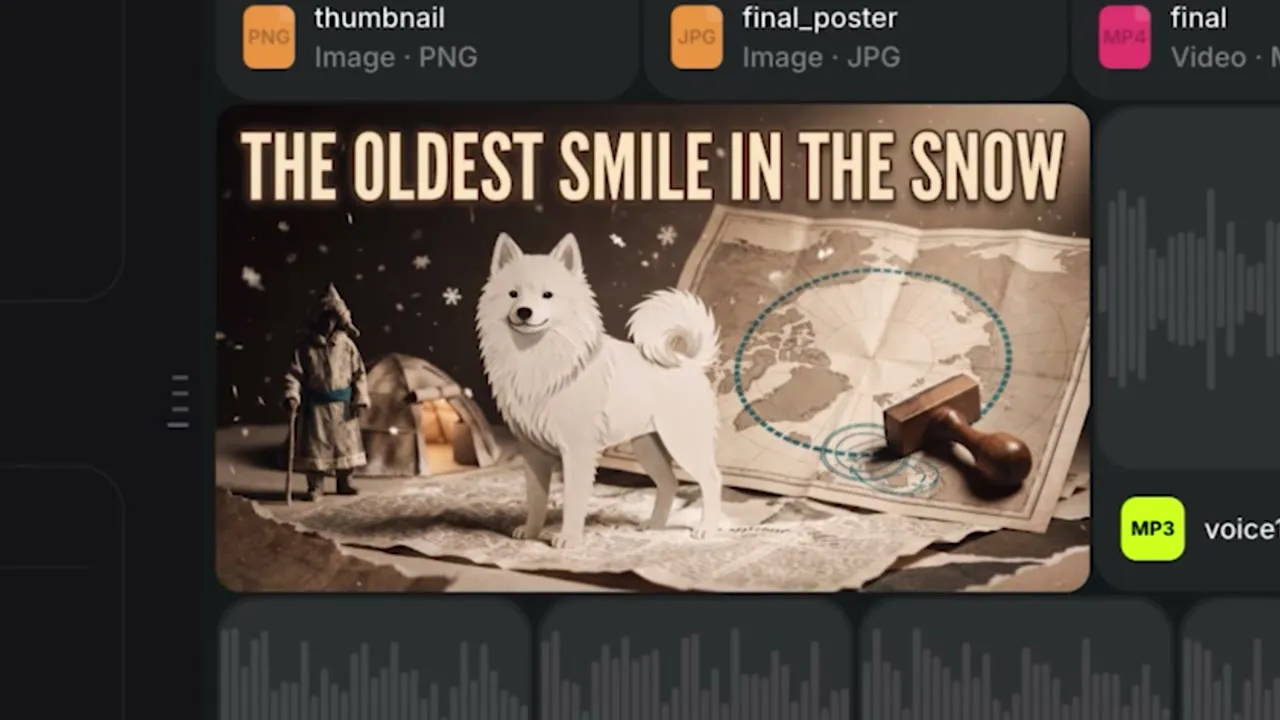
The scene images came out on the first try, after only three to five clarifying questions, and I was super impressed. The finished result was a 3-minute documentary in one consistent miniature style, plus a custom thumbnail cover titled “The Oldest Smile in the Snow.”
My Take on Supercomputer
Supercomputer is super beginner friendly because it looks just like ChatGPT or Claude. It is also expensive, so settle the script and the style image before you spend credits. Monetizing a channel takes consistency as well as quality: vary the topics, keep one style, and schedule each video through the week. Every Blotato plan includes that scheduling, with a queue of scheduled posts that grows with the plan.
Higgsfield Supercomputer FAQs
What is Higgsfield Supercomputer?
It is a chat-based AI agent on higgsfield.ai. You describe the video or asset you want in plain language. It breaks the job into steps, picks a model for each one, runs them and assembles the result. It also connects to outside apps, so a task can send output beyond Higgsfield.
Can Supercomputer make a long-form YouTube video?
Yes. Higgsfield’s help center lists a Faceless channel mode for animated YouTube videos up to 15 minutes long, in one of 12 visual styles. Mine was a 3-minute documentary from one prompt, and it took about 90 minutes. Choose 16:9 in the setup questions for long-form YouTube, or 9:16 vertical if the video is for Shorts, Reels or TikTok.
How do I post a Higgsfield Supercomputer video to YouTube and TikTok?
Save the finished video from your Supercomputer project, then upload it to a scheduler that covers both. In Blotato, add the video to a draft, let the chat write the caption, pick your YouTube and TikTok accounts and schedule it. If you generate from Claude through Higgsfield’s MCP server instead, a Blotato connector in the same chat can take the clip’s link and post it. That route needs a paid Blotato plan, since the trial excludes the MCP server.
How many credits does a Higgsfield Supercomputer video cost?
It depends on the length, the number of scenes and the models you pick, so there is no flat price per video. Higgsfield says Supercomputer shows the credit cost before it runs anything, and the running total updates as the task goes. On my demo, one 16:9 style image at 1K on Seedream 5.0 Pro cost 1.5 credits. Clips and voiceovers are charged separately at their own rates.
Which Higgsfield plan includes Supercomputer?
Higgsfield’s help center says Supercomputer availability and limits depend on your plan. Its July Supercomputer guide is more direct: it is on paid plans only, and most meaningful actions require Plus or above. The files a task produces also count against your plan’s storage allowance, and you can buy more storage inside Supercomputer.