How to Post to Facebook with Claude (No Meta API)
Publish to a Facebook Page from Claude without Meta App Review. Includes the Reel specs that decide whether your video is accepted.

You can post to Facebook with Claude, or if you searched it the other way round, post to Facebook from Claude, by connecting the Blotato MCP server to Claude once, then typing a prompt like “post this to my Facebook page.” Claude calls Blotato, Blotato publishes to your Facebook Page, and you skip the Meta developer app, the Page access token, and the App Review that the direct route demands. Full disclosure, I run Blotato, so take this with whatever grain of salt feels right. It’s the same setup I post my own accounts on, 3M+ followers and 500M+ views. Over one 28-day stretch Facebook even outran TikTok, YouTube, and Instagram to become my top platform at 12 million views.
What stands between a drafted post and a published one on Facebook is a Page access token, and Meta does not hand those out casually. Claude writes the copy. Publishing it means holding a token Meta issued against a reviewed app. So the two routes below are really one question: do you go through App Review yourself, or use a path that already has.
Route 1, build it yourself: wire the Meta Graph API into your own server and hold the credentials. Free, fully under your control, and slower to get running.
Route 2, connect a hosted MCP server: point Claude at a server holding a Page token from an app Meta already reviewed. Minutes to set up, and the same connection reaches your other accounts.
| Build it yourself (Meta Graph API) | Hosted MCP server | |
|---|---|---|
| Setup time | Days to weeks, gated by App Review | Minutes |
| Developer app required | Yes, plus a Page access token | No |
| Token upkeep | You refresh Page tokens yourself | Handled by the provider |
| Scheduling | You build the queue | Included |
| Other networks | A separate integration per platform | Usually one connection for all |
| Cost | Free, plus your engineering time | Subscription, from $29/mo |
The steps below follow Route 2, using Blotato’s MCP server.
Most “Claude and Facebook” guides are about something else entirely: writing Facebook Ads, or pulling Page Insights into Claude to read. Almost none cover the simple part, actually publishing a post to your Page. That is what this walks through end to end: connect your Page once, add the MCP server, and Claude handles the posting, on Facebook plus eight more platforms.
What do you need to connect Claude to Facebook?
A few things have to be in place before Claude can post anything to Facebook:
- A paid Blotato plan. The MCP server ships with Blotato’s API, and the API comes with every paid tier (Starter $29/mo, Creator $97/mo, Agency $499/mo). The 7-day free trial does not include API or MCP access.
- A connected Facebook Page inside Blotato. Blotato can only publish to Facebook Pages, not personal profiles, because Meta blocks third-party publishing to personal accounts. You need admin access on the Page.
- Claude Desktop or Claude Code. Either app runs the same MCP server.
How do you post to Facebook with Claude?
The setup runs from connecting your Page to firing the prompt that publishes your post. Four steps, and an optional fifth if you want to schedule.
For the reference version of this setup, including every Facebook action Claude can call, see the Facebook MCP server page.
Step 1: Connect your Facebook account
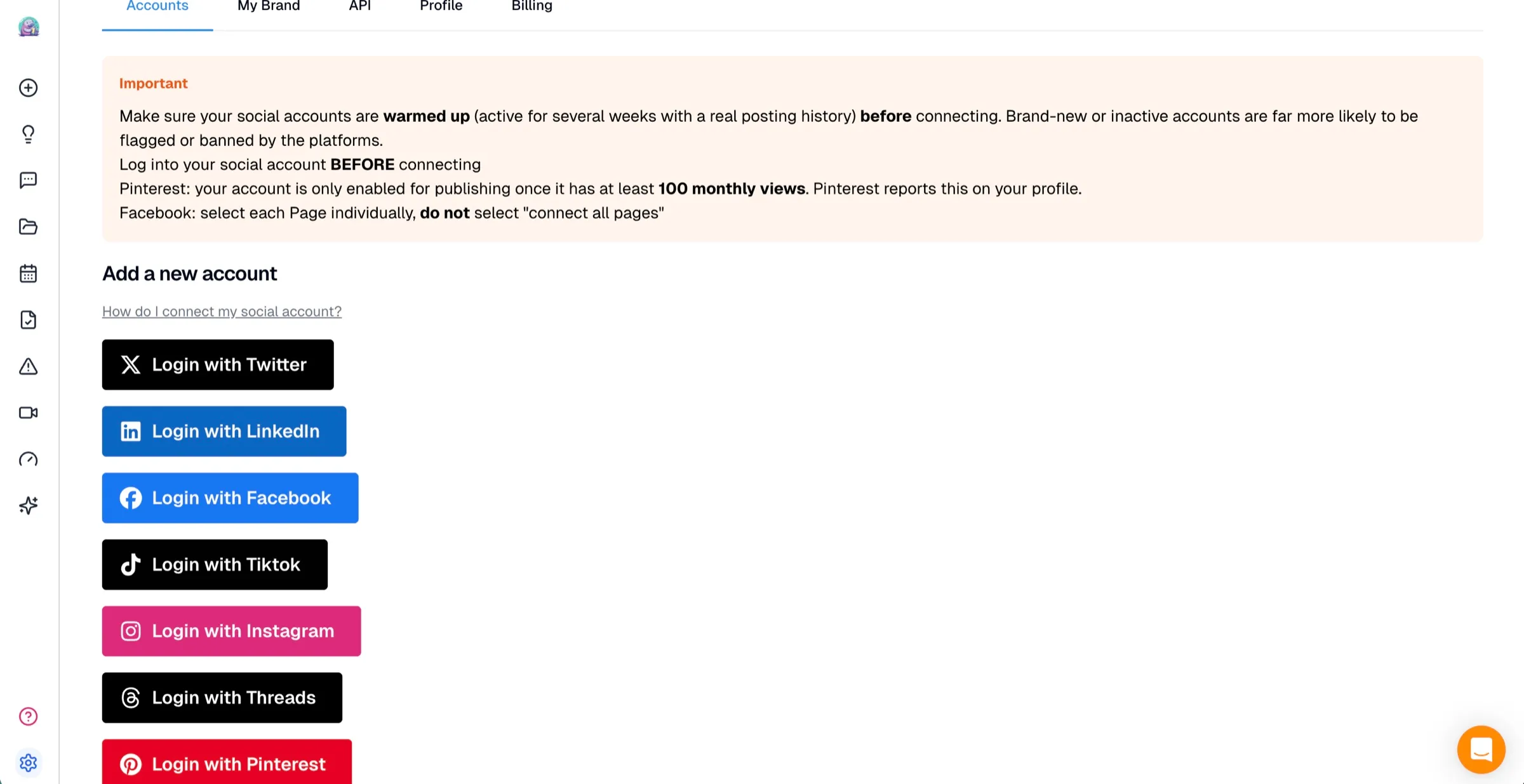
Log into Blotato, open Settings, and connect your Facebook account under Social Accounts. Click “Login with Facebook,” sign in, and in Meta’s permissions dialog choose “Opt in to current Pages only” and select the specific Page you want. Confirm you have admin access on that Page. Blotato handles the Meta authentication, so you never build the Meta developer app and Page access tokens the direct Graph API route demands.
Step 2: Add the MCP server to Claude
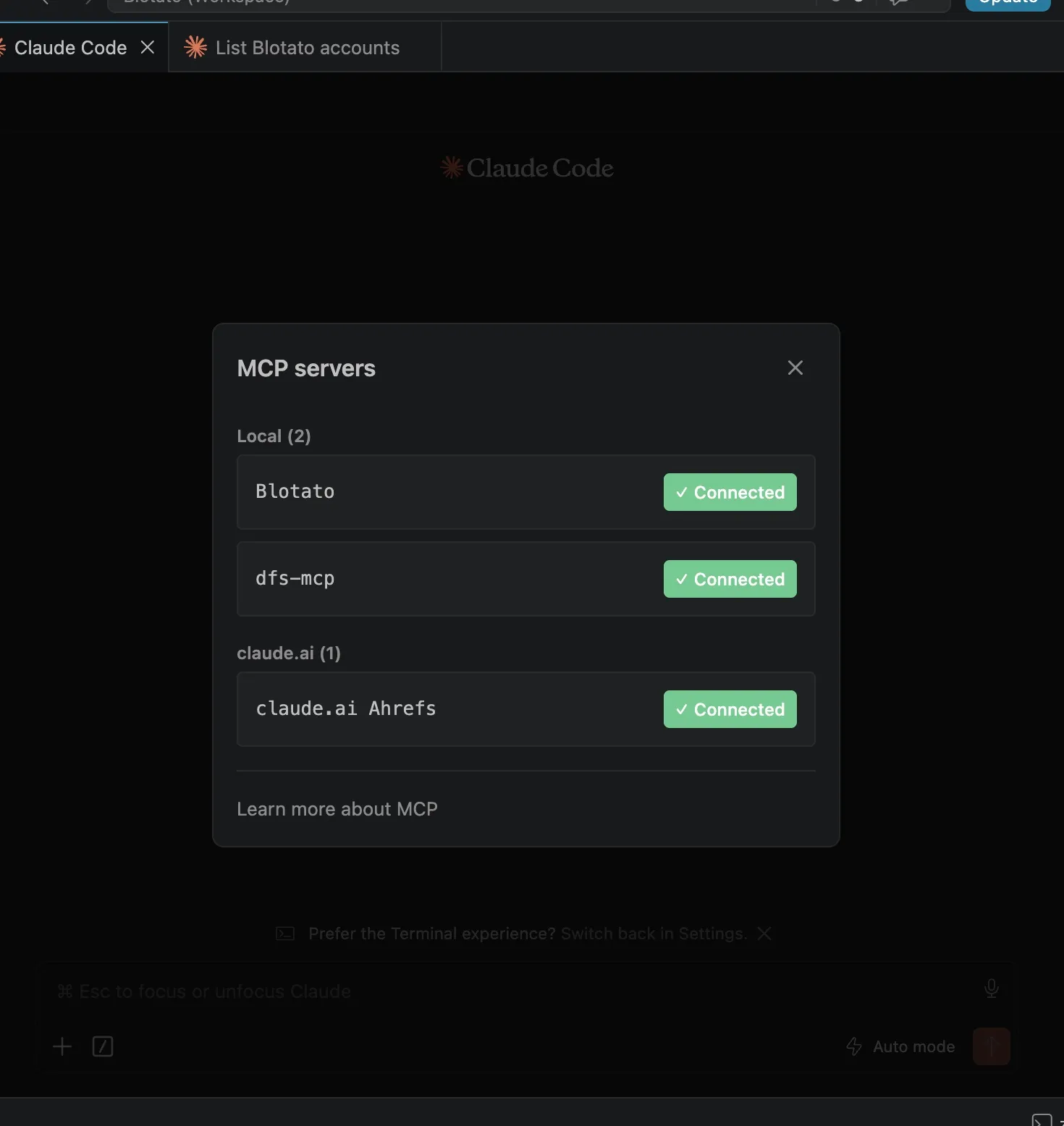
Add Blotato’s MCP server to Claude. In Claude Desktop, open Customize, go to Connectors, and add a custom connector pointing at https://mcp.blotato.com/mcp. In Claude Code, run the command below, then /mcp, pick Blotato > Authenticate, and approve.
claude mcp add --transport http Blotato https://mcp.blotato.com/mcpDoing this on Claude.ai instead? This link fills the Add custom connector dialog for you. A free Claude account holds one custom connector at a time, so if you already have one attached you will be replacing it rather than adding.
No API key changes hands, it authenticates off your logged-in browser. Claude Code has a second route worth knowing about: the Blotato server also accepts a blotato-api-key header instead of the OAuth handshake, which is what lets it run on a box with no browser. The Claude Code connection guide shows both paths. The full walkthrough is in Blotato’s MCP setup guide.
Step 3: Confirm the account is visible
Ask Claude to show your Blotato accounts. Claude runs the blotato_list_accounts tool and returns every platform you connected, your Facebook Page included, each with its account ID. Seeing the Page in that list confirms Claude can publish to it. If it is not there, go back to Step 1 and re-select the Page in Meta’s permissions popup.
Step 4: Write the prompt that publishes
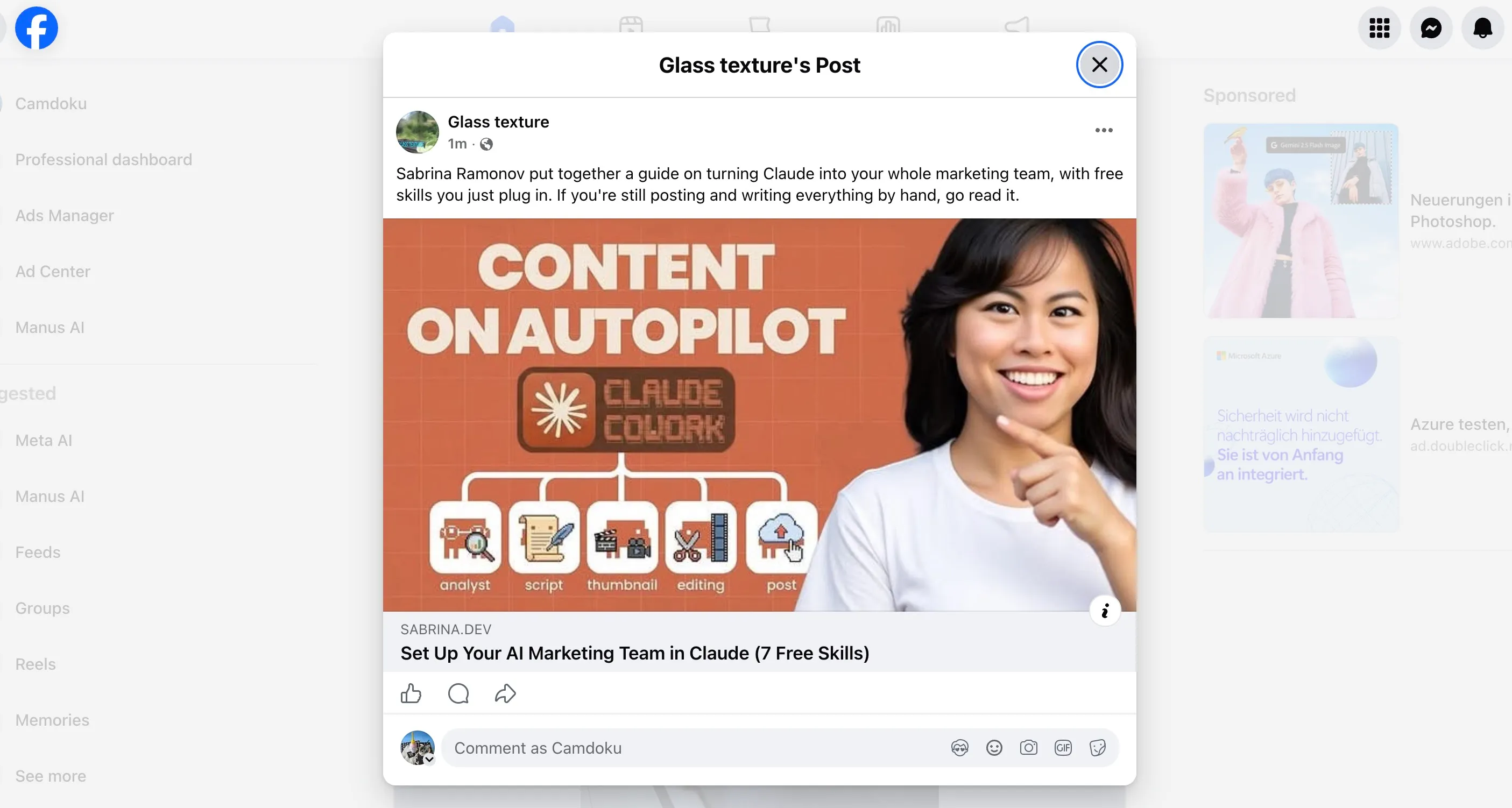
Tell Claude what to publish in plain language. A prompt like “Post this to my Facebook page with the text: our biggest update this month, link in comments” is enough. Claude calls blotato_create_post with your Page account ID, the facebook platform, your post text, and any media URL. If you hand Claude a video, Facebook publishes it as a Reel, since Facebook no longer accepts regular feed video through the API. Claude hands back a postSubmissionId, and you can have it call blotato_get_post_status to confirm the post published. I keep an approval step, so I read the text Claude drafts before it goes live.
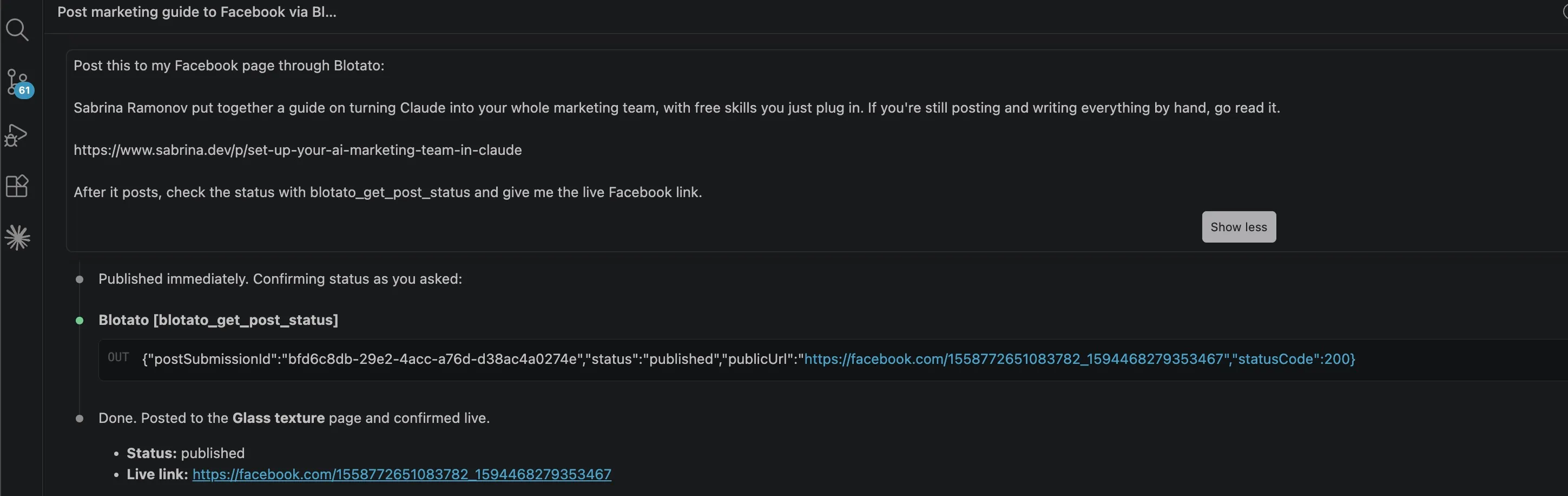
When the status returns as published, the post is live on your Facebook Page.
Step 5: Can Claude schedule the post for later?
Tell Claude “queue this for Friday at noon” and it passes a scheduledTime to Blotato, or ask for your next open slot and Blotato takes the next gap on your calendar. Queued posts sit in Blotato, ready to reschedule or delete whenever.
Facebook’s Page structure makes this worth doing deliberately. If you run several Pages, each one is a separate connected account, so “queue this to all three Pages Friday at noon” fans out in one instruction. Include the Page in the prompt rather than trusting a default, because the one thing worse than an unscheduled post is a scheduled one on the wrong Page.
Ready to post to Facebook straight from Claude? Start with Blotato and wire up the MCP server in a couple of minutes.
Which Facebook formats can Claude publish?
Facebook publishes four formats, and which one you get is decided by what you attach rather than by anything you set.
| Format | What you attach | Takes a first comment |
|---|---|---|
| Text post | Nothing | Yes |
| Image post | One or more images | Yes |
| Reel | One video | Yes |
| Story | One image or one video | No |
Stories are the exception worth remembering: they take exactly one piece of media, and if you hand Claude several it uses the first and drops the rest. Everything else accepts a first comment of up to 8,000 characters, which is where your links belong if you would rather keep them out of the post body. If your Page sees Meta’s monthly link limit, a comment link still counts unless the post already carries one, so it helps to know how Meta counts Page links.
Why not just build it against the Meta API?
There are three ways to get a post from Claude onto a Facebook Page, and only one of them stays simple after the first week.
- The direct Meta Graph API. You register a Meta developer app, request the
pages_manage_postspermission, generate and refresh a Page access token, and pass Meta’s App Review before you can publish to a Page you do not own. It works, but it is a developer project, not a posting workflow. Blotato does that authentication once on its side, so you connect a Page and move on. For a fuller breakdown of what the direct route costs, see Facebook API pricing. - Browser automation. Tools that drive a headless browser to click through Facebook break every time Meta ships a UI change, and Meta actively flags automated logins. It is fragile and risky for an account you care about.
- Blotato’s MCP server. One endpoint, one connection, and Claude publishes through Blotato’s maintained API. When Meta changes something, like feed video becoming Reel-only, Blotato absorbs it instead of your workflow breaking.
If your goal is to post to Facebook from Claude and keep posting without babysitting tokens, the MCP route is the one that holds up. It is also the same setup that covers nine platforms from one social media API, so Facebook is just the first one you wire up.
How do you get better results from Facebook posts?
A few things make the posting step smoother once you do it regularly:
- Let Claude draft the post text from your source. Point it at a video, a doc, or your last few posts and ask for the copy before you post, then edit. It is faster than writing from scratch, and Claude can match the tone you usually run.
- Treat every Facebook video as a Reel. Facebook dropped regular feed video through the API, so a video you send publishes as a Reel. Frame and caption it that way rather than expecting a standard feed video.
- Confirm it actually published. Have Claude run
blotato_get_post_statusafter posting. It comes back as published once the post is live, so you are not left guessing whether it queued or went out. - Let Claude reshape the media per platform. The cross-post skill I run on my own accounts takes one post and sends it everywhere at once, reshaping the media as it goes, so the same clip can publish as a Facebook Reel while the idea goes out as a text post on LinkedIn or a carousel where that format performs better. That whole loop is the end-to-end Claude Cowork setup I run instead of posting by hand.
- Reuse the same flow on your other platforms. Once Facebook posting works, the same prompt runs on the rest of your stack. Instagram is the closest next step, since posting to Instagram from Claude needs the same no-API setup as the other Meta platform, and the platform-by-platform walkthrough covers the remaining seven.
What goes wrong the first time?
A few things trip people up the first time round:
- Starting on the free trial. The MCP and API are paid-plan features only. And watch out: hitting Generate API Key in Settings ends the trial on the spot and rolls you onto the paid Starter plan.
- Pointing Claude at a personal profile. Meta blocks third-party publishing to personal Facebook accounts, so Blotato only posts to Pages. Connect a Page where you have admin access, not your personal timeline.
- Connecting one Facebook account to two Blotato accounts. The same Facebook login cannot be active in two Blotato accounts at once. The second connection invalidates the first token and posting starts failing, so keep each Facebook account in one Blotato workspace.
- Pushing past the daily cap. Blotato allows 25 posts per 24 hours per Facebook Page, with each Page counted independently, so three Pages under one login each get their own 25. Every network sets a ceiling like this, and I keep them side by side in the posting limits table. Space out a big batch rather than firing it all at once.
Conclusion
Getting Claude to post to Facebook takes one connection and one prompt. Connect your Facebook Page in Blotato, add the MCP server in Claude Desktop or Claude Code, and tell Claude what to publish or schedule, with no Meta developer app, no Page access token, and no App Review like the direct Meta route still demands. Once the posts are going out, the same connection can answer the people who comment on them with a DM. Try Blotato and let Claude run your Facebook posting.
How to Post to Facebook with Claude FAQs
Can Claude post to Facebook?
Yes. Claude cannot post to Facebook on its own, but it can through the Blotato MCP server. After you connect Blotato to Claude and link your Facebook Page in Blotato, a prompt like “post this to my Facebook page” tells Claude to publish through Blotato’s API. It works in Claude Desktop and Claude Code.
How do I connect Claude to Facebook?
It’s a two-part connection. First link your Facebook Page in Blotato under Settings. Then point Claude at the MCP server https://mcp.blotato.com/mcp, as a custom connector in Claude Desktop or with one claude mcp add command in Claude Code. Approve the access prompt and Claude can post to that Page.
Does Claude have a Facebook integration?
Not a built-in one. Claude has no native Facebook connection, so on its own it cannot publish anything. The integration comes from the Blotato MCP server: you add it to Claude once, connect your Facebook Page in Blotato, and from then on Claude can post to Facebook from a single prompt. It is the same MCP that lets Claude publish to eight other platforms.
Do you need the Meta API to post to Facebook with Claude?
No. Blotato handles the Meta authentication on its side, so you never register a Meta developer app, request the pages_manage_posts permission, or generate a Page access token yourself. You connect your Page once in Blotato, and Claude publishes through Blotato instead of going direct to the Meta Graph API.
Can Claude post Facebook Reels?
Yes. Facebook no longer accepts regular feed video through the API, so any video you publish goes out as a Reel. You post it with the same prompt as a text or image post, and Blotato sends the video to Facebook as a Reel. You do not flag the format yourself.
Can Claude schedule Facebook posts for later?
Yes. Hand Claude a time and it sends Blotato a scheduled time instead of posting now. Give an exact slot or let Blotato fill your next open calendar gap. The queued post lives in Blotato until it goes out, so you can move or delete it first.
Does Claude need my Facebook password?
No. You grant access through Meta’s own login screen, which issues a scoped Page token to the reviewed app. Your Facebook password stays with Meta, and Claude sees only the publishing tools.
Will Facebook flag posts published this way as automated?
No. Publishing through the Graph API is exactly how every approved Meta partner posts, and the result is a normal Page post. Facebook’s reach algorithm cares about engagement and content type, not about which client sent it. Browser automation is the genuinely risky path, and it violates Meta’s terms.
Can Claude read my Facebook analytics too?
Yes, on Facebook. Published-post metrics come back for every Blotato platform except LinkedIn, so you can ask Claude to pull performance data back off your posts.
What does this cost?
One Facebook rule will bite you before any pricing question does: regular feed videos are no longer supported, so video goes up as a Reel or it does not go up. Reels want MP4, MOV or AVI, up to 1 GB, at least 540x960, 9:16, and between 3 and 90 seconds. A two-minute landscape clip is not a formatting warning, it is a rejection. Worth checking your file against that list before you ask Claude to publish it. Facebook also posts to a Page rather than a profile, so a pageId is required, and Blotato can attach a firstComment in the same call if you keep your links out of the post body.
Cost is $29/mo flat for 20 connected accounts, with each Page counting as one. Worth planning around: the API is not part of the 7-day trial, and the act of creating a key ends that trial and starts Starter.
For the reference version of this setup, including every Facebook action Claude can call, see the Facebook MCP server page.