How to Post to LinkedIn with Claude (No Developer App)
Publish to a LinkedIn profile or Company Page from Claude, including document carousels, without waiting on a developer app approval.
To post to LinkedIn with Claude, connect an MCP server that has publishing access to your LinkedIn account, then ask Claude to post in plain language. Claude cannot reach LinkedIn on its own: it can write the post, but it has no way to publish it. An MCP server is the missing action layer. You have two routes to that layer, and they differ mainly in how much setup work you absorb yourself.
Route 1, build it yourself: create a LinkedIn Developer App, request the access level you need, and wire the Posts API into your own server. Free, fully under your control, and gated behind an approval queue if you need anything past your own feed.
Route 2, connect a hosted MCP server: point Claude at a server whose LinkedIn app already cleared review. Minutes to set up, and it usually covers your other networks as well.
The table below compares both, and the walkthrough after it uses Route 2 with Blotato’s MCP server. I’m Blotato’s founder, so weigh that accordingly. My own accounts, 3M+ followers and 500M+ views across nine platforms, run on exactly this connection.
| Build it yourself (LinkedIn API) | Hosted MCP server | |
|---|---|---|
| Setup time | Days to weeks, gated by approval | Minutes |
| Developer app required | Yes, plus partner approval for Company Pages | No |
| Who maintains OAuth tokens | You, including refreshes | The provider |
| Scheduling | You build the queue | Included |
| Other networks | A separate integration per platform | Usually one connection for all |
| Cost | Free, plus your engineering time | Subscription, from $29/mo |
Most “Claude + LinkedIn” guides solve the writing half. They train Claude on your old posts, build a voice profile, generate a draft, and then leave you to copy it into LinkedIn’s composer by hand. The ones that do cover publishing make you create your own LinkedIn Developer App or wait out a Marketing Developer Platform application. The Blotato MCP path is neither: one connection lets Claude write the post and publish it, to LinkedIn plus eight other platforms.
What do you need to connect Claude to LinkedIn?
Get these three things in place before Claude can publish a single LinkedIn post:
- A paid Blotato plan. The MCP server runs on Blotato’s API, which comes with every paid plan: Starter $29/mo, Creator $97/mo, Agency $499/mo. API and MCP access are not part of the free trial.
- A LinkedIn account linked in Blotato. Connect your personal profile, your Company Page, or both in Settings first, before you ever open Claude. Company Pages don’t use up any of your connected-account slots.
- Claude Desktop, Claude Code, or Claude.ai on the web. The same MCP server drives all three, so pick whichever you already use.
How do you post to LinkedIn with Claude?
The full path runs from empty setup to a published LinkedIn post. Four steps, in order, plus an optional fifth for scheduling.
Step 1: Connect your LinkedIn account
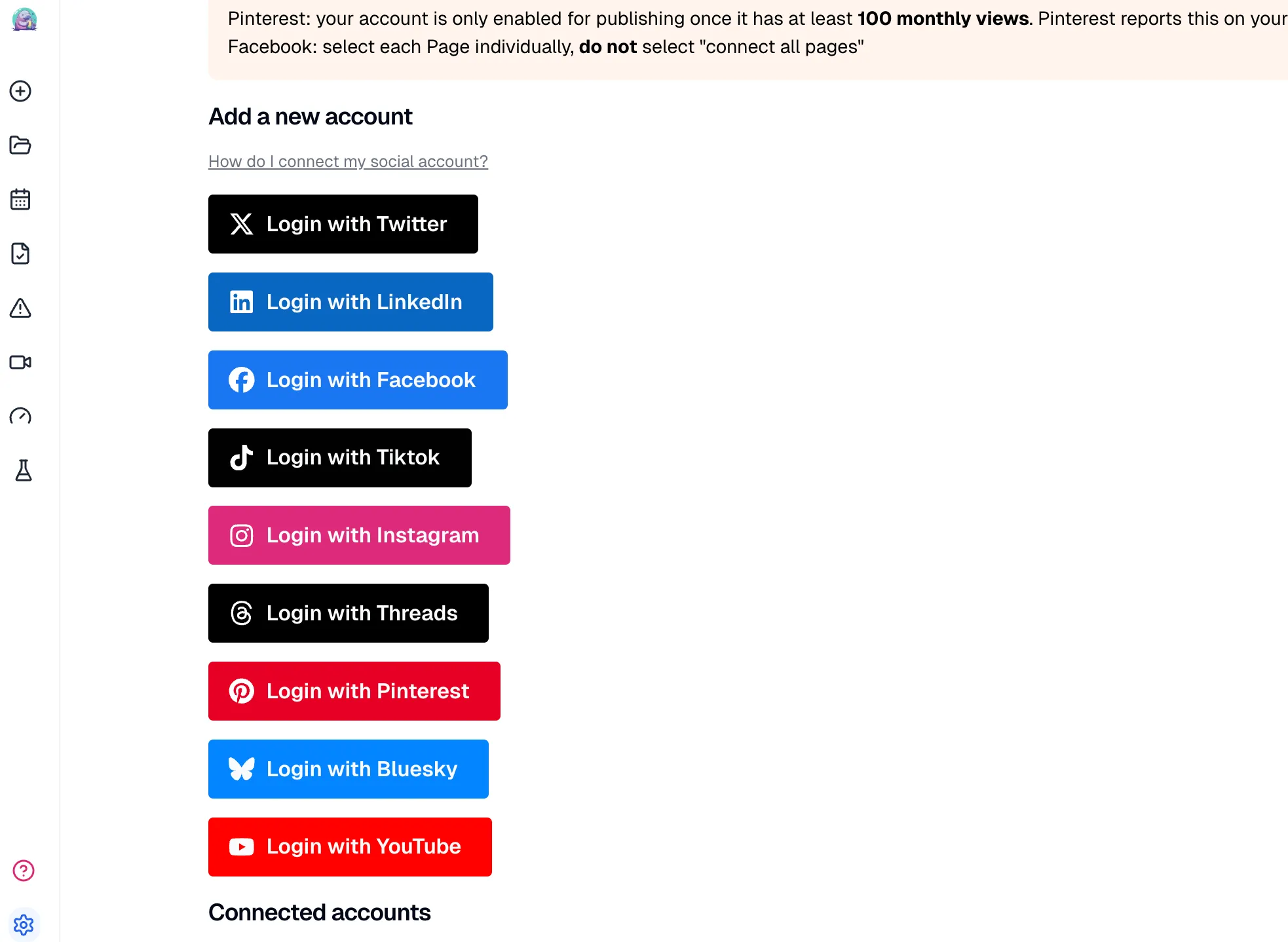
In Blotato, head to Settings and connect LinkedIn under your social platforms. LinkedIn’s normal sign-in screen opens, you approve access, and the account appears in your connected list. You do this once. If you manage a Company Page, connect it here too: Blotato posts to personal profiles and Company Pages, and Pages are free additions that never eat into your account limit.
Step 2: Add the MCP server to Claude
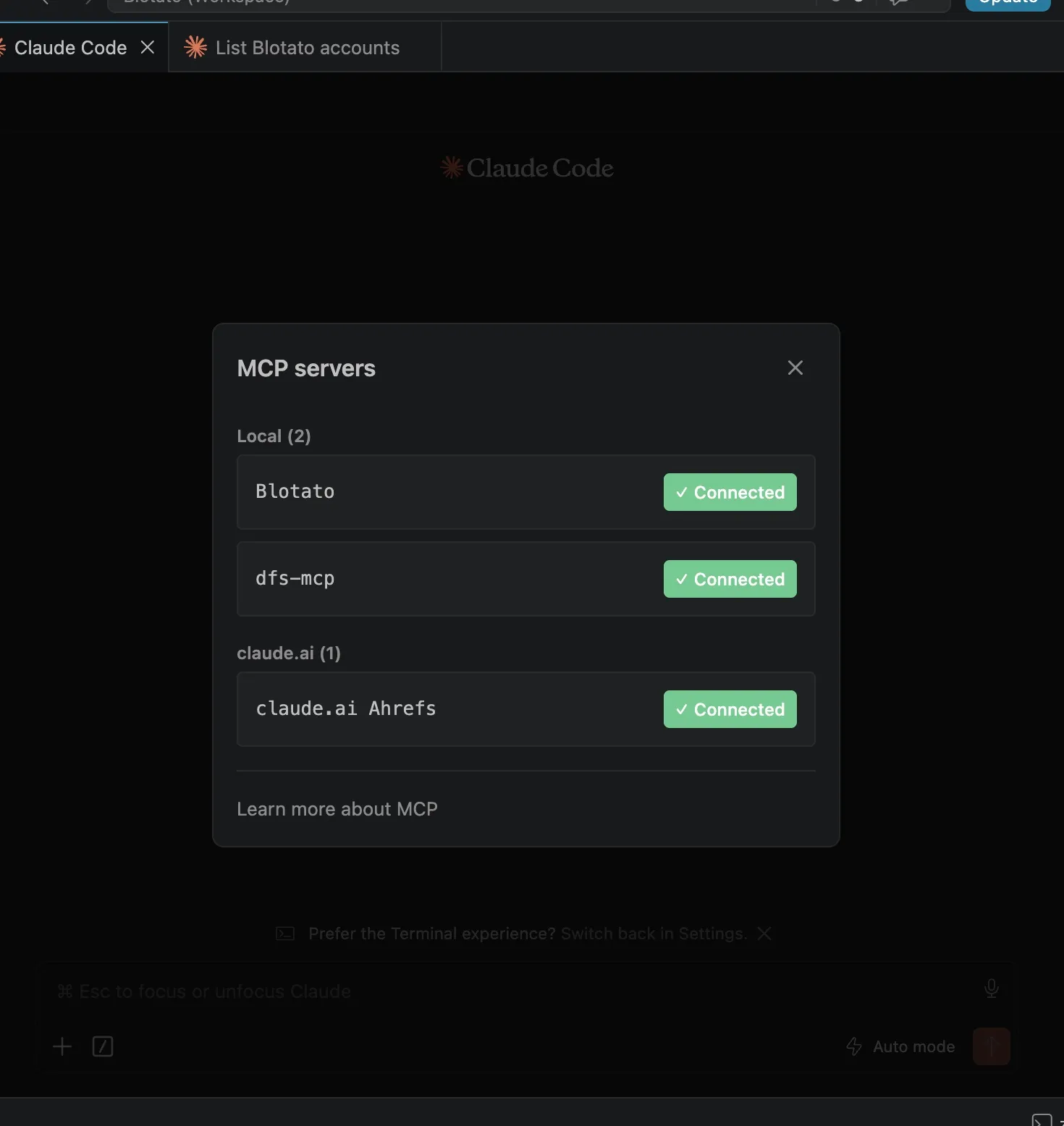
Connect the Blotato MCP server to Claude. On Claude Desktop or Claude.ai, open Customize, head to Connectors, and add a custom connector named Blotato pointing at https://mcp.blotato.com/mcp. On Claude Code, paste the command below, run /mcp, pick Blotato > Authenticate, approve the request, and restart Claude Code to load the server.
claude mcp add --transport http Blotato https://mcp.blotato.com/mcpOn Claude.ai the whole step collapses into one pre-filled dialog. There is no API key to paste here: Claude runs an OAuth handshake against your Blotato login, which is why the same connector reaches your company Pages without extra credentials.
No API key needed here, the connection authenticates through the browser session where you are logged into Blotato. Blotato’s MCP setup guide has the full walkthrough, including the API-key config for Cursor and other clients. If a connector authenticates but then lists no accounts, that failure and its fix are covered in connecting Blotato to Claude Code. Once Blotato shows as connected in the /mcp panel, Claude can post for you.
Step 3: Confirm Claude can see the account
Ask Claude to “list my Blotato accounts.” That fires the blotato_list_accounts tool, which comes back with every connected platform and its account ID. Your LinkedIn account showing up in that list is the confirmation that Claude can publish to it. Missing? Go back to Step 1 and check that the connection saved.
Step 4: Write the prompt that publishes
Describe the post in plain language. “Post this to my LinkedIn: We just shipped scheduling for nine platforms, here’s what I learned building it” is enough. Behind that prompt, Claude calls blotato_create_post with your account ID, the linkedin platform, and your text. LinkedIn gives you far more room than X or Bluesky, up to 3,000 characters per post, so this is the platform where you can let Claude write the full story instead of a teaser. The one thing LinkedIn does not give you is a bold button, so when a post needs key phrases emphasized, Claude can apply the same Unicode substitution a LinkedIn text formatter uses before it publishes. You can attach images or a video by including public media URLs in your prompt, and a set of 2 to 10 images publishes as a LinkedIn document carousel that readers swipe through. Once the status comes back as published, your post is live on your LinkedIn feed.
The published post looks like this on LinkedIn, image attached and text exactly as prompted:
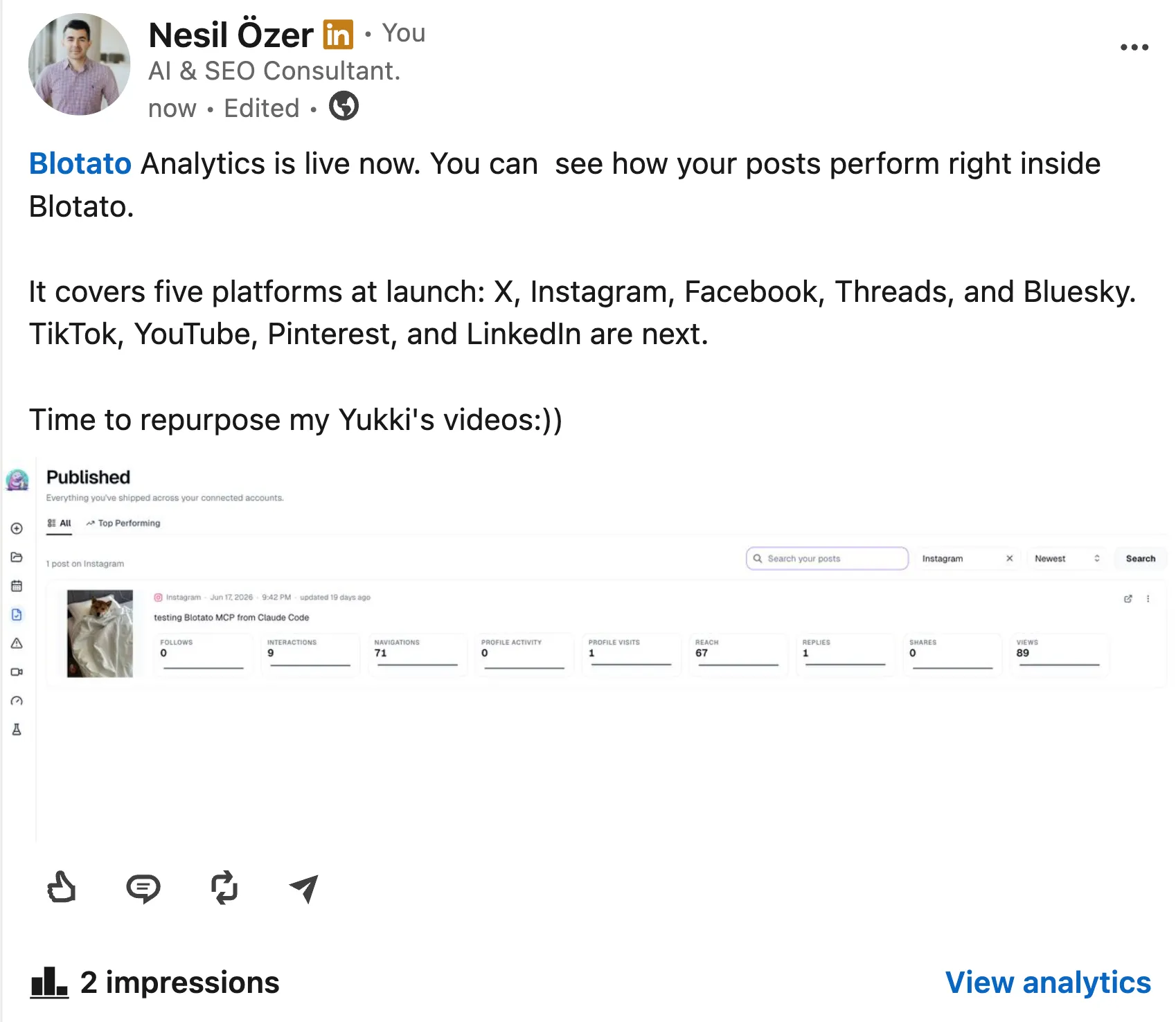
The real unlock is combining the writing and the publishing in one chat. In my own workflow, Claude Code writes the post, grades the draft for virality, checks it against my brand voice, revises, and posts it through Blotato, and I never open the LinkedIn composer. My prompt library for that pipeline is in Claude prompts for social media.
Step 5: Can Claude schedule the post for later?
Say “schedule this for Tuesday at 9am” and Claude hands a scheduledTime to Blotato. Ask for your next open slot and Blotato finds the next free time on your calendar. Rescheduling stays in the chat too: “move the Thursday LinkedIn post to Friday morning” is the whole operation.
Scheduling matters more on LinkedIn than on most platforms because the audience is on a work rhythm. Weekday mornings in your readers’ timezone are the window, and posting is not something you want to be doing manually at 9am when you are already in meetings. Queue the week on Sunday, then let the reschedule conversation handle whatever moves. Want Claude posting to LinkedIn today? Start with Blotato. From signup to first published post is about two minutes of connection work.
Profile, Page, and the document carousel
LinkedIn’s split is about where the post lands, not what it looks like. One field decides it.
| Destination | What it needs | Daily ceiling |
|---|---|---|
| Your personal profile | Nothing extra, this is the default | 50 posts |
| A company Page | That Page's ID | 50 posts, counted per Page |
The format most people come looking for is the document carousel, the PDF-style post readers swipe through. You do not build the PDF. Hand Claude 2 to 10 JPG or PNG images and Blotato assembles the LinkedIn Document carousel from them, which means the same image set you would post to Instagram works here unchanged. Videos cannot go in a carousel, and ten images is the ceiling.
Why not just build it against the LinkedIn API?
The Blotato MCP server skips the two dead ends most people hit when they try to get Claude posting to LinkedIn. The DIY route means creating a LinkedIn Developer App, and the free Consumer tier only covers posting to your own feed. Company Pages, analytics, and posting for clients sit behind LinkedIn’s Marketing Developer Platform, where the real cost is a months-long partner approval cycle, not a fee. The full breakdown is in LinkedIn API pricing. The copy-paste route, where Claude writes and you publish by hand, works but caps out fast: every post is still a manual trip through the composer, and scheduling a month of content means a month of trips.
Generic agent toolkits carry a different kind of overhead. Every platform brings its own OAuth or credential dance, so LinkedIn, X, and TikTok turn into three separate setup projects. Blotato holds the authentication for each account on its side, and one MCP connection covers all nine networks (LinkedIn, Instagram, TikTok, YouTube, X, Facebook, Threads, Pinterest, Bluesky). So the same prompt that ships a LinkedIn post can send a reformatted version everywhere else too. The text-first cousins wire up the same way, with how to post to X with Claude Code covering the X side.
One honest limitation, because LinkedIn’s Posts API draws hard lines that no third-party tool can cross: you cannot publish LinkedIn Articles or native reposts through the API, and the native swipe-through carousel is a sponsored-only ad format, so tools publish multiple images as a document carousel or multi-image post instead. That is LinkedIn’s restriction, not Blotato’s, and it applies to every scheduling tool. Regular text posts, single images, video posts, and multi-image sets all work. For anything on that blocked list, you post it manually in LinkedIn, and Claude handles everything else.
What goes wrong the first time?
The first-time setup fails in predictable places. Four to watch:
- Testing it on the free trial. Both the API and the MCP server need a paid plan. Generate an API key in Settings during the trial and the trial ends on the spot, moving you onto paid Starter.
- Skipping the account connection. Claude cannot post to a LinkedIn account that is not connected in Blotato first. Ask Claude to “list my Blotato accounts” and confirm LinkedIn is in the list.
- Sending local file paths as media. The MCP tools only accept publicly accessible URLs. For a file on your machine, Claude first calls
blotato_create_presigned_upload_url, uploads the file, then uses the returned public URL in the post. Ask Claude to “upload this image first” and it runs that flow for you. - Expecting Articles or native reposts to work. LinkedIn’s API does not support them, through Blotato or any other tool. If Claude reports it cannot publish an Article, that is the platform boundary, not a broken setup.
Conclusion
Posting to LinkedIn with Claude is one connection up front, then one prompt per post. Link your LinkedIn profile or Company Page in Blotato, add the MCP server to Claude Desktop, Claude Code, or Claude.ai, and from there Claude publishes or schedules whatever you describe. No Developer App, no partner approval, no copy-paste step between the draft and the feed. Try Blotato and let Claude run your LinkedIn posting.
How to Post to LinkedIn with Claude FAQs
Can Claude post directly to LinkedIn?
Claude has no built-in LinkedIn access, so on its own, no. Through the Blotato MCP server, yes. With Blotato connected to Claude and your LinkedIn account linked inside Blotato, “post this to my LinkedIn” publishes through Blotato’s API. The workflow runs in Claude Desktop, Claude Code, or Claude.ai on the web.
Is there a LinkedIn connector for Claude?
LinkedIn does not offer an official Claude connector. The practical route is an MCP server that sits between Claude and LinkedIn. Blotato’s MCP server (https://mcp.blotato.com/mcp) does this without you creating a LinkedIn Developer App: Blotato holds the LinkedIn connection, and Claude publishes through Blotato.
Can Claude post to a LinkedIn Company Page?
Yes. Connect the Company Page in Blotato’s Settings alongside your personal profile, and it shows up when Claude lists your accounts. Company Pages do not count toward your Blotato connected-account limit, so adding one costs nothing extra. Tell Claude which account to use when both are connected.
Can Claude schedule LinkedIn posts for later?
Yes. Hand Claude a time and the post goes into Blotato’s schedule instead of publishing right away. You can name an exact slot or ask for the next open one on your calendar. The queued LinkedIn post stays editable in Blotato, so you can move or cancel it before it goes out.
What can’t Claude post to LinkedIn?
LinkedIn’s API blocks Articles and native reposts for every third-party tool, and the native swipe-through carousel is a sponsored-only ad format. Regular text posts, single images, video posts, and multi-image sets (published as a document carousel) all work fine through Claude and Blotato. Anything on the blocked list still needs a manual trip to LinkedIn’s own composer.
Do I need a LinkedIn Developer App for this?
No, not on the hosted-MCP route. The provider holds the LinkedIn integration and the OAuth tokens, so you authorize your account through a normal LinkedIn sign-in instead of registering an app. You only need your own Developer App if you build the integration yourself, and posting to a Company Page that way also requires Marketing Developer Platform approval.
Will LinkedIn flag posts published this way as automated?
LinkedIn documents no label for posts sent through its Posts API, the route scheduling tools use. The open question is scheduling itself: LinkedIn’s API Terms say developers agree not to use the APIs to automate posting, without defining the term. The persistent myth that LinkedIn downranks scheduled posts or posts carrying links is not something LinkedIn has said, and the same myth follows other networks. Browser automation is the clearer violation, since LinkedIn’s User Agreement bars bots outright.
Does Claude need my LinkedIn password?
No, and it should never have it. Authorization runs through LinkedIn’s OAuth screen, which hands the tool a scoped token without exposing your credentials. Claude only sees the publishing tools the MCP server exposes, never your login.
Can Claude read my LinkedIn analytics too?
Not through Blotato today, and LinkedIn is the only platform this applies to. Metrics come back for the other eight networks, but LinkedIn returns none yet, so publishing and scheduling work while performance data does not. If reading LinkedIn analytics from Claude is your main goal, this is the wrong tool for that job right now.
What does this cost?
Two LinkedIn-specific capabilities are worth naming, because they are what people usually discover they need on the second day. Company Pages are addressed with a pageId, so “post this to the company page, not my profile” is a real instruction rather than a login switch. And document carousels take 2 to 10 JPG or PNG images, which covers the format that outperforms plain text in most LinkedIn feeds. Video is not supported inside a carousel, so a carousel request with a clip in it is a request LinkedIn will refuse.
On price, $29/mo flat covers 20 connected accounts, which on LinkedIn usually means your profile plus the pages you manage. The exclusion to plan around: API and MCP access sit outside the 7-day trial, and generating an API key ends the trial and starts paid Starter.
For the reference version of this setup, including every LinkedIn action Claude can call, see the LinkedIn MCP server page.