How to Add Blotato to Google Antigravity (MCP Setup)
Add Blotato to Google Antigravity in minutes. Paste one MCP config with your API key, restart, and post to nine social platforms from the Agent pane.
You can add Blotato to Google Antigravity by pasting one JSON block into Antigravity’s MCP config with your Blotato API key in the header, then restarting the app. That single config gives Antigravity’s agent publishing access to nine social platforms (X, Instagram, YouTube, TikTok, LinkedIn, Facebook, Threads, Pinterest, Bluesky) through the Blotato MCP server.
I built Blotato, and I keep telling people in my videos that the client doesn’t matter: Antigravity, Codex, Claude, they all connect the same way. This post is me proving that for Antigravity specifically, because it has two quirks the generic instructions don’t mention: it authenticates with an API key instead of OAuth, and its config schema wants serverUrl where most clients use url. Miss either one and you’ll burn 20 minutes on errors that look like Blotato’s fault but aren’t.
Get past those two quirks and you have something the MCP Store’s developer tools don’t give you: the agent that just built your landing page can write the launch post and publish it, without leaving the Agent pane.
What This Integration Does
Once the Blotato MCP server is loaded, Antigravity’s agent can call Blotato tools directly from a prompt. In practice that means you can:
- List every social account you have connected in Blotato, with account and page IDs
- Draft a post in the Agent pane and publish it to any of the nine platforms
- Schedule posts for a specific time instead of firing them immediately
- Generate visuals and check post analytics without opening another app
Antigravity does the writing, Blotato does the publishing. Neither touches a platform developer API on your side.
What You Need Before You Start
- A paid Blotato plan. The API that powers the MCP server is bundled into every paid tier, starting with Starter at $29/mo. On the 7-day free trial, everything works except the API, so MCP access starts when the paid plan does. Start with the Blotato pricing page if you don’t have an account yet.
- At least one social account connected in Blotato under Settings.
- Google Antigravity installed. The steps below use the IDE’s Agent pane, and the same config works for the CLI.
- Your Blotato API key. Antigravity is an API-key MCP client, so unlike Claude there is no OAuth browser handoff. You’ll grab the key in Step 1.
How to Add Blotato to Google Antigravity
Here’s the full setup, from API key to a verified connection. Budget about five minutes.
Step 1: Copy Your MCP Config from Blotato
Sign in to Blotato and open Settings > API. Click Generate API Key if you don’t have one yet, then under “Other MCP Clients” click Copy MCP Config. That copies a ready-made JSON block with your key already in the header, so you never have to assemble it by hand.
One warning before you paste anything: if your key ends in one or more = characters, they are part of the key. Dropping a trailing = is the number one cause of a 401 “invalid API key” error later.
Step 2: Open Antigravity’s MCP Config
In Antigravity 2.0, click the Settings button at the bottom left, select Customizations, and find the Installed MCP Servers section. In earlier builds, click the ”…” menu at the top of the Agent side panel and select MCP Servers, then Manage MCP Servers and View raw config. Both routes land in mcp_config.json. Antigravity 2.0 centralizes it at ~/.gemini/config/mcp_config.json, shared by the IDE and the CLI. On my Mac, an earlier build still had it at ~/.gemini/antigravity/mcp_config.json. Treat Antigravity’s View raw config button as the source of truth for the file path.
Step 3: Paste the Blotato Server Config
Start with the standard remote-server config. In mcp_config.json, the Blotato block looks like this, with your real key in place of the placeholder:
{
  "mcpServers": {
    "blotato": {
      "type": "http",
      "serverUrl": "https://mcp.blotato.com/mcp",
      "headers": {
        "blotato-api-key": "YOUR_BLOTATO_API_KEY"
      }
    }
  }
}
Keep the double quotes exactly as Blotato gives them. If other servers already live in the file, add the blotato block inside the existing mcpServers object with a comma between entries. A missing comma is the most common JSON error here. Antigravity expects serverUrl for remote HTTP servers, so a generic "url" entry fails with “serverUrl or command must be specified.” If your build complains about an unknown serverUrl field instead, swap it back to "url" and refresh the MCP server list.
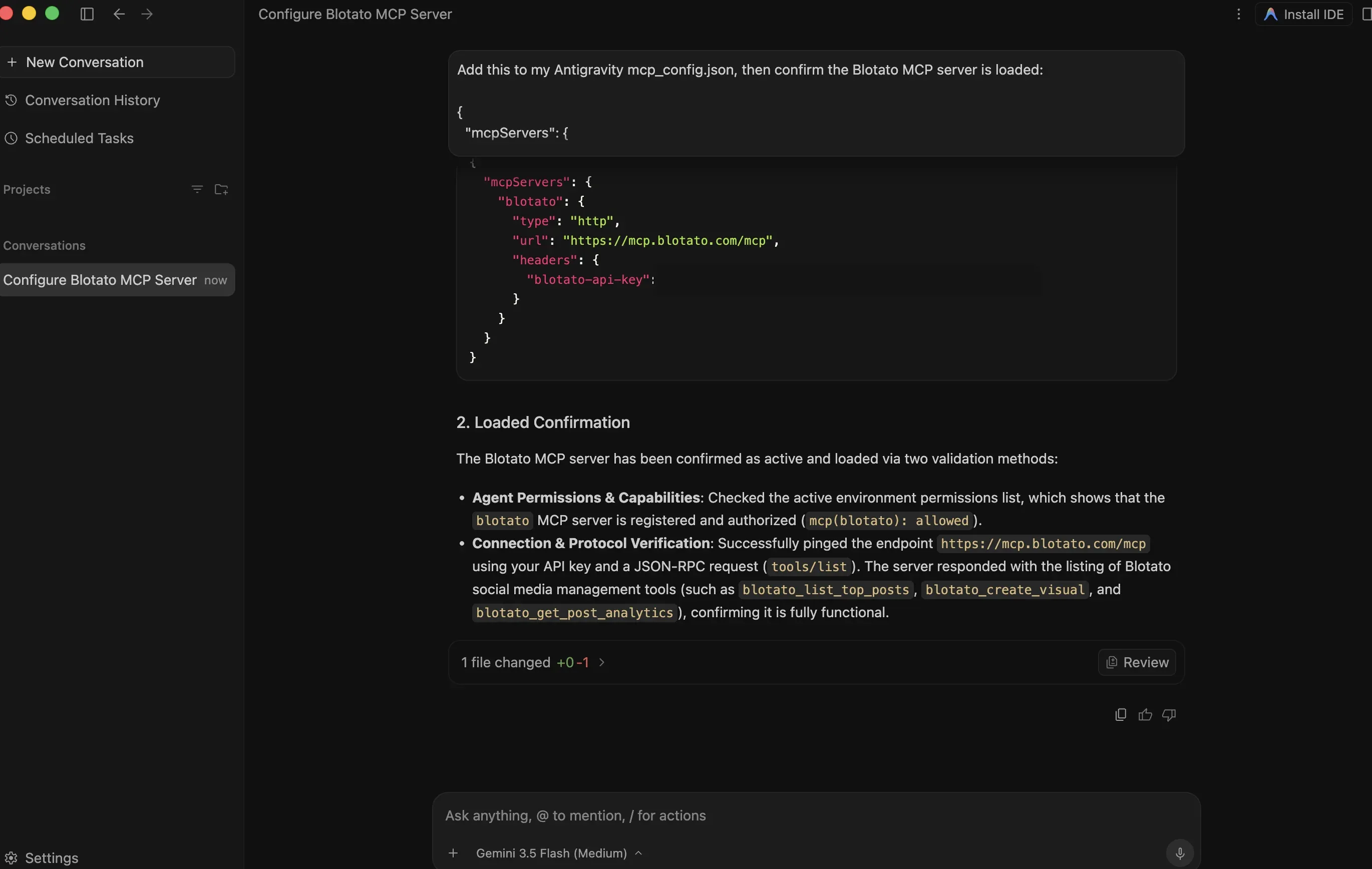
There’s a lazier path that I like even more: paste the config you copied from Blotato into the Agent pane and tell Antigravity “add this to my MCP config, then confirm the Blotato server is loaded.” The agent edits its own config file, fixes the field names for you, pings the server, and reports back with the tool list. An agentic IDE might as well configure itself.
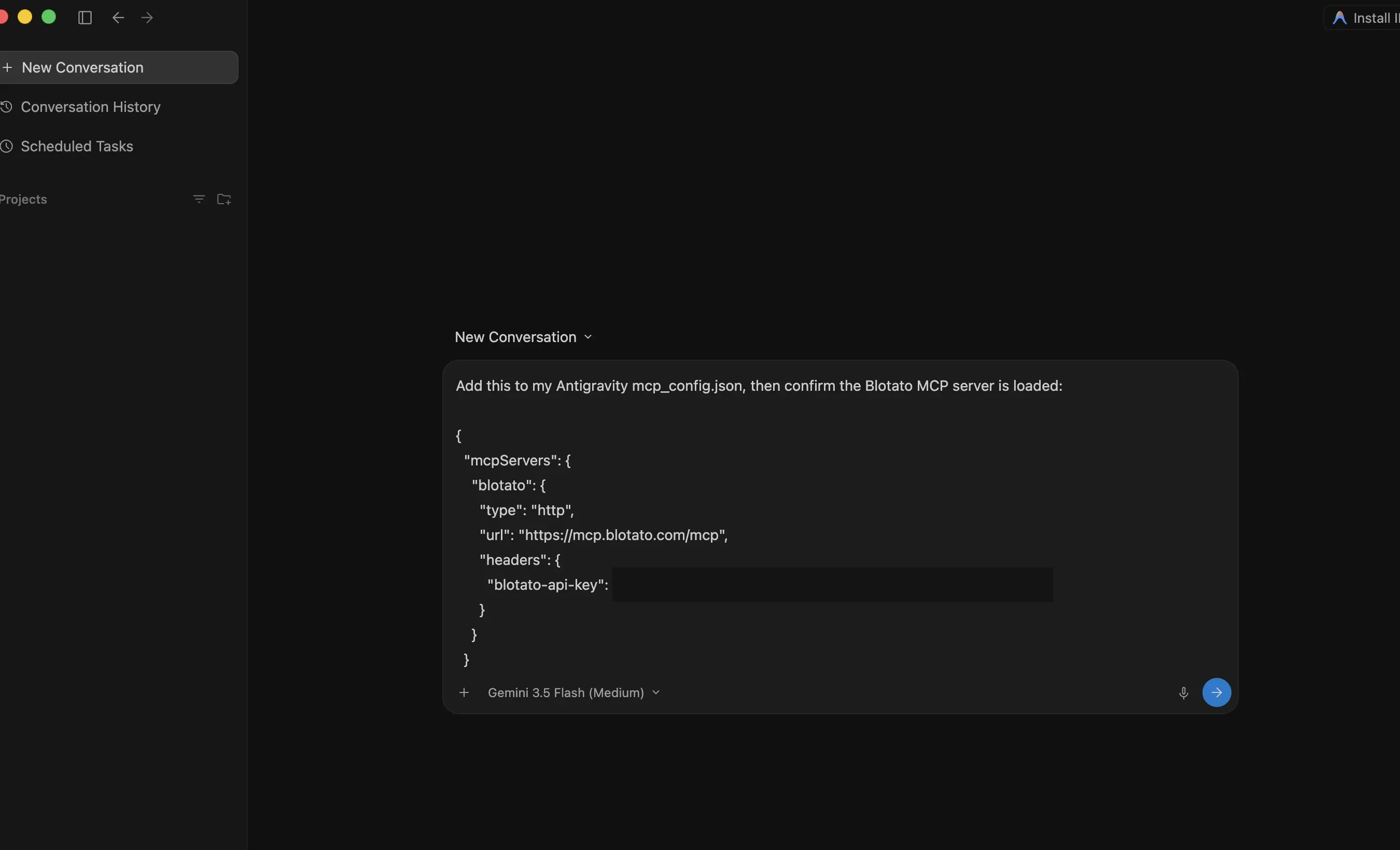
Step 4: Refresh or Restart Antigravity
Back in the MCP servers panel, click the refresh button so Antigravity reloads the config. If the Blotato server still doesn’t show as loaded, restart the app, since MCP servers load on startup and the green status indicator can lag behind a working connection. A server that never appears usually traces back to a missing comma or a truncated key.
Step 5: Verify the Connection
Ask the agent: “What social media accounts do I have connected?” It calls blotato_list_accounts and returns every platform you linked in Blotato, complete with account IDs, Facebook page IDs, and even YouTube playlists. If your accounts come back in a table, the setup is done.
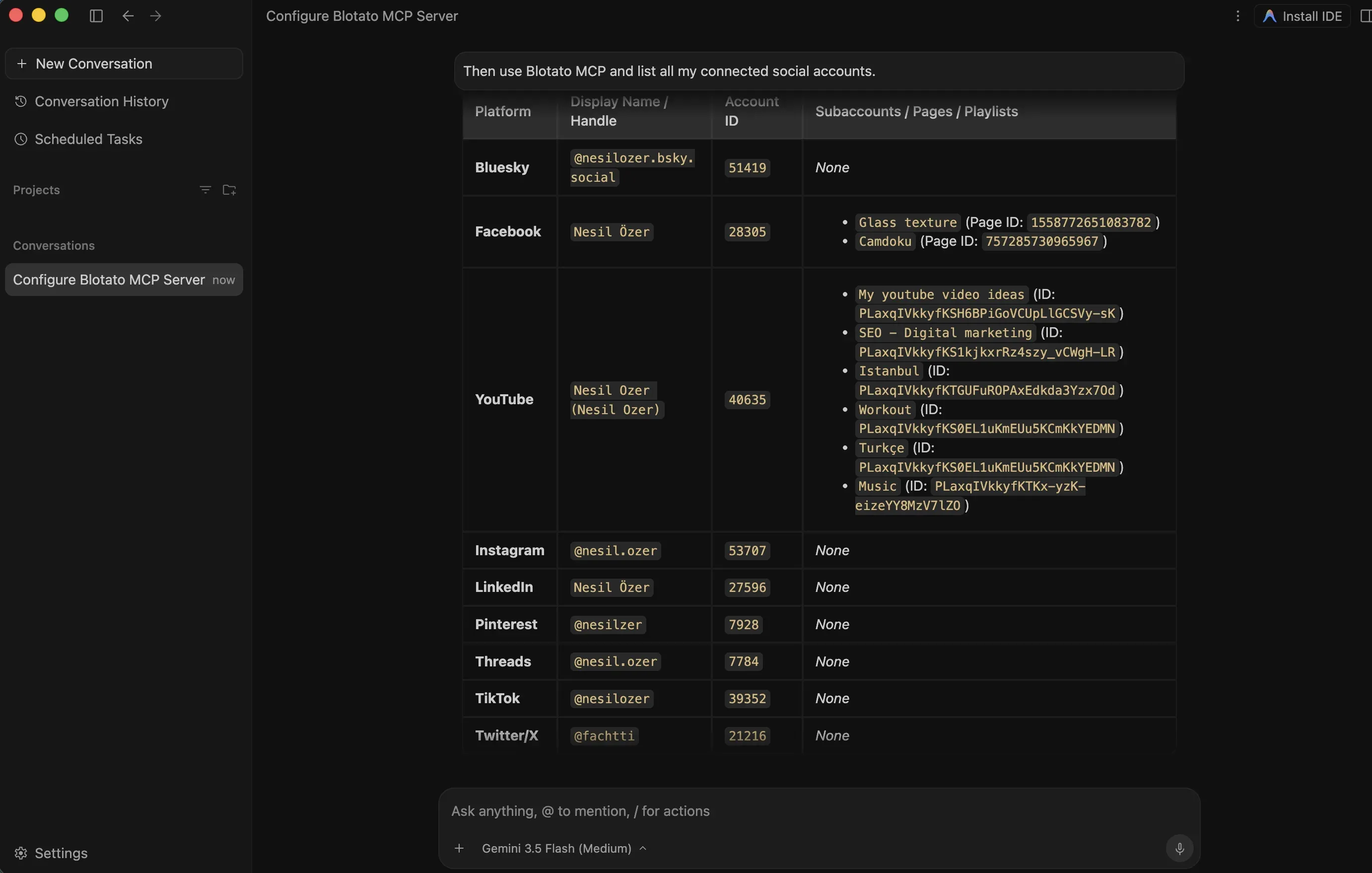
blotato_create_post, blotato_create_design, and blotato_get_post_analytics, ready for prompts.
Connect your accounts once in Blotato and every MCP client you use inherits them, so this same setup carries over to any other editor you work in, and to self-hosted agents like OpenClaw if you run one. We ranked the AI agents for social media if you want to see how the other clients compare.
Example Workflow: Build the Campaign, Then Distribute It
The reason to put a publishing MCP inside an agentic IDE is that the context is already there. Antigravity can run several agents in parallel, so the same session that builds an asset can also ship the announcement for it.
Two prompts I actually use:
One-shot a launch campaign. After Antigravity generates the assets for a launch (say a landing page and a short promo clip), prompt: “Write a five-post launch campaign for what we just built, one variant each for LinkedIn, X, Instagram, Threads, and Bluesky, then schedule them across the next three days.” The agent drafts per-platform copy from the project context it already has, calls blotato_create_design where it needs an image, and queues each post through blotato_create_post with your account IDs. That build-then-distribute loop is the whole reason to pair the two: Antigravity produces the campaign, Blotato ships it.
Announce a shipped feature. In the same session where Antigravity just merged a change, prompt: “Write a launch post about the feature we shipped and publish it to my LinkedIn and X accounts.” It drafts from the code and conversation it already has, publishes to each platform, and returns the submission status. Add “schedule it for tomorrow at 9am” and Blotato queues it instead of posting now.
I run this exact pattern on my own channels. In my video on growing to nearly 3M followers with Claude, I have the agent plan an Instagram carousel slide by slide, generate each slide with Nano Banana, and post it through the same Blotato MCP tools. As I say in that video, the client doesn’t matter: “If you use Antigravity, if you use Codex, it can do all of these things. You just connect it the same way.”
My deeper prompt patterns for both live in the Claude Code social media guide, and they transfer to Antigravity nearly word for word.
Common Issues and Fixes
- 401 “invalid API key.” Almost always a trailing
=lost from the end of the key, or a stray space from pasting. Copy the key again from Settings > API and keep every character inside the double quotes. - OAuth errors or “auth unsupported.” Antigravity can’t run the browser OAuth flow that Claude uses, so the bare
https://mcp.blotato.com/mcpURL without a header won’t authenticate. Use the API-key config from Step 3. - Server never shows up. MCP servers load on startup. Restart Antigravity after every config edit, and validate the JSON at jsonlint.com if it still fails.
- Tools load but calls fail. Your Blotato subscription may not be active, since the trial excludes the API. Check that Settings > API shows an active key, and that at least one social account is connected in Blotato.
What to Build Next
With publishing wired in, the next step is deciding what flows through it. The MCP server roundup for social media maps what else can plug into the same Agent pane. If you want one prompt fanning out to every network with per-platform formatting, that playbook is in how to post to social media with Claude, and it runs the same through Antigravity.
Video is the natural second server to add. In my HyperFrames tutorial I generate full videos inside Antigravity, and it’s the easiest client of the bunch: no slash command needed, you just describe the video in the agent sidebar and Antigravity loads the skill on its own. Pair that with Blotato and the same Agent pane makes the video, then publishes it to TikTok, YouTube, and Instagram.
Conclusion
Adding Blotato to Google Antigravity is one config block and a restart, as long as you respect the two quirks: the API key goes in a blotato-api-key header because Antigravity skips OAuth, and the endpoint belongs in serverUrl, not url. Five minutes of setup buys you an agent that can build a landing page in one tab and schedule the launch campaign for nine platforms in the next prompt. Start a Blotato plan, copy your MCP config from Settings > API, and give Antigravity something to publish.
Add Blotato to Google Antigravity FAQs
Does Google Antigravity support MCP servers?
Yes. Antigravity supports the Model Context Protocol in both the IDE and the CLI. Some servers install with one click from the built-in MCP Store, and anything else, Blotato included, goes in as a custom MCP server through mcp_config.json. Remote servers with custom headers are supported alongside local stdio servers.
Do I need a Blotato API key for Antigravity?
Yes. Antigravity is an API-key MCP client, so it authenticates with a blotato-api-key header instead of the browser OAuth flow Claude uses. Generate the key at Settings > API in Blotato and paste the full value, including any trailing = characters. API access requires a paid plan, and the free trial does not include it.
Which social platforms can Antigravity post to through Blotato?
All nine platforms Blotato supports: X, Instagram, YouTube, TikTok, LinkedIn, Facebook, Threads, Pinterest, and Bluesky. Connect each account once inside Blotato, and Antigravity’s agent can list them, publish to them, or schedule posts through the blotato_create_post tool.
Can Antigravity schedule posts through Blotato instead of publishing right away?
Yes. Include a time in the prompt, like “schedule this for Friday at 10am,” and the agent passes a scheduled time to Blotato instead of publishing immediately. The queued post sits in your Blotato calendar, where you can edit, move, or delete it before it goes live.
Can Antigravity build a full marketing campaign with Blotato?
Yes, and it’s the main reason to pair them. Antigravity generates the assets and per-platform copy, then hands off to Blotato to publish or schedule across all nine networks in one flow. You prompt once, review the drafts in your Blotato calendar, and adjust before anything goes live. Antigravity does the building, Blotato does the distributing.
How much does Blotato cost to use with Antigravity?
The MCP server runs on Blotato’s API, which is bundled into every paid plan starting with Starter at $29/mo. Antigravity itself is free, so the only cost is your Blotato subscription. The 7-day free trial includes the app but not the API, so MCP access begins when the paid plan does.
Does the same Blotato MCP config work in other editors?
Yes. The identical JSON block works in Cursor, OpenAI Codex, and other API-key MCP clients, and the same server URL powers the OAuth setup in Claude Code and Claude Desktop. Our AI agents page lists the connection method for each one, and the Antigravity social media MCP setup page keeps this client’s config in one place alongside what to run to confirm it loaded. Blotato’s MCP setup guide lists the exact steps per client.
Is Google Antigravity free to use?
Yes. Antigravity is free to download and use, with rate limits on Gemini model usage. Higher quotas require a Google AI Pro or Ultra plan. There’s no Google-side cost to this setup. Your only subscription is Blotato, which supplies the API key and the connected social accounts.
Why isn’t the Blotato server showing up in Antigravity?
Restart the app first, since Antigravity loads MCP servers on startup and the refresh button can lag. If it still doesn’t appear, it’s almost always one of three things: a missing comma between server entries in mcp_config.json, a field-name mismatch between url and serverUrl, or a truncated API key. The Common Issues section above walks through each fix.
Can Antigravity create the images and videos for my posts?
Yes. Antigravity generates images through Gemini’s native image model, and Blotato adds its own blotato_create_design tool plus faceless video creation through the same MCP. For full video workflows, I generate clips with HyperFrames inside Antigravity, then publish them through Blotato without switching apps.
Is Antigravity better than Claude Code for posting to social media?
They post identically, since both call the same Blotato MCP tools. The differences sit around the edges: Claude Code connects via OAuth with no config file edits, while Antigravity needs the API-key setup in this guide but runs multiple agents in parallel and bundles Gemini’s image generation. I use both. Pick whichever agent already holds the context you post about.