How to Post to TikTok with Claude (No API Setup)
Connect TikTok to Claude once, then publish videos and photo slideshows without the sandbox that forces every post private. Includes the required declarations.
To post to TikTok with Claude, you connect the Blotato MCP server to Claude once, then type a prompt like “post this video to my TikTok.” Claude calls Blotato, Blotato publishes to your TikTok account, and you skip TikTok’s Content Posting API, the app audit, and the sandbox that forces every post private. Blotato is mine, so take this with whatever grain of salt feels right. It’s also how I publish to my own accounts, 3M+ followers and 500M+ views.
Claude cannot reach TikTok on its own. It can write the post, but it has no way to publish it, so you need something that gives it that ability. There are two routes, and they differ mainly in how much setup you absorb yourself.
Route 1, build it yourself: wire the TikTok Content Posting API into your own server and hold the credentials. Free, fully under your control, and slower to get running.
Route 2, connect a hosted MCP server: point Claude at a server whose TikTok app already cleared audit, so posts are not stuck private. Minutes to set up, and it covers your other networks too.
| Build it yourself (TikTok Content Posting API) | Hosted MCP server | |
|---|---|---|
| Setup time | Days to weeks, gated by app audit | Minutes |
| Developer app required | Yes, plus the video.publish scope | No |
| Public posts | Blocked until your app clears audit | Available immediately |
| Scheduling | You build the queue | Included |
| Other networks | A separate integration per platform | Usually one connection for all |
| Cost | Free, plus your engineering time | Subscription, from $29/mo |
The walkthrough below follows Route 2, using Blotato’s MCP server. I built Blotato for myself when I was drowning in content, and the posting layer is the part it handles for me now.
What do you need to connect Claude to TikTok?
A few things have to be in place before Claude can post anything to TikTok:
- A paid Blotato plan. The MCP server ships with Blotato’s API, and the API comes with every paid tier (Starter $29/mo, Creator $97/mo, Agency $499/mo). The free trial does not include API or MCP access, so if TikTok posting from Claude is what you came for, start on Starter instead of the trial.
- A connected TikTok account inside Blotato. Link it under Settings first, before you ever open Claude. Personal and Business TikTok accounts both work, so you do not have to switch account types the way Instagram makes you.
- A warmed-up TikTok account. Blotato’s own rule is four weeks of normal use (logging in, posting, commenting) before you connect a brand-new account, because TikTok flags automation from accounts with no history.
- Claude.ai in the browser, Claude Desktop, Claude Cowork, or Claude Code. All four connect to the same MCP server. The web and desktop apps take a custom connector, and Claude Code takes one terminal command.
How do you connect TikTok to Claude?
Two authorizations, done once. TikTok grants Blotato posting access, then Claude connects to Blotato. Blotato holds the TikTok token and the audited TikTok app, Claude never touches your TikTok credentials, and after that a prompt is all it takes. Everyone does Step 1 and Step 3; Step 2 depends on which Claude you use.
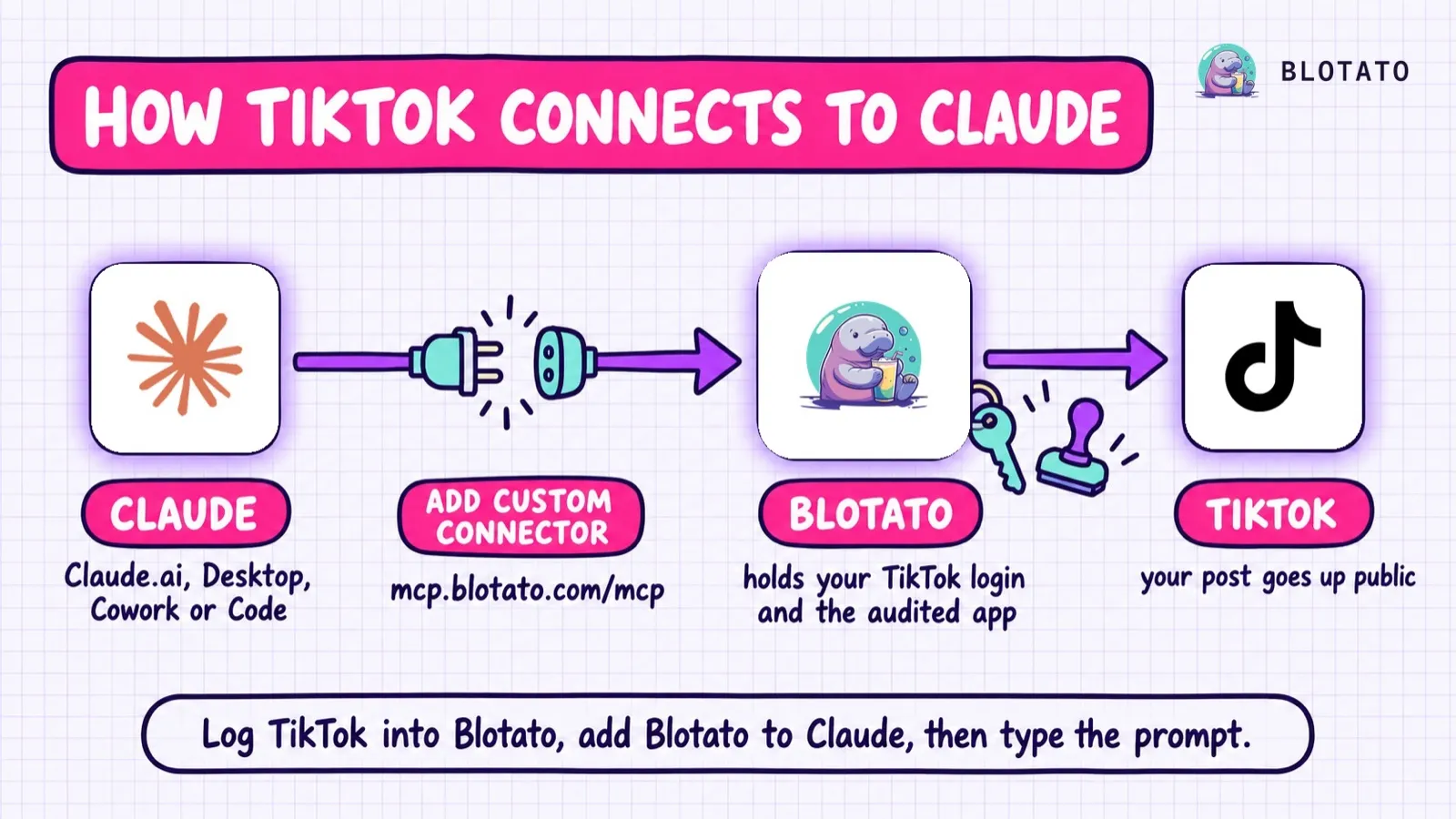
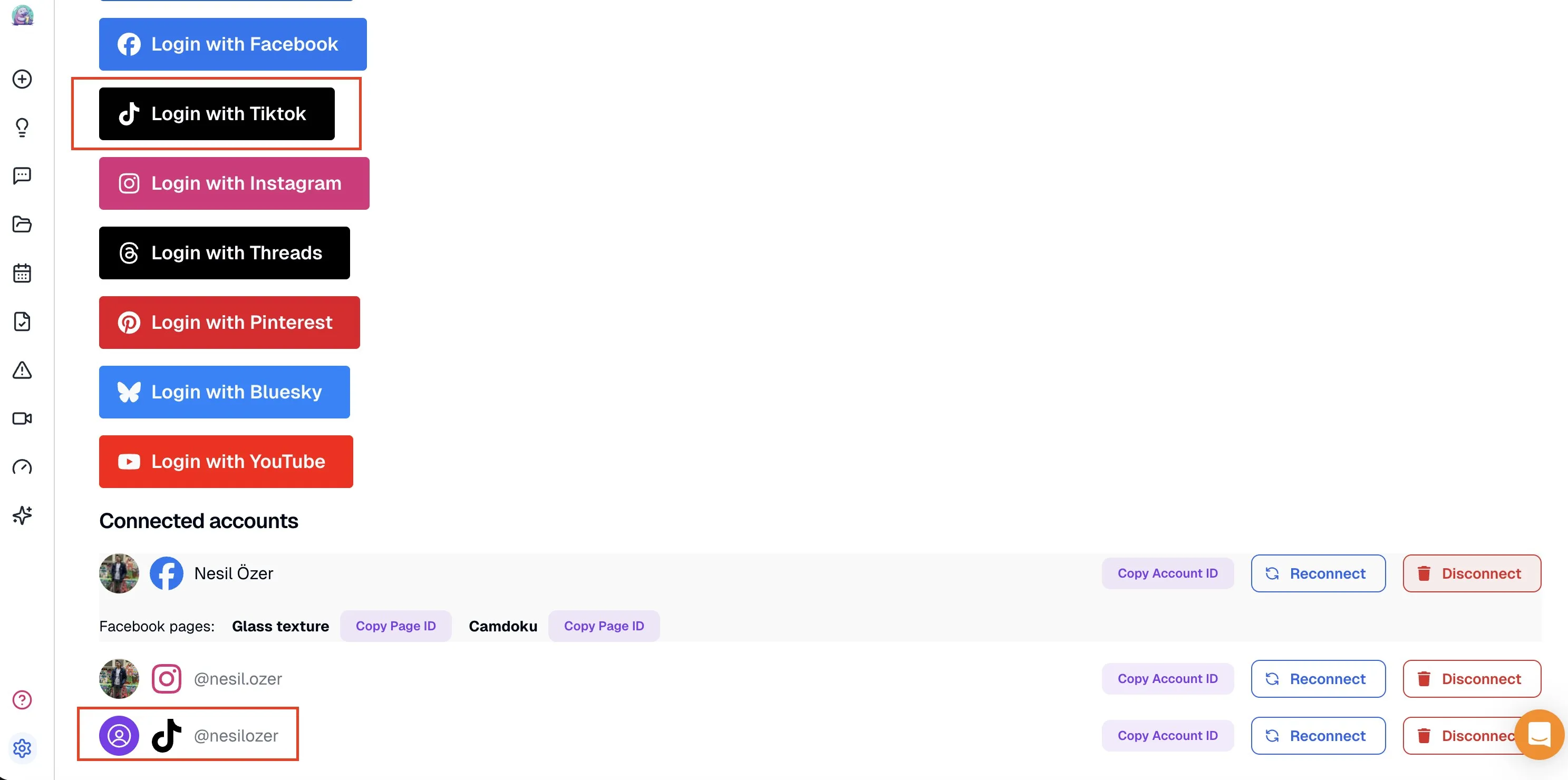
Step 1: Connect your TikTok account to Blotato
Log into Blotato, open Settings, and click Login with TikTok under your social platforms. Sign into the TikTok account you want to connect and grant the posting permissions. Blotato handles the TikTok authentication, so you never register a developer app or request the video.publish scope yourself.
Step 2: Add Blotato to Claude (Claude.ai, Desktop, or Cowork)
The three app surfaces share one flow, a custom connector added by URL:
- In the left sidebar, click Customize, then Connectors.
- Click the + button, then Add custom connector.
- Name it
Blotato. - Set the URL to
https://mcp.blotato.com/mcpand add it. - Press Connect and approve access in the browser window that opens. You need to be logged into your Blotato account in that browser for the OAuth handoff to complete.
The browser route has a shortcut: open this and the connector dialog arrives pre-filled. The connector attaches to your Claude account rather than to one device, so one added on your laptop is already there on your phone. A free Claude account gets one custom connector, which is enough for this. On a Team or Enterprise plan only a workspace owner can add custom connectors, so if the button is missing, ask whoever owns the workspace. There’s no API key to paste, because the approval happens over OAuth in your browser. Full setup steps live in Blotato’s MCP setup guide.
Step 2 for Claude Code: one command instead
If your Claude is the terminal one, skip the connector dialog. Claude Code registers the same server with one command:
claude mcp add --transport http Blotato https://mcp.blotato.com/mcpThen run /mcp inside the session, choose Blotato > Authenticate, approve access in the browser, and restart Claude Code. Blotato’s setup guide is explicit about the restart, since the server loads on startup.
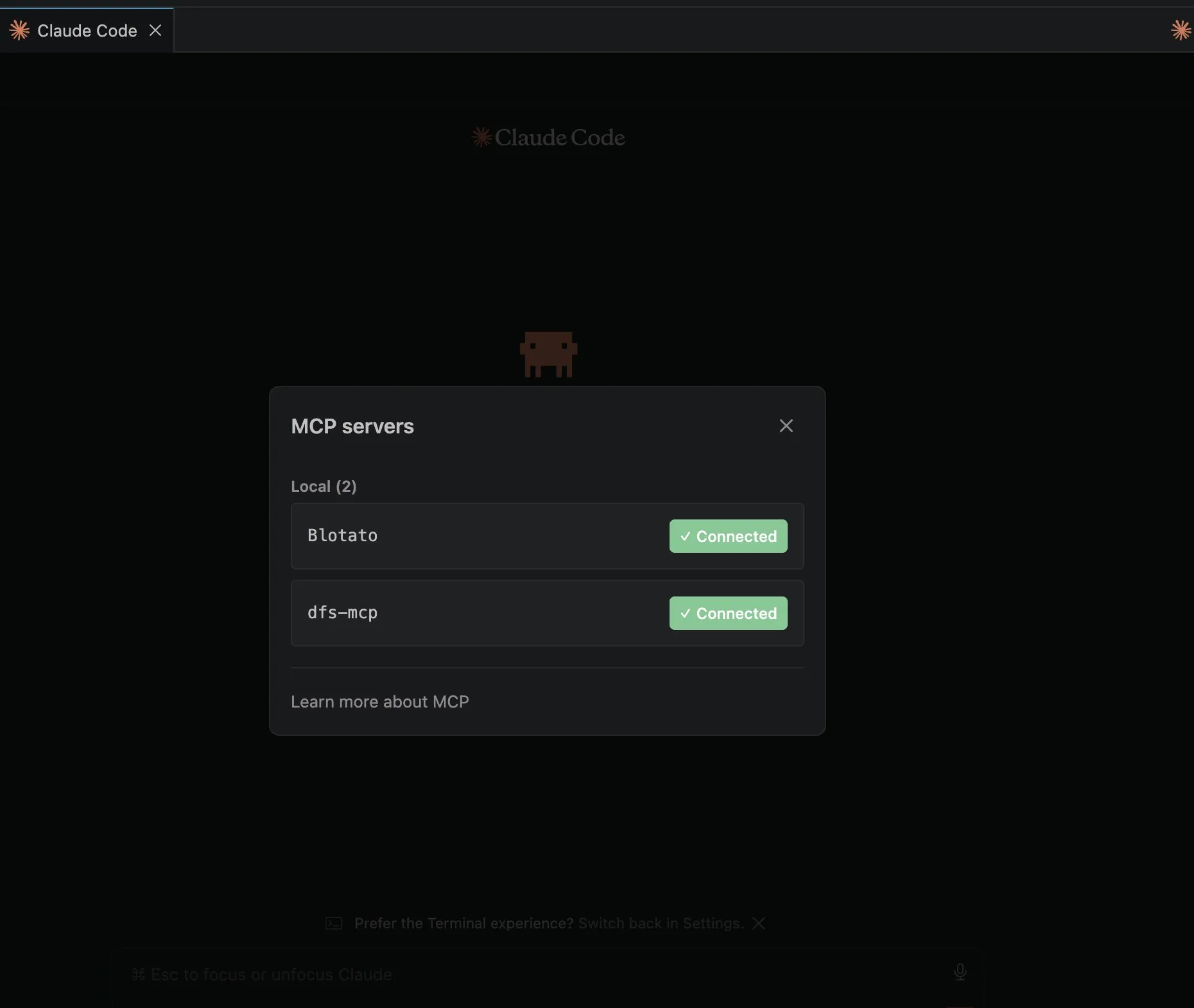
Step 3: Confirm the connection
Ask Claude, “What social media accounts do I have connected?” Claude runs the blotato_list_accounts tool and lists every platform you linked, TikTok included, each with its account ID. Once TikTok shows up in that list, Claude can publish to it. If it is missing, head back to Step 1. If the connector shows Connected but every Blotato tool returns an OAuth error, the usual cause is a Blotato subscription that is not active yet. Generating an API key in Blotato’s Settings activates the paid plan, and you do not need to paste that key anywhere for Claude.
One thing to settle before you post, because “connect TikTok to Claude” means two different things depending on who is asking. This connection is for your organic account: Claude publishes to it and reads the metrics on what it published. It does not touch TikTok Ads. For campaign reporting, TikTok runs its own TikTok for Business MCP server, which covers ads and does not publish organic videos.
How do you post to TikTok with Claude?
With the connection in place, publishing is a prompt. Here is what Claude does with it, and how to hold it back for later.
Write the prompt that publishes
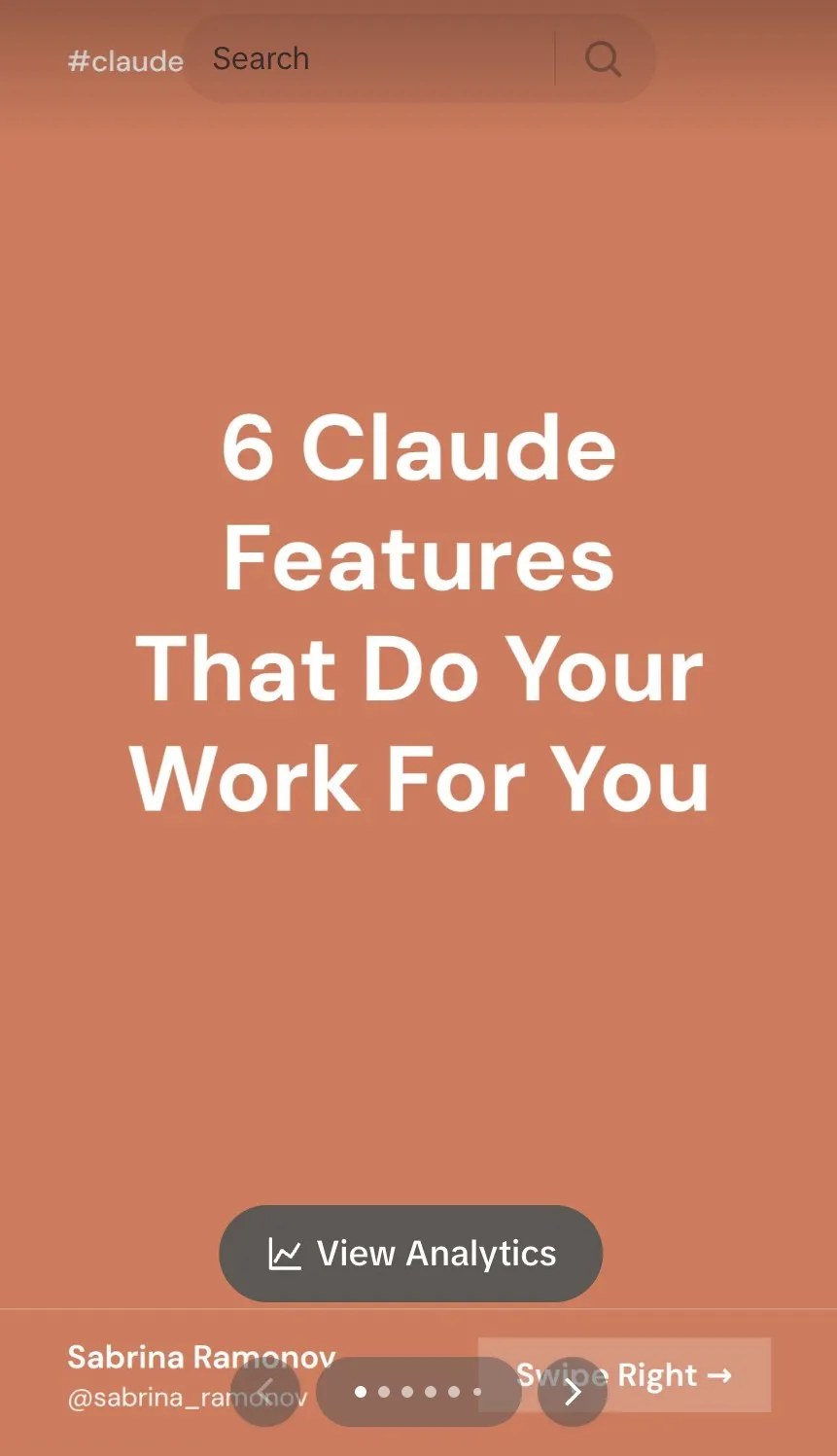
Tell Claude what to publish in plain language. A prompt like “Post this video to my TikTok with the caption: watch how this came together” is enough. Claude calls blotato_create_post with your account ID, the tiktok platform, your caption text, and the media URL. For a photo slideshow, point Claude at your JPEG or WebP files instead of a video. Media has to reach Blotato as a public URL, so if the files sit on your machine, Claude uploads them first through blotato_create_presigned_upload_url and passes the URL it gets back. Claude hands back a postSubmissionId, and you can have it call blotato_get_post_status to verify the post published. I ran exactly this to put up a slideshow, and it was live in seconds. I keep an approval step in my own workflow, so I read the caption Claude drafts before I tell it to publish.
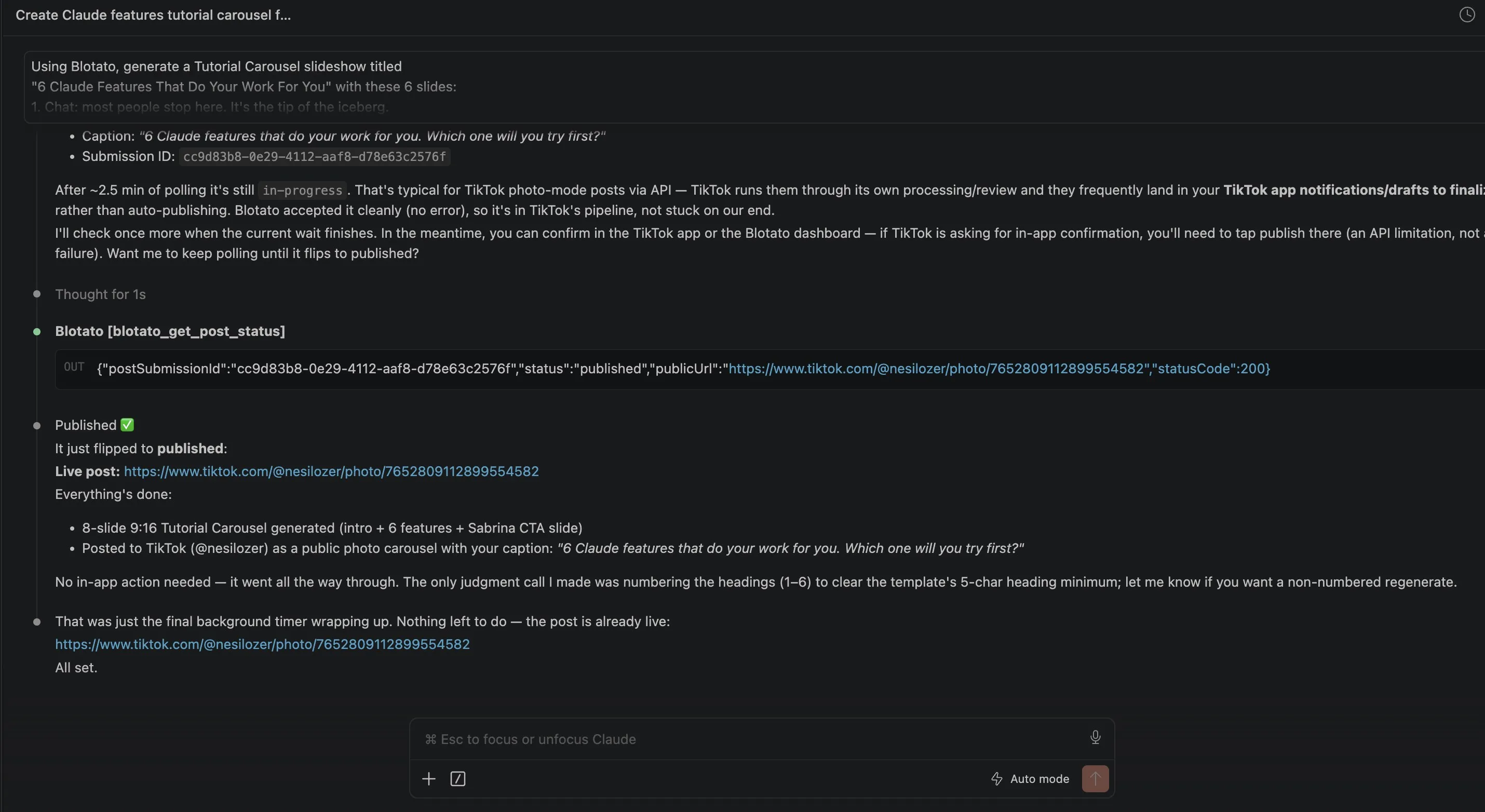
When the status returns as published, the post is live on your TikTok account.
Want Claude handling more of your content stack? See how to post to Instagram with Claude to run the same flow on Meta, post to Facebook with Claude for Pages, or how to post to YouTube with Claude for video. For the design side, creating social media posts with Claude and Canva covers the visuals, and every platform Claude can post to is on one page if you would rather wire them all at once.
Can Claude schedule the post for later?
Tell Claude “post this Saturday at 7pm” and it passes a scheduledTime through to Blotato, or ask for your next free slot and Blotato takes the next opening on your calendar. Anything queued lives in Blotato, ready to move or remove later.
There is also an isDraft option worth knowing on TikTok, and it solves a different problem than scheduling does. A draft is the right move when you want to add a trending sound or an effect that only exists inside TikTok itself. Two catches: the draft arrives as a TikTok notification on your phone, not in your Drafts folder, and the caption does not carry over, so you re-enter it in the app before publishing. Schedule when the post is finished. Send a draft when the app still has to touch it.
Which TikTok formats can Claude publish, and what does it demand?
TikTok takes two formats, and it is the one platform where a post carries mandatory content declarations alongside the media. Claude fills in whatever you state in the prompt and has to supply the rest, so it is worth knowing what it is answering on your behalf.
| Video post | Photo carousel | |
|---|---|---|
| What you attach | One video, up to 10 minutes | JPEG or WebP images, 20 MB each |
| Title field | Not used | Optional, 90 characters |
| Cover control | Timestamp of a frame | Index of a slide |
| Auto-add music | No | Optional |
| Always required | Privacy level, plus comment, duet, stitch, branded-content, own-brand and AI-generated flags | |
That bottom row is the one that catches people. Blotato requires all seven on every TikTok post, so a bare “post this to TikTok” makes Claude infer the ones you did not state. Say what you want, particularly on privacy and the AI-generated flag, rather than letting it guess.
Why not just build it against the TikTok Content Posting API?
Because of the audit. TikTok’s Content Posting API is free, but a brand-new app starts unaudited, and an unaudited app forces every video you publish to private (SELF_ONLY) no matter what visibility you asked for. Clearing the audit takes a privacy policy, a working demo video of the OAuth and upload flow, and usually a round or two of back and forth, which I broke down in the TikTok API pricing guide. It is also worth ruling out first when you are chasing posts that were never visible in the first place, because the API reports success either way.
Most pages titled “connect TikTok to Claude” solve a different problem than posting. Analytics connectors read your TikTok metrics into Claude but cannot publish a thing. Generic agent toolkits do expose TikTok actions, but each platform is its own OAuth setup on their side, and whether a post goes up public depends on whether the toolkit’s own TikTok app has cleared audit, so ask before you rely on one. Blotato connects each account once on its side, then exposes all nine platforms (TikTok, Instagram, YouTube, X, LinkedIn, Facebook, Threads, Pinterest, Bluesky) through one MCP connection. The same prompt that posts a slideshow can post that content everywhere else.
If you already run an AI video workflow, automating TikTok slideshows shows how to feed the whole pipeline into this publishing step.
What goes wrong the first time?
A few things catch people out the first time:
- Reaching for it on the trial. API and MCP access need a paid plan. One catch: generating an API key in Settings closes the trial early and starts billing you on Starter.
- Connecting a brand-new TikTok account. TikTok flags automated posting from accounts with no history. Use the account normally for at least four weeks before you link it to Blotato.
- Uploading PNG images for a slideshow. TikTok slideshows take JPEG or WebP files, not PNG. Convert your images first, or Claude hands TikTok a file it rejects.
- Running a fleet of TikTok accounts on Starter. On Starter, Blotato posts to at most 3 unique TikTok accounts in any 24-hour window, and at most 10 posts per account in that window, an anti-spam cap Blotato enforces itself. Creator and Agency have no such cap. The full list is on the posting limits page.
- Skipping the account connection. Claude has nothing to post to until the TikTok account is linked in Blotato. Ask Claude to list your accounts to check.
Conclusion
Getting Claude to post to TikTok takes two authorizations, done once, and then one prompt. Link your TikTok account in Blotato, add the MCP server in Claude, and tell Claude what to publish or schedule. No Content Posting API setup, no app audit, no unaudited-app rule forcing your videos private. Try Blotato and let Claude run your TikTok posting.
How to Post to TikTok with Claude FAQs
Can Claude post to TikTok?
Yes. Claude cannot post to TikTok on its own, but it can through the Blotato MCP server. Once you connect Blotato to Claude and link your TikTok account in Blotato, a prompt like “post this to my TikTok” tells Claude to publish through Blotato’s API. Claude.ai, Claude Desktop, Cowork and Claude Code all support it.
Can I connect TikTok to Claude?
Yes, in two parts. Link your TikTok account in Blotato’s Settings with Login with TikTok, then add Blotato to Claude: in Claude.ai, Desktop or Cowork, go to Customize, then Connectors, click +, choose Add custom connector, and enter https://mcp.blotato.com/mcp. In Claude Code, one claude mcp add command does the same. Approve access once and posting is live.
Do you need the TikTok API to post to TikTok with Claude?
No. Blotato handles the TikTok authentication on its side, so you never register a developer app, request the video.publish scope, or pass TikTok’s app audit yourself. You link your TikTok account once in Blotato, and Claude publishes through Blotato instead of going direct to the Content Posting API.
Does Claude have a TikTok integration?
Not a native one. Claude reaches TikTok through an MCP server rather than a built-in connector. Blotato’s MCP server (https://mcp.blotato.com/mcp) already runs on an audited TikTok app, so a prompt like “post this to my TikTok” goes out public without you filing an audit.
Can Claude view TikToks?
Not by browsing TikTok, no. Through Blotato it can do two things with existing videos: read the views, likes and comments on posts it published to your account, and take a TikTok URL as a source, where Blotato extracts the video’s content so Claude can write from it. Neither requires the TikTok app to be open.
Does this connect TikTok Ads to Claude?
No. Blotato’s connection covers your organic TikTok account only. Ads Manager is a separate system with its own TikTok for Business MCP server for campaign reporting, and that server does not post organic videos, so the two do not overlap.
Can Claude post photo slideshows to TikTok?
Yes. TikTok supports both video and photo slideshows, and Blotato publishes either one. Point Claude at your image files instead of a video and it posts a slideshow. TikTok slideshows need JPEG or WebP images, not PNG, so convert any PNG files before you post.
Can Claude schedule TikTok posts for later?
Yes. Add a time to the prompt and Claude schedules through Blotato rather than posting immediately. Name the time yourself or take Blotato’s next free slot. It waits in your Blotato calendar, editable or removable until it publishes.
Does Claude need my TikTok password?
No. TikTok’s own OAuth screen issues a scoped token to the connecting app, so your password never passes through the chain. Claude sees Blotato’s tools, never your TikTok credentials.
Will TikTok flag posts published this way as automated?
Posts go out through TikTok’s official Content Posting API, the same mechanism every legitimate scheduling tool uses, and TikTok publishes no rule that labels or downranks API-published posts. What does carry documented risk is browser automation that drives the TikTok UI, since that generally violates platform terms, and connecting a brand-new account before it has any history.
Can Claude read my TikTok analytics too?
Yes. TikTok is one of the eight platforms Blotato collects published-post metrics for, so after a video goes live you can ask Claude for its views, likes, and comments without opening the TikTok app. LinkedIn is the one network that still returns nothing.
What does this cost?
Pricing sits at $29/mo flat for 20 connected accounts and does not move with posting volume. Budget for a paid month rather than a trial, because the API sits outside the 7-day window and creating a key starts Starter billing immediately.
For the reference version of this setup, including every TikTok action Claude can call, see the TikTok MCP server page.