How to Post YouTube Videos & Shorts with Claude
Upload videos and Shorts to YouTube from Claude, skipping the Google Cloud project and API audit. Covers the fields YouTube requires.
You can post to YouTube with Claude by connecting the Blotato MCP server to Claude once, then typing a prompt like “post this video to my YouTube.” Claude calls Blotato, Blotato publishes to your YouTube channel, and you skip the Google Cloud project, the OAuth consent screen, and YouTube’s API audit entirely. I’m the founder, so take this with whatever grain of salt feels right, but this is exactly how I post to my own accounts across 3M+ followers and 500M+ views.
YouTube is the heaviest lift of any platform in this series, because an upload is not a string of text, it is a file plus a set of required metadata plus a quota YouTube grants you. Claude can produce the title and description. It cannot hold the OAuth credentials or spend the quota. Something has to, and the only real decision is whether that something is a Google Cloud project you maintain or a service that already passed the audit.
Route 1, build it yourself: wire the YouTube Data API into your own server and hold the credentials. Free, fully under your control, and slower to get running.
Route 2, connect a hosted MCP server: point Claude at a server that already passed YouTube’s API audit and carries its own quota. Minutes to set up, and the same connection covers other networks.
| Build it yourself (YouTube Data API) | Hosted MCP server | |
|---|---|---|
| Setup time | Days to weeks, gated by API audit | Minutes |
| Developer app required | Yes, plus a Google Cloud project | No |
| Upload quota | Daily quota you manage yourself | Handled by the provider |
| Scheduling | You build the queue | Included |
| Other networks | A separate integration per platform | Usually one connection for all |
| Cost | Free, plus your engineering time | Subscription, from $29/mo |
This walkthrough takes Route 2, on Blotato’s MCP server.
Going direct to YouTube is the heaviest route of any platform I publish to, for reasons I break down in the section below. Routing through Blotato skips that whole developer setup. One connection lets Claude publish to YouTube plus eight more platforms, nine in total.
What do you need to connect Claude to YouTube?
A few things have to be in place before Claude can post anything to YouTube:
- A paid Blotato plan. The MCP server ships with Blotato’s API, and the API comes with every paid tier (Starter $29/mo, Creator $97/mo, Agency $499/mo). The free trial does not include API or MCP access.
- A connected YouTube channel inside Blotato. Add it under Settings before you write your first prompt.
- A hosted video file. YouTube needs an actual video, so have your clip at a public URL ready for Claude to hand off.
- Claude Desktop or Claude Code. The same MCP server works in either one.
How do you post to YouTube with Claude?
The setup runs from connecting your channel to firing the prompt that publishes your video. Four steps, plus an optional fifth for scheduling.
For the reference version of this setup, including every YouTube action Claude can call, see the YouTube MCP server page.
Step 1: Connect your YouTube account
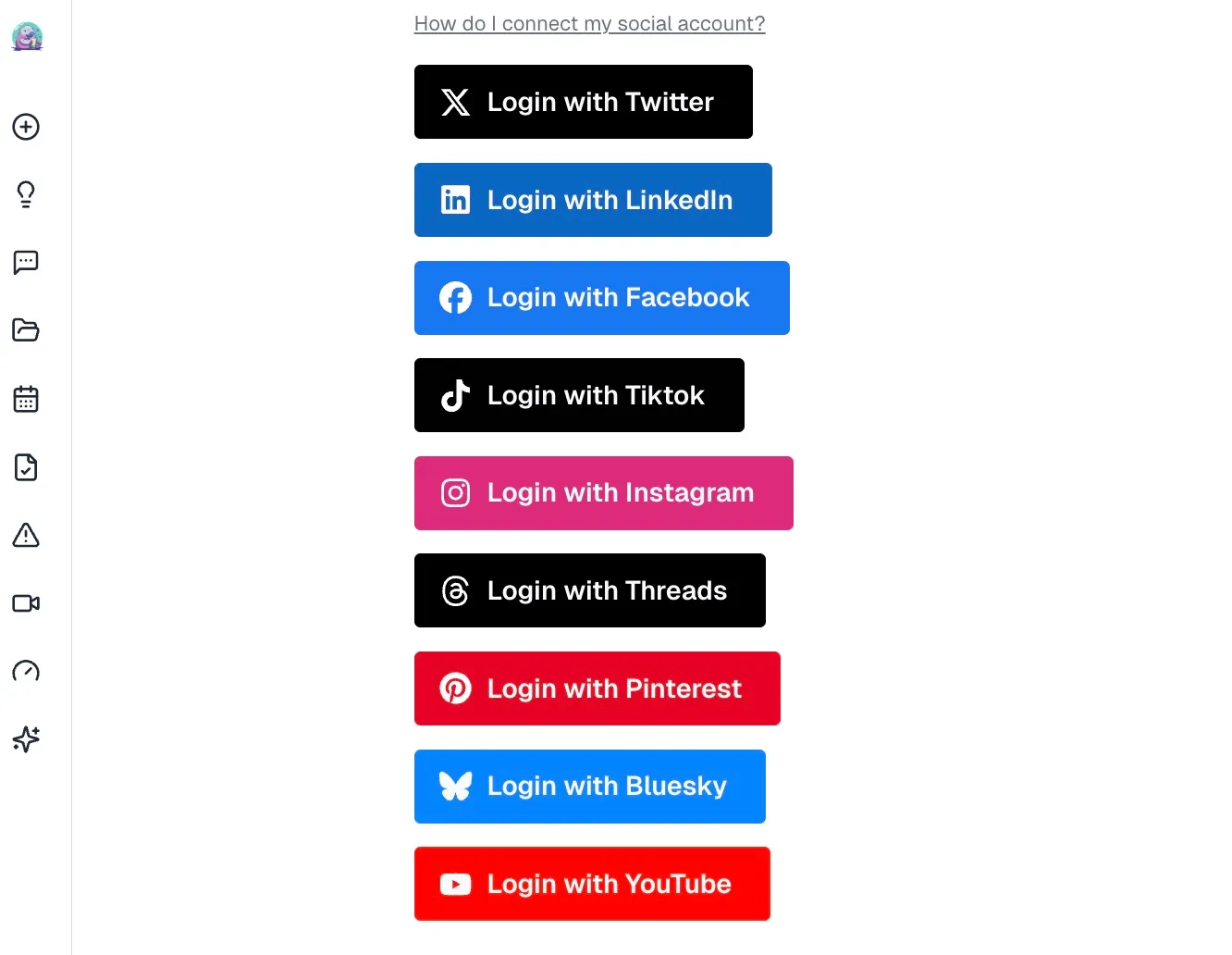
Log into Blotato, open Settings, and connect your YouTube channel under your social platforms. Click “Login with YouTube,” sign into Google, and grant the upload permission. Blotato handles the YouTube authentication, so you never create a Google Cloud project or configure your own OAuth consent screen. That single connection is what frees Claude to publish later without any developer setup on your end.
Step 2: Add the MCP server to Claude
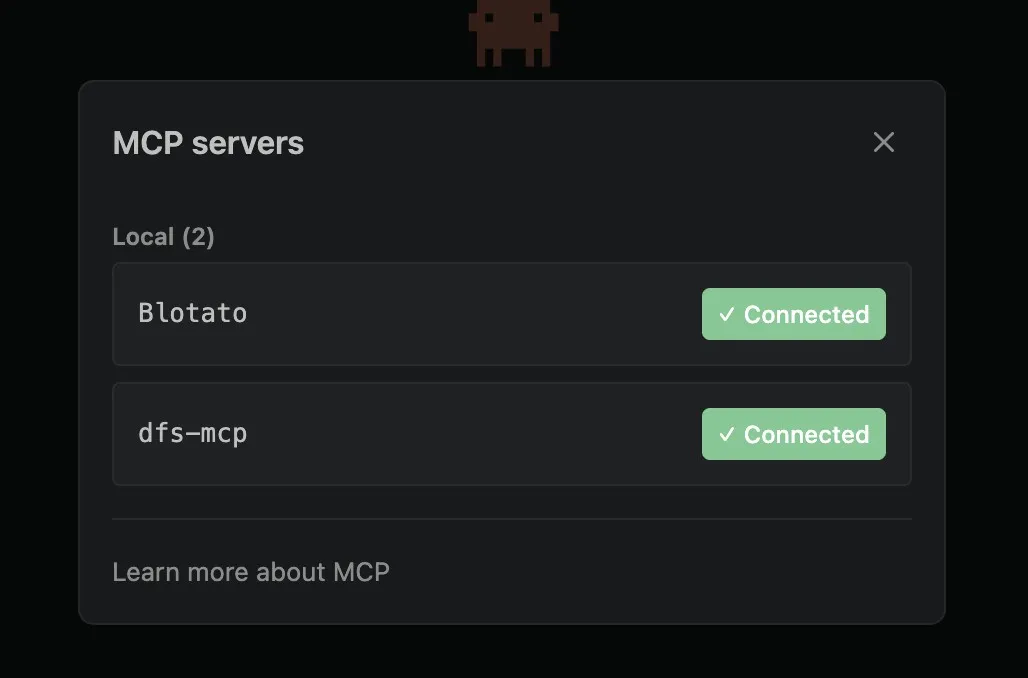
Connect the Blotato MCP server to Claude. In Claude Desktop, open Customize, head to Connectors, and create a custom connector pointing at https://mcp.blotato.com/mcp. In Claude Code, run the command below, then /mcp, choose Blotato > Authenticate, and approve.
claude mcp add --transport http Blotato https://mcp.blotato.com/mcpYou only ever do this once per Claude account. Adding Blotato through this link on Claude.ai registers it for Claude.ai, Desktop, and Cowork together, so uploading from your phone later needs no further setup.
You never copy an API key, the whole connection rides on your logged-in browser session. The upload call is identical from Claude Code, but the setup is one terminal command rather than a connector dialog, so it lives on the Claude Code setup reference. The full walkthrough is in Blotato’s MCP setup guide.
Step 3: Confirm the account is visible
Ask Claude to show your Blotato accounts. Claude runs the blotato_list_accounts tool and returns every platform you connected, YouTube included, each with its account ID. Seeing YouTube in that list confirms Claude can publish to it. If it is not there, go back to Step 1.
Step 4: Write the prompt that publishes
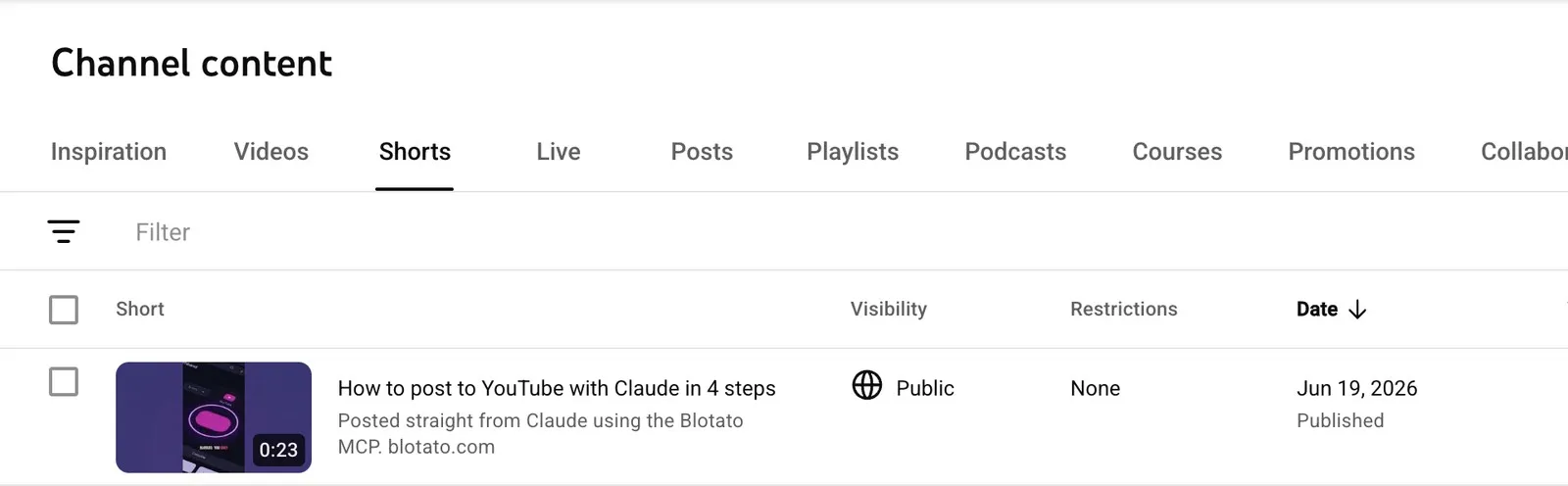
Tell Claude what to publish in plain language. A prompt like “Post this video to my YouTube with the title: how I built my faceless video factory” is enough. Claude calls blotato_create_post with your account ID, the youtube platform, your title, the description text, and the video URL. The title field becomes your YouTube video title and the post text becomes the description. If your video runs under three minutes and is vertical (9:16), Blotato posts it as a YouTube Short automatically. Claude hands back a postSubmissionId, and you can have it call blotato_get_post_status to confirm the video published. I often make these videos in the same place I post them, rendering motion graphics in Claude Code and then telling Claude to publish the file to YouTube without switching tools. I keep an approval step, so I read the title and description Claude drafts before it goes live.
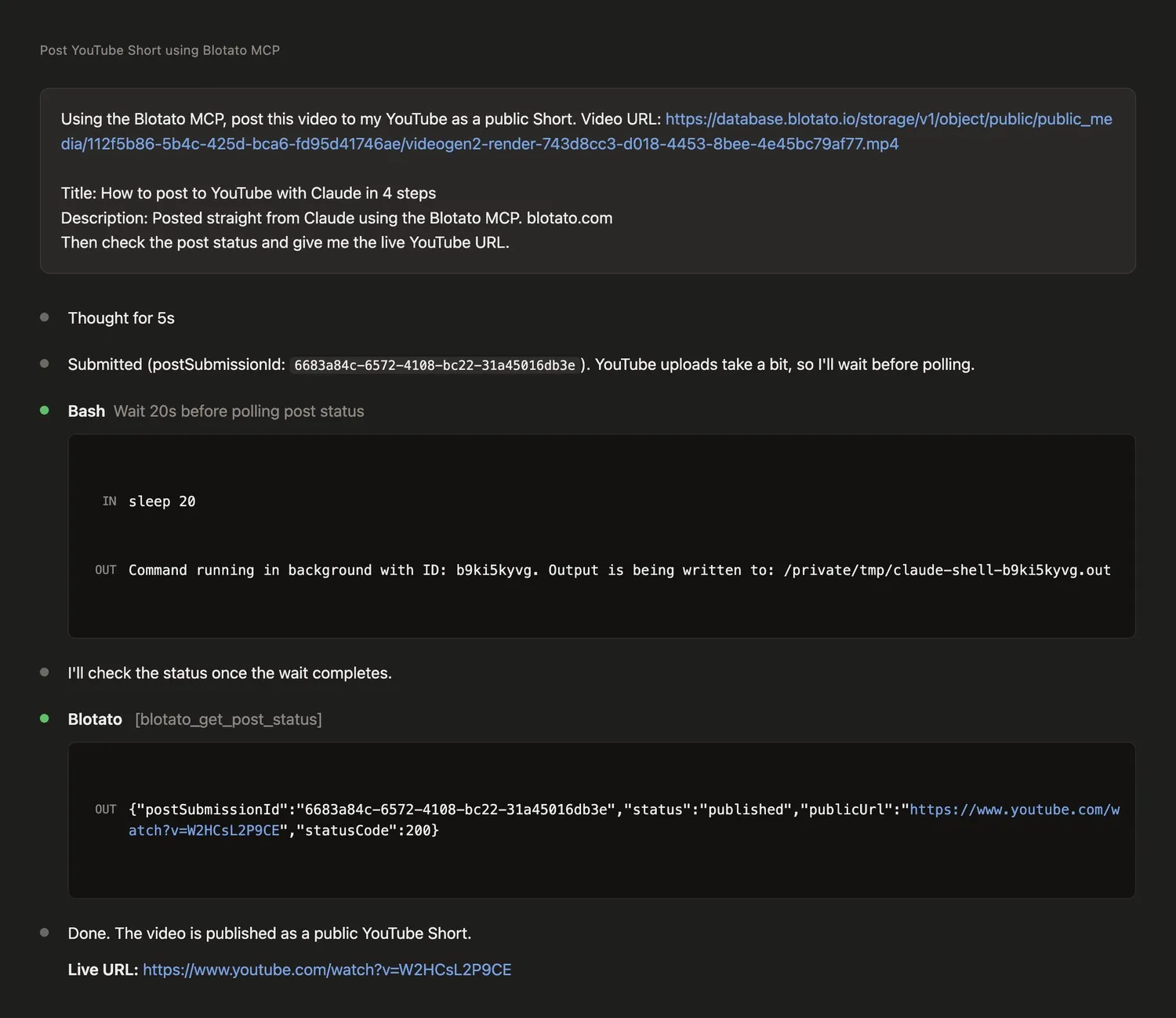
When the status returns as published, the video is live on your YouTube channel.
Want Claude handling more of your content stack? See how to post to TikTok with Claude to run the same flow on TikTok, or how to make AI videos with Claude Code for the part that creates the video in the first place.
Step 5: Can Claude schedule the post for later?
Say “publish this Monday morning at 8” and Claude passes a scheduledTime to Blotato, or ask for your next free slot and it takes the next open spot on your calendar. Scheduled videos live in Blotato, where you can move or delete them later.
YouTube gives you a second, sharper option worth knowing about: upload the video now as private or unlisted and flip it public when you are ready. That gets the file processed and the thumbnail settled ahead of time, so a premiere or launch does not depend on an upload finishing on schedule. Scheduling the publish and scheduling the upload are different things on YouTube, and for anything with a real launch time you want the first.
Ready to post to YouTube straight from Claude? Start with Blotato and connect the MCP server in a couple of minutes.
Videos, Shorts, and the fields YouTube insists on
YouTube treats the format as something it works out for itself, and treats the metadata as something you must supply.
| Standard video | Short | |
|---|---|---|
| Title | Required, up to 100 characters | |
| Privacy status | Required: private, public or unlisted | |
| Notify subscribers | Required, true or false | |
| Description | Comes from your post text, up to 5,000 characters | |
| Custom thumbnail | Optional, needs a verified channel | |
| Playlists | Optional, by playlist ID | |
Two things are worth flagging. Tags are not supported at all, so anything you would have put there belongs in the description. And uploads are capped at 10 per channel per 24 hours on Starter and 25 on Creator. Those two numbers are Blotato’s, tiered by plan, with YouTube’s own ceiling sitting above them. Worth knowing if you are bulk-loading a back catalogue.
How do you get better results from YouTube posts?
A few things make the posting step smoother once you do it regularly:
- Let Claude draft the title and description from the video. Point it at the clip and ask for both before you post, then edit. It is faster than writing them from scratch, and Claude can match the tone of your last few uploads.
- Put your links in the description. Ask Claude to fold your usual call to action and links into the description text, since that becomes the YouTube description verbatim. It saves pasting them in after the video is live.
- Confirm it actually published. Have Claude run
blotato_get_post_statusafter posting. It comes back as published once the video is live, so you are not left guessing whether the post queued or went out.
Why not just build it against the YouTube Data API?
The Blotato MCP server skips the Google Cloud setup and the audit that stop most people from getting Claude to post to YouTube directly. The YouTube Data API is free, but going direct means you register a Google Cloud project, enable the Data API, configure the OAuth consent screen, and pass YouTube’s API Services audit before you get more than the default quota. YouTube’s revision history says uploads from unverified projects created after 28 July 2020 are locked to private until the project passes that audit. As of 8 October 2026, the reference page for the API’s upload endpoint says they are not restricted to private viewing mode, and the revision history lists no change, so check a test upload before you rely on either. I broke the access and quota picture down in the YouTube API pricing guide, and that audit wall is the exact reason I built a wrapper for myself in the first place.
Most other “connect YouTube to Claude” tools solve a different problem than publishing. Analytics connectors read your YouTube metrics into Claude but cannot upload a thing. Developer toolkits wire YouTube into your own code, which means standing up the Google Cloud project anyway before you post once. Single-platform skills publish to YouTube and nothing else, so YouTube, TikTok, and Instagram turn into three separate setups. Blotato connects each account once on its side, then exposes all nine platforms (YouTube, TikTok, Instagram, X, LinkedIn, Facebook, Threads, Pinterest, Bluesky) through one MCP connection. The same prompt that posts a video can post that content everywhere else.
If you produce videos faster than you publish them, how to automate social media with Claude Cowork shows how to feed the whole pipeline into this publishing step.
What goes wrong the first time?
A handful of things trip people up on the first try:
- Going in on the free trial. MCP and API access run on paid plans only. Heads up too: generating an API key in Settings ends the trial right then and starts your paid Starter plan.
- Forgetting the video URL. YouTube needs an actual video file at a public URL. Point Claude at the hosted clip, not a text caption on its own.
- Pushing too many uploads at once. YouTube enforces a per-channel daily upload cap through the API, separate from the daily API quota, and it applies through Blotato too, so space out a big batch rather than firing them all at once.
- Skipping the channel connection. Claude cannot post to a YouTube channel that is not connected in Blotato first. Run “list my Blotato accounts” to check.
Conclusion
Getting Claude to post to YouTube takes one connection and one prompt. Link your YouTube channel in Blotato, add the MCP server in Claude Desktop or Claude Code, and tell Claude what to publish or schedule. No developer project to register and no API audit to pass. Try Blotato and let Claude run your YouTube posting.
How to Post to YouTube with Claude FAQs
Can Claude post to YouTube?
Yes. Claude cannot post to YouTube on its own, but it can through the Blotato MCP server. After you connect Blotato to Claude and link your YouTube channel in Blotato, a prompt like “post this to my YouTube” tells Claude to publish through Blotato’s API. It works in Claude Desktop and Claude Code.
How do I connect Claude to YouTube?
There are two connections. Link your YouTube channel in Blotato under Settings, then add Blotato’s MCP server (https://mcp.blotato.com/mcp) to Claude, as a custom connector in Desktop or with a single claude mcp add command in Code. Approve access and Claude can publish to that channel.
Does Claude have a YouTube integration?
Not a native one. Claude reaches YouTube through an MCP server rather than a built-in connector. Blotato’s MCP server (https://mcp.blotato.com/mcp) is that bridge, and because Blotato’s client is already audited by YouTube, your uploads publish at the visibility you set. Going direct, YouTube’s revision history says an unaudited Google Cloud project’s uploads are locked to private, though its upload reference now says they are not restricted, so the audit is the wall to plan around.
Do you need the YouTube API to post to YouTube with Claude?
No. Blotato handles the YouTube authentication on its side, so you never register a Google Cloud project, configure an OAuth consent screen, or pass YouTube’s API Services audit yourself. You link your channel once in Blotato, and Claude publishes through Blotato instead of going direct to the YouTube Data API.
Can Claude post YouTube Shorts?
Yes. Blotato detects Shorts automatically from the video itself. If your clip runs under three minutes and is vertical (9:16), Blotato publishes it as a YouTube Short rather than a standard video. You post it with the same prompt either way, so you do not flag the format yourself.
Can Claude schedule YouTube videos for later?
Yes. Give Claude a time and it sends that scheduled time to Blotato rather than uploading right away. Name an exact slot or let Blotato take the next free gap on your calendar. The video waits in Blotato, where you can reschedule or delete it before it goes live.
Does Claude need my YouTube password?
No. Google’s OAuth consent screen returns a scoped token for the connecting app, so your Google account password never leaves Google. Claude only sees the upload tools the MCP server exposes, never your login.
Will YouTube flag posts published this way as automated?
YouTube’s documents state no automation label for uploads through its Data API, though its own pages disagree on whether uploads from unverified API projects stay private until an audit. There is one disclosure that genuinely matters on YouTube, and it is unrelated to scheduling: if the video contains realistic altered or synthetic content, it needs the synthetic-media declaration, which is a content rule rather than a publishing one. Non-realistic content and minor edits do not need it.
Can Claude read my YouTube analytics too?
Yes. Blotato pulls published-post metrics for YouTube alongside seven other platforms, so you can ask Claude how an upload performed once it is live. LinkedIn is the only network where metrics still come back empty.
What does this cost?
YouTube asks for more per upload than any other platform here, and it is worth knowing which fields are not optional: a title, a privacyStatus of private, public or unlisted, and an explicit choice about whether to notify subscribers. Say “upload this as unlisted and don’t notify subscribers” and all three are covered. Leave them out and Claude has to ask, which is the correct behavior rather than a bug. Two more that catch people: the description comes from the post text rather than a separate field, tags are not supported at all, and a custom thumbnailUrl only works on a channel YouTube has verified.
Pricing is the flat part of an otherwise fiddly platform: $29/mo for 20 connected accounts regardless of upload volume. The trial will not help you evaluate this, though. It covers the web app and not the API, so the moment you generate a key the trial closes and Starter billing begins.
For the reference version of this setup, including every YouTube action Claude can call, see the YouTube MCP server page.